
How to Move Android Applications to SD Card Without Root
Are you tired of running out of space on your Android device? Do you have too many apps installed, but not enough storage to go around? Look no further! In this article, we’ll show you how to move Android applications to an SD card without needing root access.
What is Moving Applications?
Moving applications is the process of transferring apps from your device’s internal memory to an external storage device, such as a microSD card. This can be done to free up space on your device and improve its overall performance.
Method 1: Moving Apps Without Root
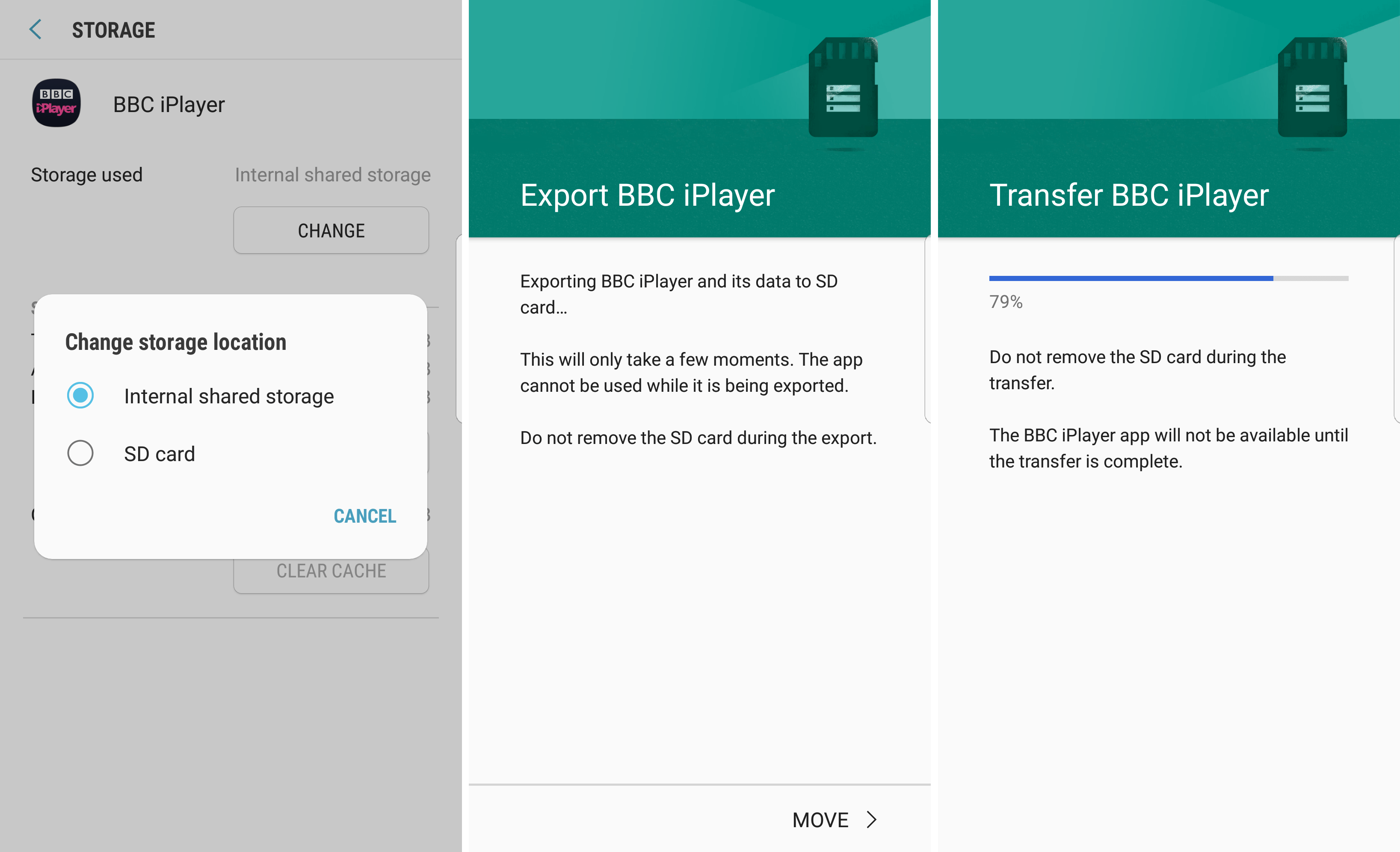
Some versions of Android have a built-in feature that allows you to move apps directly from the settings menu. To do this:
- Open the Settings app on your device.
- Tap on the “App & notifications” or “Manage apps” option, depending on your device’s manufacturer.
- Select the “Display all apps” option.
- Find the app you want to move and tap on it.
- Tap on the “Move to SD card” button.
That’s it! If you see this option, congratulations – you can move apps without root access!
Method 2: Formatting The Microsd Card as Extended Memory
If the above method doesn’t work for you, don’t worry! You can still move apps by formatting your microSD card as an extended memory. This will allow you to choose which apps are stored on the SD card and which ones remain on your device.
To do this:
- Open the Settings app on your device.
- Tap on the “Storage” or “Memory” option.
- Select the microSD card from the list.
- Tap on the three dots (…) At the top right corner of the screen.
- Select the “Format as internal memory” option.
- Confirm that you want to format the SD card.
This will delete all data on your microSD card, so be sure to back up any important files before proceeding!
Method 3: Moving Apps With Root
If you have root access on your device, you can move apps using a dedicated app called Link2SD. This method is a bit more complicated, but it’s still doable.
To use this method:
- Download and install the Link2SD app from the Play Store or an alternative marketplace.
- Open the Link2SD app and grant it root access.
- Select the app you want to move and tap on the “Move to SD card” button.
- Confirm that you want to move the app.
Some apps, such as pre-installed system apps, may not be compatible with this method.
Conclusion
Moving Android applications to an SD card is a simple process that can help free up space on your device and improve its overall performance. Whether you choose to use Method 1, Method 2, or Method 3, we hope this article has provided you with the information you need to get started!
Faqs
Q: Can I move apps without root access?
A: Yes, some versions of Android have a built-in feature that allows you to move apps directly from the settings menu.
Q: Will moving apps affect my device’s performance?
A: No, moving apps should not affect your device’s performance. In fact, it can help improve it by freeing up space on your internal memory!
Q: Can I use Method 2 to move system apps?
A: No, you should avoid using Method 2 to move system apps, as this may cause instability on your device.
Q: What is Link2SD and how does it work?
A: Link2SD is a dedicated app that allows you to move apps from your device’s internal memory to an external storage device, such as a microSD card. It uses root access to achieve this.
Q: Will moving apps delete my data?
A: No, moving apps should not delete any of your data. However, be sure to back up any important files before proceeding with Method 2!
Q: Can I use an SD card larger than 32GB?
A: Yes, you can use an SD card larger than 32GB, but ensure that it is compatible with your device’s specifications.
Q: Will moving apps affect my app performance?
A: No, moving apps should not affect their performance. However, some apps may experience issues if they are not optimized for external storage devices.


