
Activating Sky Go on Your Tablet: A Step-by-step Guide
Are you excited to access your favorite TV shows and sports events on the go? With Sky Go, you can enjoy a wide range of content, including live TV, movies, and original shows, directly on your tablet. In this article, we will guide you through the process of activating Sky Go on your Android or iPad device.
Pre-requisites
Before diving into the activation process, it’s essential to understand that Sky Go is a service available for free to all Sky subscribers. If you’re not already a subscriber, you can sign up for a subscription on the Sky website. Once you have subscribed, follow these steps to activate Sky Go on your tablet.
Activating Sky Go on Android Tablet
To activate Sky Go on your Android device, follow these simple steps:
- Download And Install The Sky Go App: Open the Play Store app on your tablet, search for “Sky Go” in the search bar, and download the app.
- Sign In With Your Sky ID: Launch the Sky Go app, tap on the “Access” button, and sign in using your Sky ID and password.
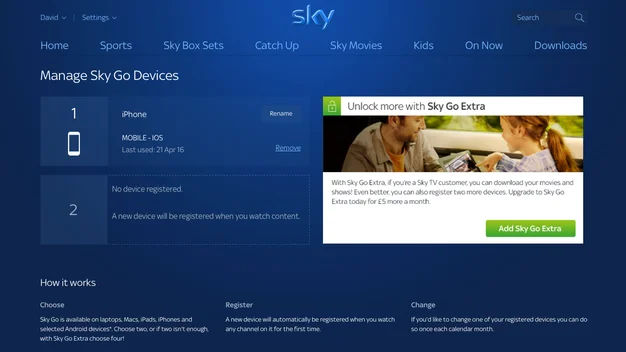
- Add Your Device to Sky Go: Once you’re signed in, tap on the “Promotions” tab, select the “Sky Go” option, and add your device to your Sky Go account.
Activating Sky Go on Ipad
To activate Sky Go on your iPad, follow these steps:
- Download And Install The Sky Go App: Open the App Store app on your iPad, search for “Sky Go” in the search bar, and download the app.
- Sign In With Your Sky ID: Launch the Sky Go app, tap on the “Access” button, and sign in using your Sky ID and password.
- Add Your Device to Sky Go: Once you’re signed in, select the “Sky Go” option from the menu, and add your device to your Sky Go account.
How Sky Go Works
With Sky Go, you can access a wide range of content, including live TV, movies, and original shows. You can also download content for offline viewing using the “Download & Play” feature. Sky Go is available on multiple devices, including smartphones, tablets, computers, and smart TVs.
Benefits of Using Sky Go
Using Sky Go offers several benefits, including:
- Convenience: Access your favorite TV shows and sports events anywhere, anytime.
- Flexibility: Watch content on multiple devices, including smartphones, tablets, computers, and smart TVs.
- Personalization: Create a personalized experience by adding channels and shows to your favorites list.
Conclusion
Activating Sky Go on your tablet is a straightforward process that can be completed in just a few steps. By following the guide above, you’ll be able to access a wide range of content, including live TV, movies, and original shows, directly on your device. Whether you’re a seasoned Sky subscriber or new to the service, this guide has got you covered.
Frequently Asked Questions (FAQs)
- What is Sky Go?
Sky Go is a free service available to all Sky subscribers that allows users to access live TV, movies, and original shows on multiple devices. - How do I Activate Sky Go on my Tablet?
To activate Sky Go on your tablet, download the app from the Play Store or App Store, sign in with your Sky ID and password, and add your device to your Sky Go account. - Can I Watch Sky Go Content Offline?
Yes, you can download content for offline viewing using the “Download & Play” feature. - How Many Devices Can I Add to my Sky Go Account?
You can add up to 4 devices to your Sky Go account at any given time. - Is Sky Go Available on Multiple Platforms?
Yes, Sky Go is available on multiple platforms, including smartphones, tablets, computers, and smart TVs.
Bonus Tip
If you’re having trouble activating Sky Go on your device, try restarting your tablet or iPad to ensure that all settings are updated correctly.
I hope this article has helped you understand the process of activating Sky Go on your tablet. If you have any further questions or concerns, don’t hesitate to reach out!


