
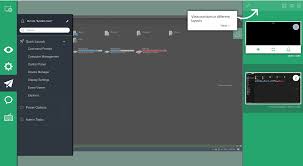
Remote Assistance: The Ultimate Solution For PC Troubles
Are you tired of dealing with pesky computer problems? Do you wish there was a way to get help from a tech-savvy friend without them having to physically visit your location? Look no further than remote assistance! In this article, we’ll explore the world of remote assistance and show you how to share your PC’s monitor in real-time with friends or family members who can guide you through any issues.
What is Remote Assistance?
Remote assistance is a feature that allows one user to access and control another user’s computer remotely. This means that if you’re experiencing technical difficulties, you can call upon a friend or family member who has the necessary expertise to help you troubleshoot the problem without having to physically intervene.
Why Use Remote Assistance?
There are several reasons why remote assistance is an invaluable tool:
- Convenience: No more waiting for hours or even days for someone to visit your location. With remote assistance, you can get help in real-time.
- Cost-effective: No need to pay for physical visits or travel costs when a friend or family member can assist you remotely.
- Expertise: Get access to expert advice without having to spend hours researching online.
How Does Remote Assistance Work?
Remote assistance works by allowing one user (the helper) to connect to another user’s computer (the hider) using specialized software. Once connected, the helper can view and control the hider’s desktop remotely, making it possible to troubleshoot problems or provide guidance in real-time.
Which Software Can I Use For Remote Assistance?
There are several software options available for remote assistance:
- Teamviewer: A popular choice with a wide range of features, including file transfer and chat functionality.
- Anydesk: Another well-known option that offers high-quality video transmission and control.
- Logmein: A secure and reliable solution that’s perfect for business users.
Other Programs to Share The Monitor
Beyond TeamViewer and AnyDesk, there are other programs that can help you share your PC’s monitor with others:
- Showmypc: A free program available in Java that allows remote access to computers.
- Chrome Remote Desktop: A simple and easy-to-use solution that lets users connect remotely using the Google Chrome browser.
Getting Started With Remote Assistance
To get started, you’ll need to:
- Choose a software option that suits your needs.
- Download and install the software on both devices (the helper’s and the hider’s).
- Set up remote access by entering the necessary details (e.G., Passwords or IDs).
Common Faqs
- Q: Can I Use Remote Assistance For Commercial Purposes?
A: Some software options, like TeamViewer, offer commercial licenses that can be purchased for a fee. - Q: Is Remote Assistance Secure?
A: Most remote assistance software uses robust security protocols to protect user data and prevent unauthorized access. - Q: Can I Use Remote Assistance on Mobile Devices?
A: Yes, many remote assistance software options offer mobile apps that allow users to connect remotely using smartphones or tablets.
Conclusion
Remote assistance is a game-changer for anyone dealing with computer problems. By sharing your PC’s monitor in real-time with friends or family members who can guide you through issues, you can save time and get expert advice without the need for physical intervention. With this article, we’ve provided an overview of remote assistance and explored various software options that make it possible.


