
The Ultimate Guide to Posting on Instagram: A Step-by-step Tutorial
Are you tired of feeling left out when it comes to posting on Instagram? Do you struggle with creating engaging content that showcases your personality and style? Look no further! In this comprehensive guide, we’ll take you through the basics of posting on Instagram, from sharing photos and videos to utilizing features like music, text overlays, and more.
Getting Started
Before we dive into the nitty-gritty details, let’s get one thing straight: Posting on Instagram is easier than ever. With the app’s user-friendly interface and a plethora of features at your disposal, you’ll be well on your way to becoming an Instagram pro in no time.
Posting Photos And Videos
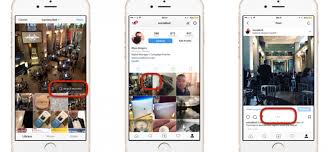
So, how do you post photos and videos on Instagram? It’s simpler than you think! Here are the basic steps:
- Open The App: Tap the Instagram icon on your smartphone or open the app on your PC.
- Log in: Enter your username and password to access your account.
- Create a New Post: Tap the “+” icon located at the top right corner of the screen.
- Select a Photo or Video: Choose an image from your gallery or record a new one using the camera app.
- Edit The Content: Use Instagram’s built-in editing tools to adjust the brightness, contrast, and more.
- Add Text Overlays: Type out a caption or add a few words of encouragement using Instagram’s Text feature.
- Share: Tap the “Share” button to post your photo or video for all your followers to see!
Posting on Instagram With Music
In 2022, Instagram introduced a new feature that allows users to add music to their posts! This is a game-changer for anyone who loves creating engaging content. Here’s how to do it:
- Create a New Post: Tap the “+” icon located at the top right corner of the screen.
- Select a Photo or Video: Choose an image from your gallery or record a new one using the camera app.
- Tap “Add Music”: Select a song from Instagram’s vast library to add some rhythm to your post!
- Choose a Portion of The Song: Pick which part of the song you’d like to feature in your post.
- Share: Tap the “Share” button to post your music-filled content!
Posting on Instagram With Text Overlays
Want to add a personal touch to your posts? Use Instagram’s Text feature! Here’s how:
- Create a New Post: Tap the “+” icon located at the top right corner of the screen.
- Select a Photo or Video: Choose an image from your gallery or record a new one using the camera app.
- Tap “Text”: Select a font, color, and size to create a visually appealing overlay.
- Type Out Your Message: Add a few words of encouragement, a fun quote, or simply share what’s on your mind!
- Share: Tap the “Share” button to post your text-filled content!
Posting on Instagram With Reposts
Want to share someone else’s content? Use the repost feature! Here’s how:
- Open The App: Tap the Instagram icon on your smartphone or open the app on your PC.
- Find a Post You Love: Browse through your feed or search for a specific account.
- Tap The Three Dots: Select the option to “Repost” the content.
- Edit The Caption: Add your own spin or simply share the original post!
- Share: Tap the “Share” button to repost the content for all your followers to see!
Posting on Instagram Stories
Want to share something temporary? Use Instagram Stories! Here’s how:
- Open The App: Tap the Instagram icon on your smartphone or open the app on your PC.
- Tap The “+” Icon: Located at the top right corner of the screen, this will create a new story.
- Select a Photo or Video: Choose an image from your gallery or record a new one using the camera app.
- Add Text Overlays: Type out a caption or add a few words of encouragement!
- Share: Tap the “Share” button to post your story for all your followers to see!
Conclusion
Posting on Instagram is easier than ever! With these step-by-step guides, you’ll be well on your way to creating engaging content that showcases your personality and style. Don’t forget to experiment with features like music, text overlays, and reposts to take your Instagram game to the next level!
Frequently Asked Questions
- How do I Post a Photo on Instagram?
Answer: Tap the “+” icon located at the top right corner of the screen, select a photo from your gallery, edit the content, add text overlays if desired, and share! - Can I Post Music on Instagram?
Answer: Yes! Use Instagram’s built-in music feature to add some rhythm to your posts. - How do I Repost Someone Else’s Content on Instagram?
Answer: Tap the three dots on a post you love, select “Repost,” edit the caption if desired, and share! - What is an Instagram Story?
Answer: A temporary post that disappears after 24 hours, perfect for sharing something fleeting or ephemeral. - Can I Post on Instagram Using my Pc?
Answer: Yes! Use Instagram’s website or link your account to a Facebook page to create and share content. - How do I Add Text Overlays on Instagram?
Answer: Tap the “Text” feature, select a font, color, and size, type out your message, and share! - Can I Post a Video on Instagram?
Answer: Yes! Use the camera app to record a new video or select one from your gallery. - How do I Share Content on Both Instagram And Facebook at Once?
Answer: Use Instagram’s built-in feature to link your account to a Facebook page, then enable sharing for all future posts!
We hope this comprehensive guide has helped you master the art of posting on Instagram!


