
How to Connect Your Ps4 Controller to Various Devices: A Comprehensive Guide
Are you tired of struggling to connect your PS4 controller to various devices? Look no further! In this article, we will provide a step-by-step guide on how to connect your DualShock 4 controller to your console, computer, smartphone, and tablet.
Connecting Your Ps4 Controller to Your Console
Congratulations! You’ve finally brought home the highly-anticipated PlayStation 4. But, you might be wondering how to connect your DualShock 4 controller to your console. Don’t worry; it’s easier than you think!
To connect your controller wirelessly, simply turn it on and press the PS button until the light turns off. Then, go to Settings > Devices > Bluetooth Device and select “Wireless Controller.” Your console will automatically pair with the controller.
Alternatively, you can connect your controller using a USB cable by plugging it into your console’s USB port.
Connecting Your Ps4 Controller to Your Computer
Now that we’ve covered connecting your controller to your console, let’s move on to how to connect it to your computer. We’ll show you two methods: Using a USB cable and wirelessly via Bluetooth.
Using a Usb Cable
- Connect the DualShock 4 controller to your computer via a USB cable.
- Your computer should automatically recognize the controller and install the necessary drivers.
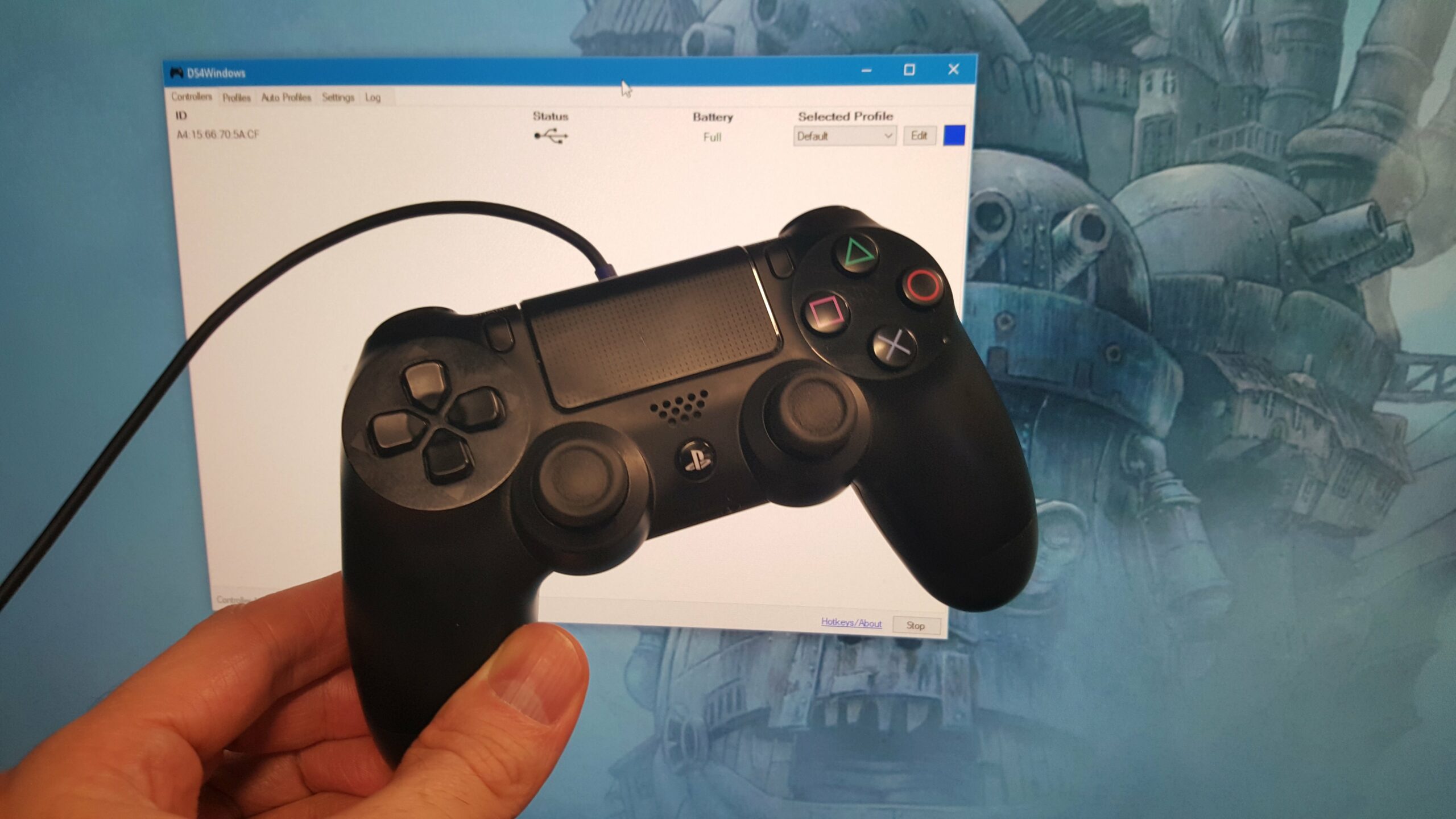
- If your computer doesn’t automatically detect the controller, you can download and install the DS4Windows driver from GitHub.
Connecting Wirelessly
- Turn off your DualShock 4 controller by pressing and holding the PS button until the light turns off.
- Activate pairing mode on your controller by pressing the PS and Share buttons simultaneously until the LED light starts blinking quickly.
- On your computer, go to Settings > Devices > Bluetooth & other devices and select “Add a device.”
- Select “Bluetooth” as the type of device you want to add and follow the instructions to complete the pairing process.
Connecting Your Ps4 Controller to Your Smartphone
Now that we’ve covered connecting your controller to your console and computer, let’s move on to how to connect it to your smartphone. We’ll show you two methods: Using an app and wirelessly via Bluetooth.
Using an App
Unfortunately, there isn’t a dedicated app for connecting the DualShock 4 controller to your smartphone. However, you can use the Google Play Games app to play games with your controller.
- Download and install the Google Play Games app from the Google Play Store.
- Open the app and go to Settings > Connected Devices.
- Select “Wireless Controller” as the device you want to connect.
- Follow the instructions to complete the pairing process.
Connecting Wirelessly
- Turn off your DualShock 4 controller by pressing and holding the PS button until the light turns off.
- Activate pairing mode on your controller by pressing the PS and Share buttons simultaneously until the LED light starts blinking quickly.
- On your smartphone, go to Settings > Bluetooth & other devices and select “Add a device.”
- Select “Bluetooth” as the type of device you want to add and follow the instructions to complete the pairing process.
Connecting Your Ps4 Controller to Your Tablet
The steps for connecting your DualShock 4 controller to your tablet are similar to those for your smartphone.
Using an App
Unfortunately, there isn’t a dedicated app for connecting the DualShock 4 controller to your tablet. However, you can use the Google Play Games app to play games with your controller.
- Download and install the Google Play Games app from the Google Play Store.
- Open the app and go to Settings > Connected Devices.
- Select “Wireless Controller” as the device you want to connect.
- Follow the instructions to complete the pairing process.
Connecting Wirelessly
- Turn off your DualShock 4 controller by pressing and holding the PS button until the light turns off.
- Activate pairing mode on your controller by pressing the PS and Share buttons simultaneously until the LED light starts blinking quickly.
- On your tablet, go to Settings > Bluetooth & other devices and select “Add a device.”
- Select “Bluetooth” as the type of device you want to add and follow the instructions to complete the pairing process.
Conclusion
Connecting your DualShock 4 controller to various devices is easier than you think! Whether you’re connecting it to your console, computer, smartphone, or tablet, we’ve got you covered. Remember to follow the steps outlined in this guide to ensure a smooth and hassle-free connection experience.
Frequently Asked Questions (FAQs)
- Q: How do I Connect my Ps4 Controller to my Console?
A: To connect your controller wirelessly, simply turn it on and press the PS button until the light turns off. Then, go to Settings > Devices > Bluetooth Device and select “Wireless Controller.” Your console will automatically pair with the controller. - Q: How do I Connect my Ps4 Controller to my Computer?
A: You can connect your controller using a USB cable or wirelessly via Bluetooth. If you’re using a USB cable, simply plug it into your computer’s USB port and follow the instructions to install the necessary drivers. If you’re connecting wirelessly, turn off your controller by pressing and holding the PS button until the light turns off, then activate pairing mode on your controller and pair it with your computer via Bluetooth. - Q: How do I Connect my Ps4 Controller to my Smartphone?
A: Unfortunately, there isn’t a dedicated app for connecting the DualShock 4 controller to your smartphone. However, you can use the Google Play Games app to play games with your controller. To pair your controller wirelessly, turn off your controller by pressing and holding the PS button until the light turns off, then activate pairing mode on your controller and pair it with your smartphone via Bluetooth. - Q: How do I Connect my Ps4 Controller to my Tablet?
A: The steps for connecting your DualShock 4 controller to your tablet are similar to those for your smartphone. You can use the Google Play Games app to play games with your controller, or you can pair it wirelessly via Bluetooth by turning off your controller and activating pairing mode on your controller. - Q: What Devices Can I Connect my Ps4 Controller To?
A: You can connect your DualShock 4 controller to a variety of devices, including your console, computer, smartphone, tablet, and other Bluetooth-enabled devices.
We hope this guide has been helpful in connecting your PS4 controller to various devices. If you have any further questions or need additional assistance, don’t hesitate to reach out!


