
How to Disconnect From Skype: A Step-by-step Guide
Are you tired of using your old Skype account and want to start fresh with a new one? Or maybe you’ve accidentally logged in to Skype on a public computer and can’t figure out how to log out without leaving your account active. Whatever the reason, don’t worry! You’ve come to the right place.
In this article, we’ll show you how to disconnect from Skype on both smartphones and computers. We’ll also provide you with detailed instructions on how to remove all devices associated with your Microsoft account, including those connected to Skype.
Why Disconnect From Skype?
Before we dive into the nitty-gritty of disconnection, let’s quickly discuss why you might want to disconnect from Skype in the first place.
- New Account: You want to start using a new Skype account for personal or professional reasons.
- Public Computer: You’ve logged in to Skype on a public computer and forgot to log out.
- Security Concerns: You suspect that someone has gained unauthorized access to your Skype account and you want to secure it.
How to Disconnect From Skype on Your Smartphone
Disconnecting from Skype on your smartphone is a breeze. Here’s how:
- Open the Skype app on your Android or iOS device.
- Tap on your profile picture (or initials) in the top-left corner of the screen.
- Select “Manage” and then tap on “Disconnect”.
- If you want to log out without remembering your login credentials, tap on “Disconnect and forget”.
That’s it! You’ll be logged out of Skype, and if you chose to remember your login details, you won’t need to enter them again next time.
How to Disconnect From Skype on Your Computer
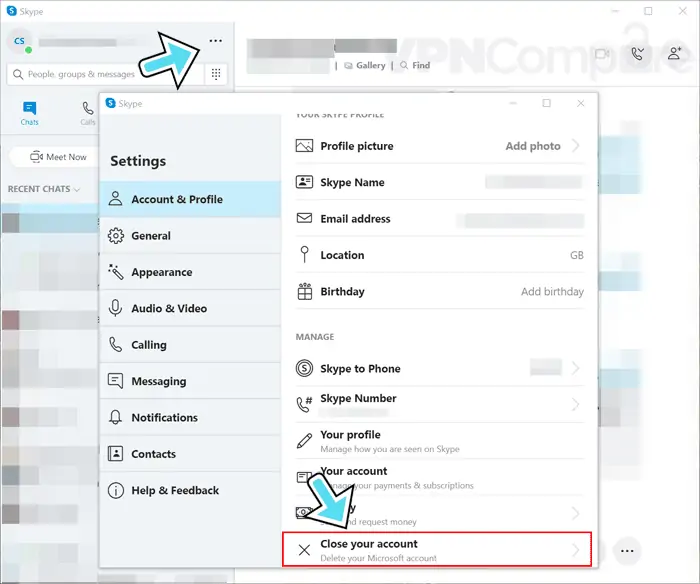
If you’ve been using Skype on a public computer or want to disconnect from the app on your personal computer, here’s what you do:
- Open the Skype client on your Windows or macOS device.
- Click on your profile picture (or icon) in the top-left corner of the screen.
- Select “Disconnect” and choose whether to remember your login details.
If you select “Remember me”, you won’t need to enter your login credentials next time you use Skype.
How to Disconnect All Devices From Your Microsoft Account
Now, let’s talk about disconnecting all devices associated with your Microsoft account, including those connected to Skype.
Here’s how:
- Go to the Microsoft website and sign in with your Microsoft account.
- Click on “Security” and then select “Advanced Security Options”.
- Select “Disconnect me” (or “Sign out of all devices”) twice.
This will disconnect all devices associated with your Microsoft account, including those connected to Skype.
What Happens When You Disconnect From Skype?
When you disconnect from Skype, you’ll be logged out of the app on all devices associated with your Microsoft account. This includes computers, smartphones, and tablets.
However, keep in mind that if you’ve chosen to remember your login details, you won’t need to enter them again next time you use Skype.
Conclusion
Disconnecting from Skype is a straightforward process that can be completed on both smartphones and computers. Whether you want to start fresh with a new account or remove all devices associated with your Microsoft account, we’ve got you covered.
By following the steps outlined in this article, you’ll be able to disconnect from Skype quickly and easily. So go ahead, take control of your account, and enjoy a more secure experience on Skype!
Frequently Asked Questions (FAQs)
-
Q: Why do I Need to Disconnect From Skype?
A: You might want to disconnect from Skype if you’ve started using a new account, logged in on a public computer, or suspect that someone has gained unauthorized access to your account. -
Q: How do I Disconnect From Skype on my Smartphone?
A: Open the Skype app, tap on your profile picture, select “Manage”, and then tap on “Disconnect”. -
Q: How do I Disconnect From Skype on my Computer?
A: Open the Skype client, click on your profile picture, select “Disconnect”, and choose whether to remember your login details. -
Q: What Happens When I Disconnect All Devices From my Microsoft Account?
A: All devices associated with your Microsoft account will be disconnected, including those connected to Skype. -
Q: Will I Need to Enter my Login Credentials Again After Disconnecting From Skype?
A: If you chose to remember your login details, no! You won’t need to enter them again next time you use Skype. -
Q: Can I Reconnect to Skype if I Disconnect All Devices?
A: Yes! Simply log in to Skype with your Microsoft account and follow the usual login process. -
Q: What Should I do if I Suspect That Someone Has Gained Unauthorized Access to my Skype Account?
A: Immediately change your password, enable two-factor authentication, and consider reporting the incident to Microsoft’s support team. -
Q: Can I Disconnect From Skype Without Losing Any Data or Contacts?
A: Yes! Disconnecting from Skype won’t affect your contacts or stored data.


