
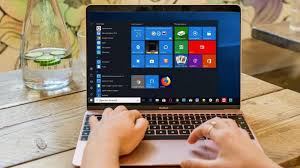
Emulating Windows on Mac: A Step-by-step Guide
Are you a macOS user who needs to run Windows programs or access Windows-based services? Look no further! In this article, we’ll show you how to emulate Windows on your Mac using various software options.
Why Emulate Windows on Mac?
There are several reasons why you might want to emulate Windows on your Mac:
- You need to use a specific Windows program that’s not available for macOS.
- You need to access a Windows-based service, such as a cloud storage system or a business application.
- You’re a developer who needs to test and debug Windows applications.
Method 1: Using Virtualbox
VirtualBox is a free and open-source virtualization software that allows you to create and run virtual machines on your Mac. Here’s how to emulate Windows on your Mac using VirtualBox:
- Download Virtualbox: Go to the official VirtualBox website and download the macOS version.
- Install Virtualbox: Follow the instructions to install VirtualBox on your Mac.
- Create a Virtual Machine: Launch VirtualBox and create a new virtual machine by clicking on “New.”
- Choose an Operating System: Select Windows as the operating system you want to emulate.
- Configure The Virtual Machine: Set up the virtual machine’s settings, such as RAM allocation and hard disk space.
- Install Windows: Download the Windows ISO file and attach it to the virtual machine. Install Windows on the virtual machine.
Method 2: Using Utm
UTM is a free software that allows you to emulate and run Windows on your Mac with Apple Silicon chips. Here’s how to use UTM:
- Download Utm: Go to the official UTM website and download the macOS version.
- Install Utm: Follow the instructions to install UTM on your Mac.
- Create a New Virtual Machine: Launch UTM and create a new virtual machine by clicking on “New.”
- Choose an Operating System: Select Windows as the operating system you want to emulate.
- Configure The Virtual Machine: Set up the virtual machine’s settings, such as RAM allocation and hard disk space.
- Install Windows: Download the Windows ISO file and attach it to the virtual machine. Install Windows on the virtual machine.
Method 3: Using Parallels Desktop
Parallels Desktop is a commercial software that allows you to emulate and run Windows on your Mac with Apple Silicon chips. Here’s how to use Parallels Desktop:
- Download Parallels Desktop: Go to the official Parallels website and download the macOS version.
- Install Parallels Desktop: Follow the instructions to install Paralleles Desktop on your Mac.
- Create a New Virtual Machine: Launch Parallels Desktop and create a new virtual machine by clicking on “New.”
- Choose an Operating System: Select Windows as the operating system you want to emulate.
- Configure The Virtual Machine: Set up the virtual machine’s settings, such as RAM allocation and hard disk space.
- Install Windows: Download the Windows ISO file and attach it to the virtual machine. Install Windows on the virtual machine.
Method 4: Using Crossover
CrossOver is a commercial software that allows you to emulate and run Windows applications on your Mac without installing Windows. Here’s how to use CrossOver:
- Download Crossover: Go to the official CrossOver website and download the macOS version.
- Install Crossover: Follow the instructions to install CrossOver on your Mac.
- Add a New Application: Launch CrossOver and add a new application by clicking on “New.”
- Choose an Operating System: Select Windows as the operating system you want to emulate.
- Configure The Virtual Machine: Set up the virtual machine’s settings, such as RAM allocation and hard disk space.
- Install The Application: Download the Windows application file and attach it to CrossOver. Install the application on your Mac.
Conclusion
Emulating Windows on your Mac is a straightforward process that can be achieved using various software options. Whether you choose VirtualBox, UTM, Parallels Desktop, or CrossOver, each method has its own advantages and disadvantages. By following the step-by-step guides provided above, you’ll be able to emulate Windows on your Mac and access the features and applications you need.
Faqs
-
What is The Best Software For Emulating Windows on my Mac?
The best software for emulating Windows on your Mac depends on your specific needs and preferences. VirtualBox is a popular choice for its free and open-source nature, while Parallels Desktop offers commercial support and advanced features. -
How Much Ram do I Need to Emulate Windows on my Mac?
The amount of RAM needed to emulate Windows on your Mac varies depending on the software you choose and the specific Windows version you’re emulating. As a general rule, allocate at least 4 GB of RAM for VirtualBox and 8 GB or more for Parallels Desktop. -
Can I Install Windows on my Mac’s Hard Drive?
Yes, you can install Windows on your Mac’s hard drive using methods like Boot Camp or CrossOver. However, this method requires a separate partition on your Mac’s hard drive and may not be compatible with all macOS versions. -
Is it Possible to Emulate Windows on my Mac With Apple Silicon Chips?
Yes, you can emulate Windows on your Mac with Apple Silicon chips using UTM or Parallels Desktop. These software options are specifically designed for Apple Silicon chips and offer improved performance and stability compared to older methods. -
How do I Configure The Virtual Machine Settings For Emulating Windows on my Mac?
Configure the virtual machine settings by allocating sufficient RAM, choosing the right hard disk space, and selecting the correct operating system version. Additionally, set up any necessary network or graphics settings according to your specific needs. -
What is The Difference Between Emulating And Running a Virtual Machine on my Mac?
Emulating Windows means running a virtual machine that mimics the Windows environment without actually installing Windows on your Mac’s hard drive. Running a virtual machine involves creating a separate partition on your Mac’s hard drive to install Windows, which can be more resource-intensive but offers better performance and compatibility. -
Can I Use Emulated Windows Applications on my Mac?
Yes, you can use emulated Windows applications on your Mac using CrossOver or other software options. These apps allow you to run Windows-based programs directly on your Mac without requiring a separate installation of Windows. -
How do I Troubleshoot Common Issues With Emulating Windows on my Mac?
Troubleshoot common issues by checking the system requirements, verifying that the virtual machine settings are correct, and ensuring that any necessary software updates are installed.


