
How to Connect Netflix to Your Tv: A Step-by-step Guide
Are you tired of watching Netflix on your phone or computer? Do you want to enjoy your favorite shows and movies on the big screen? Look no further! In this article, we will guide you through the process of connecting Netflix to your TV, whether it’s a smart TV, a traditional TV with a streaming device, or even a gaming console.
Why Connect Netflix to Your Tv?
Connecting Netflix to your TV is a great way to enjoy a more immersive viewing experience. With a larger screen and better sound quality, you’ll be able to fully engage with your favorite shows and movies. Plus, many streaming devices come with additional features like voice control and personalized recommendations.
Option 1: Connect Netflix to Your Smart TV
If you have a smart TV, connecting Netflix is usually as simple as downloading the app from the store and logging in with your credentials. Here’s how:
- Go to the app store on your TV and search for Netflix
- Download and install the app
- Launch the app and log in with your Netflix account information
- Browse through the available content and start watching
Option 2: Connect Netflix to Your Traditional TV With Chromecast
If you don’t have a smart TV, you can still enjoy Netflix on the big screen using a device like Google Chromecast. Here’s how:
- Set up your Chromecast device by connecting it to your TV and following the on-screen instructions
- Download the Netflix app on your smartphone or tablet and connect it to the same Wi-Fi network as your Chromecast device
- Launch the app and select the content you want to watch
- Press the “cast” button to send the video signal from your phone to your Chromecast device, which will display it on your TV
Option 3: Connect Netflix to Your Apple TV
If you have an Apple TV, connecting Netflix is a straightforward process:
- Go to the App Store on your Apple TV and search for Netflix
- Download and install the app
- Launch the app and log in with your Netflix account information
- Browse through the available content and start watching
Option 4: Connect Netflix to Your Gaming Console
If you have a gaming console like a PlayStation or Xbox, you can also connect Netflix:
- Go to the store on your console and download the Netflix app
- Launch the app and log in with your Netflix account information
- Browse through the available content and start watching
Other Options For Connecting Netflix to Your TV
There are other options for connecting Netflix to your TV, including:
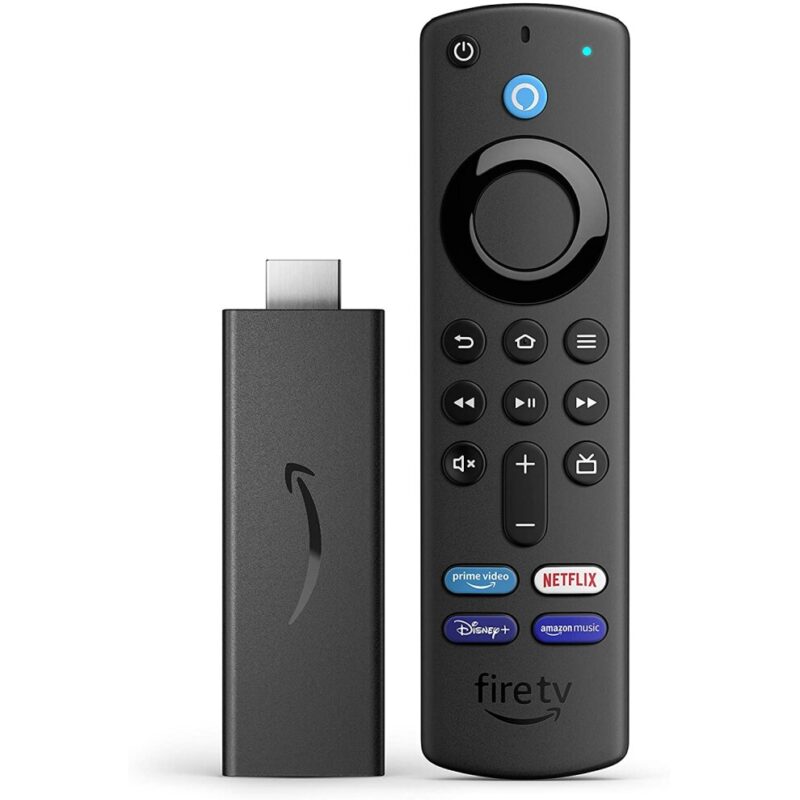
- Using a streaming device like Amazon Fire TV or Roku
- Using a set-top box like Sky Q or TIM’s set-top box
- Using a Blue-ray player with internet connectivity
- Even using an old computer as a media center
Tips And Tricks
Here are some additional tips and tricks to keep in mind:
- Make sure your device is connected to the same Wi-Fi network as your TV for seamless streaming
- Use high-quality cables to ensure a stable signal
- Consider upgrading to a faster internet plan for smoother video playback
- Don’t forget to update your device’s software regularly to ensure compatibility with Netflix
Conclusion
Connecting Netflix to your TV is easier than you think! Whether you have a smart TV, a traditional TV with a streaming device, or even a gaming console, there are plenty of options available. Just remember to follow the on-screen instructions and take advantage of any additional features that come with your device. Happy viewing!
Frequently Asked Questions
- Q: Can I Connect Netflix to my Old Tv?
A: Yes, you can use a streaming device like Chromecast or Amazon Fire TV to connect Netflix to an older TV. - Q: Do I Need a Strong Internet Connection to Stream Netflix on my Tv?
A: Yes, a stable and fast internet connection is required for smooth video playback. - Q: Can I Watch Netflix on Multiple Devices at The Same Time?
A: Yes, you can watch Netflix on up to five different devices simultaneously with a premium subscription. - Q: How do I Troubleshoot Connectivity Issues With my Streaming Device?
A: Try restarting your device and checking that it’s connected to the same Wi-Fi network as your TV. - Q: Can I Pause Live TV on Netflix?
A: No, you can’t pause live TV on Netflix, but you can pause any other content you’re watching. - Q: How do I Cancel my Netflix Subscription?
A: You can cancel your subscription at any time by going to the account settings on the Netflix website or mobile app. - Q: Can I Share my Netflix Password With Others?
A: No, it’s not recommended to share your Netflix password with anyone else for security reasons. - Q: How do I Switch Accounts on Netflix?
A: You can easily switch between multiple accounts by going to the account settings and selecting a different profile.


