
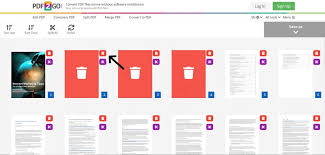
How to Remove Pages From a Pdf Document
Are you tired of dealing with bulky PDF files that contain unnecessary pages? Look no further! In this article, we will show you how to remove unwanted pages from a PDF document using various methods.
Why Remove Unnecessary Pages From a Pdf Document?
Removing unnecessary pages from a PDF document can be beneficial in several ways. Firstly, it reduces the file size, making it easier to share and store. Secondly, it eliminates clutter and makes navigation through the document more efficient. Lastly, it saves time and resources by minimizing the need for manual editing or formatting.
Method 1: Using Adobe Acrobat Pro DC
Adobe Acrobat Pro DC is a powerful software that allows you to edit and modify PDF documents with ease. To remove pages from a PDF document using this method:
- Open the PDF file in Adobe Acrobat Pro DC.
- Select “Organize Pages” from the menu.
- Choose the page range you want to delete by selecting the pages you wish to keep.
- Click on the “Delete Pages” button.
- Save the modified PDF document.
Method 2: Using Pdfill Free Pdf Tools
PDFill FREE PDF Tools is a free software that offers various functions for modifying and editing PDF documents. To remove pages from a PDF document using this method:
- Download and install PDFill FREE PDF Tools on your computer.
- Open the PDF file in PDFill FREE PDF Tools.
- Select “Split & Reorder Pages” from the menu.
- Choose the page range you want to delete by selecting the pages you wish to keep.
- Click on the “Save As” button to save the modified PDF document.
Method 3: Using Online Services
If you don’t have access to Adobe Acrobat Pro DC or PDFill FREE PDF Tools, there are online services that can help you remove unnecessary pages from a PDF document. Some popular options include:
- Online2PDF
- ILovePDF
- PDF Candy
- PDF2Go
These services offer free plans with limitations, and paid subscriptions for advanced features.
Method 4: Using Android Devices
If you’re using an Android device, there are apps available that can help you remove unnecessary pages from a PDF document. Some popular options include:
- PDF Tools
- PDF Utility
How to Remove Pages From a Pdf Document on Android Devices
To remove pages from a PDF document on an Android device:
- Download and install the PDF Tools app.
- Open the PDF file in PDF Tools.
- Select the page range you want to delete by selecting the pages you wish to keep.
- Tap on the “Delete Page” button.
- Save the modified PDF document.
Method 5: Using Iphone or Ipad
If you’re using an iPhone or iPad, there are apps available that can help you remove unnecessary pages from a PDF document. Some popular options include:
- Command
- Extract PDF Pages
How to Remove Pages From a Pdf Document on Iphone or Ipad
To remove pages from a PDF document on an iPhone or iPad:
- Download and install the Command app.
- Open the PDF file in Command.
- Select the page range you want to delete by selecting the pages you wish to keep.
- Tap on the “Extract Pages” button.
- Save the modified PDF document.
Conclusion
Removing unnecessary pages from a PDF document can be beneficial in several ways, including reducing file size, eliminating clutter, and saving time and resources. We hope this article has shown you how to remove pages from a PDF document using various methods, including Adobe Acrobat Pro DC, PDFill FREE PDF Tools, online services, Android devices, and iPhone or iPad.
Faqs
- What is The Best Method For Removing Unnecessary Pages From a Pdf Document?
The best method depends on your specific needs and preferences. If you have access to Adobe Acrobat Pro DC or PDFill FREE PDF Tools, using these software may be the most efficient option. If not, online services or mobile apps can also help.
- Can I Remove Pages From a Pdf Document For Free?
Yes, there are various methods available that do not require payment. Some online services offer free plans with limitations, and some mobile apps are completely free to use.
- How Long Does it Take to Remove Unnecessary Pages From a Pdf Document?
The time required to remove unnecessary pages from a PDF document varies depending on the method used and the complexity of the task. Some methods may require minutes or hours, while others can be completed in seconds or less.
- Can I Use Any Software to Remove Unnecessary Pages From a Pdf Document?
No, not all software is suitable for removing unnecessary pages from a PDF document. Adobe Acrobat Pro DC, PDFill FREE PDF Tools, and some online services are specifically designed for this purpose.
- Are There Any Security Risks Associated With Removing Unnecessary Pages From a Pdf Document?
Removing unnecessary pages from a PDF document does not pose significant security risks, as long as you use reputable software or services that do not compromise your data.
- Can I Remove Entire Sections of a Pdf Document Instead of Individual Pages?
Yes, depending on the software or service used, you may be able to remove entire sections of a PDF document instead of individual pages.
- How Can I Merge Multiple Pdf Documents Into One?
Some software and services allow you to merge multiple PDF documents into one. This feature may also be available in some mobile apps.
- Can I Convert a Pdf Document to Another Format, Such as Word or Excel?
Yes, some software and services allow you to convert a PDF document to another format, such as Word or Excel. However, the quality of the conversion may vary depending on the original formatting and content of the PDF document.


