
How to Hibernate Your Windows 10 Pc: A Step-by-step Guide
Are you tired of waiting for your computer to boot up every time you want to use it? Do you wish there was a way to save energy and prolong the life of your laptop or desktop? Look no further than hibernation mode on Windows 10! In this article, we’ll show you how to put your PC in hibernation mode and get the most out of your device.
What is Hibernation Mode?
Hibernation mode, also known as suspend-to-disk, is a power-saving feature that allows your computer to save its current state to disk and then shut down. When you restart your computer, it will restore its previous state, allowing you to pick up where you left off.
Benefits of Hibernation Mode
So why should you use hibernation mode? Here are just a few benefits:
- Energy Savings: Hibernation mode uses very little energy, making it perfect for laptops and other portable devices.
- Longer Battery Life: By shutting down your computer when not in use, you can prolong the life of your battery.
- Faster Startup Times: When you wake up your PC from hibernation mode, it will start up quickly and be ready to use.
How to Put Your Windows 10 PC in Hibernation Mode
Now that we’ve covered the benefits of hibernation mode, let’s move on to the steps for putting your Windows 10 PC into this state. Here’s how:
- Click on The Start Menu: The first step is to click on the Start menu, which is usually located at the bottom left corner of your screen.
- Select The Settings Icon: From the Start menu, select the settings icon (it looks like a gear).
- Choose System And Safety: In the settings window, choose “System” from the left-hand menu and then click on “Power & sleep.”
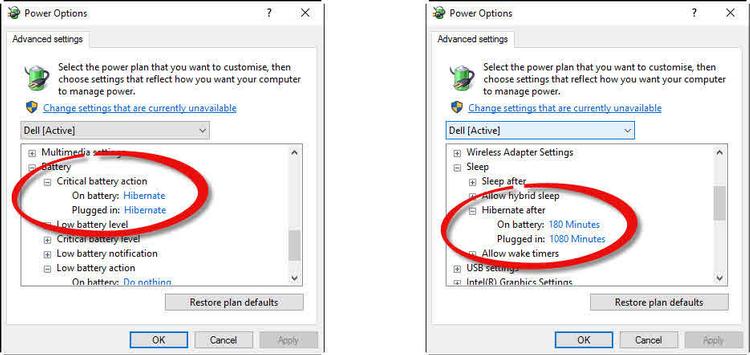
- Select Hibernate Mode: On the right-hand side of the screen, you’ll see a toggle switch for hibernation mode. Select this option to turn it on.
- Choose a Specific Action: You can also choose to hibernate your PC when a specific action is taken, such as when you close the lid of your laptop or press a button.
How to Hibernate Your PC Using The Command Prompt
Alternatively, you can use the command prompt to put your Windows 10 PC into hibernation mode. Here’s how:
- Open The Command Prompt: Press the Windows key + R to open the Run dialog box, and then type “cmd” in the text field.
- Type The Command: Type the following command:
Powercfg /hibernate on - Press Enter: Press enter to execute the command.
How to Hibernate Your PC Using a Power Button
Finally, you can also configure your Windows 10 PC to hibernate when you press a power button. Here’s how:
- Open The Settings App: Open the settings app and go to “System” > “Power & sleep.”
- Choose a Specific Action: On the right-hand side of the screen, choose a specific action that will trigger hibernation mode, such as pressing the power button.
Troubleshooting Hibernation Mode
If you’re having trouble getting your Windows 10 PC to hibernate properly, don’t worry! We’ve got some troubleshooting tips for you:
- Make Sure Hibernation Mode is Enabled: Check that hibernation mode is turned on in the settings app.
- Check For Software Updates: Ensure that your operating system and drivers are up-to-date.
- Try a Hard Reboot: Sometimes, a hard reboot can resolve issues with hibernation mode.
Conclusion
In this article, we’ve shown you how to put your Windows 10 PC into hibernation mode. We’ve covered the benefits of hibernation mode, as well as the steps for putting your device in this state using various methods. Whether you want to save energy, prolong battery life, or simply get a faster startup time, hibernation mode is definitely worth considering.
Frequently Asked Questions
- What’s The Difference Between Hibernate And Sleep?: Hibernation mode saves the current state of your PC to disk and then shuts down, whereas sleep mode only powers down the device without saving its state.
- How Long Does it Take For my PC to Wake up From Hibernation Mode?: The time it takes for your PC to wake up from hibernation mode depends on the configuration of your system. Generally, it should be very quick, often within a few seconds.
What’s Next?
If you’re interested in learning more about how to customize and optimize your Windows 10 experience, we’ve got plenty of other articles and guides that can help!
Recommended Reading
- How to Customize The Start Menu on Windows 10: This article shows you how to personalize the start menu on Windows 10.
- How to Use The Task Manager on Windows 10: In this guide, we show you how to use the task manager to manage resources and troubleshoot issues with your system.


