
How to Zoom a Video With Vlc: A Step-by-step Guide
Are you tired of dealing with videos that don’t fit perfectly on your monitor? Do you want to zoom in or out without having to convert or modify the video itself? Look no further! In this article, we’ll show you how to use VLC (VideoLAN Client) to zoom a video and adapt it to your monitor’s dimensions.
Why Use Vlc?
VLC is a free and open-source media player that offers a wide range of features, including support for various file formats, streaming capabilities, and advanced customization options. By using VLC, you can enjoy your videos in high quality without having to worry about compatibility issues or formatting requirements.
Adjusting Proportions And Cropping
To zoom a video with VLC on your computer, follow these steps:
- Launch Vlc: Open the VLC program on your computer.
- Drag And Drop The Video File: Drag the video file you want to play into the VLC window or open it by clicking on the “Media” menu on Windows or the “File” menu on macOS.
- Go to The Video Menu: Click on the “Video” menu at the top left of the VLC window.
- Select Proportions And Cropping: Choose one of the available options for proportions (such as 16:9, 4:3, Or 1:1) Or select the “Crop” option to crop the video.
Zoom Function
If you want to zoom in or out on a specific portion of the video, follow these steps:
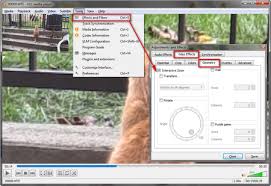
- Go to The Effects Menu: On Windows, click on the “Effects” menu at the top left of the VLC window. On macOS, click on the “Window” menu and then select “Effects”.
- Select Video Effects: Choose the “Video effects” option from the under-menu.
- Go to The Video Effects Tab: Click on the “Video effects” tab in the new window that opens.
- Select Interactive Zoom: Check the box next to “Interactive Zoom” on Windows or select the “Zoom” option on macOS.
- Use The Zoom Rectangle: Use the zoom rectangle at the top left of the VLC window to move the zoom area with your cursor.
Zooming a Video With Vlc on Smartphone And Tablet
If you want to know how to zoom a video with VLC on your smartphone or tablet, follow these steps:
- Launch The Vlc App: Open the VLC app on your device.
- Select The Video File: Choose the video file you want to play from the list of available videos.
- Go to The Video Section: Select the “Video” option in the menu at the bottom of the screen.
- Adjust The Proportions: Use the rectangle icon with arrows on Android or the square icon with open corners on iOS/iPadOS to adjust the video’s proportions.
Conclusion
Zooming a video with VLC is a simple process that can be achieved using various methods depending on your device and operating system. By following these steps, you can enjoy your videos in high quality without having to worry about formatting issues or compatibility problems.
Frequently Asked Questions (FAQs)
- Q: Why do my Videos Not Fit Perfectly on my Monitor?
A: This could be due to various factors such as video format, resolution, or aspect ratio. - Q: Can I Use Vlc to Convert my Videos?
A: Yes, VLC offers a built-in converter that allows you to change the video’s format and codec. - Q: How do I Crop a Video in Vlc?
A: To crop a video, go to the “Video” menu and select the “Crop” option or use the shortcut key combination (usually Ctrl+Shift+C on Windows). - Q: What is Interactive Zoom in Vlc?
A: Interactive zoom allows you to move the zoom area with your cursor while playing the video. - Q: Can I Zoom Out a Specific Portion of The Video?
A: Yes, you can use the “Zoom” option on macOS or the shortcut key combination (usually Ctrl+Shift+Z on Windows) to zoom in or out.


