
Configuring Hotmail on Android: A Step-by-step Guide
Are you looking to access your Hotmail account directly from your Android device? Look no further! In this article, we will guide you through the process of configuring Hotmail on Android using two popular methods: The Outlook app and the Gmail app.
Method 1: Using The Outlook App
The first method involves downloading and installing the Outlook app from the Google Play Store. This app provides a seamless experience for managing your email accounts, including Hotmail.
Step 1: Download And Install The Outlook App
To start, open the Google Play Store on your Android device and search for “Outlook.” Click on the result to view the app’s details, then click on the “Install” button to download and install the app.
Step 2: Add Your Hotmail Account
Once the app is installed, open it and tap on the “+” icon in the top right corner to add a new account. Select “Outlook, Hotmail, or Live” from the list of options, then enter your Hotmail email address and password to log in.
Step 3: Configure Your Account
If your account is already configured on the device (for example, if you have other Microsoft apps installed), tap on the checkbox next to your account name and select “Continue” to complete the setup process. If not, enter your Hotmail email address and password to configure the account.
Step 4: Set Up Sync Options
To set up sync options for contacts, calendars, and more, tap on your profile picture or initials in the top left corner of the app, then select “Settings” from the menu. Choose which items you want to sync and adjust any other settings as needed.
Method 2: Using The Gmail App
The second method involves configuring Hotmail on Android using the Gmail app. This method is useful if you already have the Gmail app installed and prefer to manage your email accounts through it.
Step 1: Open The Gmail App
Open the Gmail app on your Android device and tap on your profile picture or initials in the top right corner of the screen.
Step 2: Add a New Account
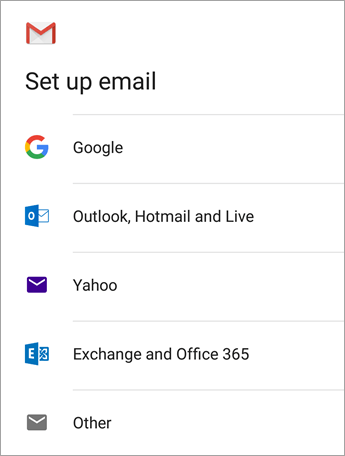
Select “Add another account” from the menu, then choose “Outlook, Hotmail, or Live” as the type of account to add.
Step 3: Enter Your Hotmail Email Address And Password
Enter your Hotmail email address and password to log in and configure the account. If prompted, select which items you want to sync (such as contacts and calendars).
Step 4: Configure Sync Options
Tap on the three horizontal lines in the top left corner of the screen, then select “Settings” from the menu. Choose which items you want to sync and adjust any other settings as needed.
Method 3: Using Other Email Clients
If neither the Outlook nor Gmail app is your preferred method for managing email accounts, fear not! Most popular email clients on Android allow you to configure Hotmail accounts using their apps. To do so:
- Open your chosen email client (e.G., Yahoo Mail, AOL Mail, etc.).
- Look for the option to add a new account or configure an existing one.
- Select “Outlook, Hotmail, or Live” as the type of account to add.
- Enter your Hotmail email address and password to log in and configure the account.
- Choose which items you want to sync (such as contacts and calendars).
Tips And Variations
- If you encounter issues during configuration, try restarting the app or device and attempting the setup process again.
- Be cautious when granting permissions to apps that access your email accounts.
- Experiment with different sync options to find the perfect balance for your needs.
Conclusion
Configuring Hotmail on Android is a straightforward process that can be completed using various methods. Whether you prefer the Outlook app, Gmail app, or another email client, following these steps will have you set up and ready to go in no time!
Frequently Asked Questions (FAQs)
- Q: Can I Configure Hotmail on Android Using Other Email Clients?
A: Yes, most popular email clients allow configuring Hotmail accounts. - Q: What if my Account is Already Configured on The Device?
A: If your account is already set up on the device (e.G., Via other Microsoft apps), you’ll need to follow a slightly different setup process. - Q: How do I Sync Contacts And Calendars Across Devices?
A: To sync contacts, calendars, and more, tap on your profile picture or initials in the top left corner of the app, then select “Settings” from the menu. - Q: What if I Encounter Issues During Configuration?
A: Try restarting the app or device and attempting the setup process again. - Q: Can I Use Hotmail on Android With Other Email Accounts?
A: Yes, you can add multiple email accounts to your device and manage them using various methods.
Additional Resources
- For more information on configuring email accounts on Android, visit Google’s Support Page.
- To learn about the latest features and updates for Outlook on Android, check out Microsoft’s Website.
Disclaimer
This article is intended to provide general guidance on configuring Hotmail on Android. Specific instructions may vary depending on your device and email client of choice. If you encounter issues or have further questions, please consult the manufacturer’s support resources for assistance.


