
How to Copy a Photo on Android: A Step-by-step Guide
Are you looking for ways to copy a photo from your Android device to another document or application? Look no further! In this article, we will explore the various methods of copying a photo on Android, including using the “Copy” function, taking a screenshot, and transferring photos from other devices.
Why Copying Photos is Essential
Copying photos is an essential task that can be done in various situations. Whether you want to add a photo to a document, share it with friends or family, or simply save it for future reference, copying photos is a crucial skill to have on your Android device.
Method 1: Copying a Photo Using The “Copy” Function
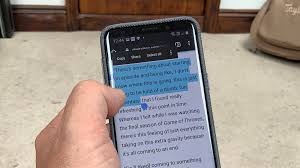
The first method of copying a photo on Android is by using the “Copy” function. This method is straightforward and can be done in just a few steps.
- Open the Gallery app or any other application where you have saved the photo.
- Tap on the three dots (⋮) at the top-right corner of the screen to open the menu.
- Select the “Copy” option from the menu.
- Go to the destination where you want to paste the photo, such as a document or an application like Word.
- Tap on the desired location to paste the copied photo.
Method 2: Taking a Screenshot
Another way to copy a photo on Android is by taking a screenshot. This method can be useful if you don’t have access to the “Copy” function or want to capture a specific image.
- Press and hold the Power button and the Volume-down button simultaneously for at least 2 seconds.
- Release the buttons, and the device will take a screenshot.
- Go to the Photos app or any other application where you can view screenshots.
- Select the recently taken screenshot from the list of available images.
- Tap on the “Copy” option from the menu to copy the image.
Transferring Photos From Other Devices
If you want to transfer photos from another device, such as a PC or a Mac, there are several methods you can use. Some popular options include:
- Android Transfer: This app allows you to transfer files between your Android device and other devices.
- Sendanywhere: This app enables wireless file transfer between devices.
- Dropbox and Google Photo: These cloud storage services allow you to upload photos from one device and access them on another.
Method 3: Copying Photos Using Bluetooth
You can also copy photos using Bluetooth technology. Here’s how:
- Ensure that both devices have Bluetooth enabled.
- Go to the Settings app on your Android device.
- Select “Bluetooth” from the list of available options.
- Search for and connect to the device you want to transfer photos to.
- Once connected, go to the Photos app or any other application where you can view photos.
- Select the desired image and tap on the “Share” option.
- Choose Bluetooth as the sharing method.
Tips And Tricks
Here are some tips and tricks to keep in mind when copying photos:
- Use High-quality Images: When taking a screenshot or using the “Copy” function, ensure that you’re capturing a high-quality image.
- Choose The Right Size: Select an image size that suits your needs. If you’re transferring photos for online use, choose a smaller size to save storage space.
Conclusion
Copying photos on Android is a straightforward process that can be done using various methods. Whether you prefer using the “Copy” function, taking a screenshot, or transferring photos from other devices, there’s an option for everyone.


