
How to Update Your Tv: A Comprehensive Guide
Are you tired of outdated software on your smart TV? Do you want to gain access to the latest features and functionalities advertised by the manufacturer? Look no further! In this article, we will guide you through the process of updating your TV, covering various brands and models.
Why Update Your Tv?
Updating your TV ensures that you have the latest software, which can provide several benefits:
- Access to New Features: Updates often bring new features and functionalities to your TV.
- Improved Performance: Updates can improve the overall performance of your TV.
- Security Patches: Updates can also include security patches to protect your TV from vulnerabilities.
How to Update Your LG TV
Updating your LG TV is a straightforward process. You can update your LG TV using either of two methods:
Using Internet
To update your LG TV using the internet, follow these steps:
- Connect Your TV to The Internet: Ensure that your TV is connected to the internet via Wi-Fi or Ethernet.
- Access The Settings Menu: Press the Settings button on your remote control and navigate to the “System” section.
- Select Update Software: Choose the “Update Software” option from the menu.
- Follow The Prompts: Follow the on-screen instructions to complete the update process.
Using Usb
To update your LG TV using a USB drive, follow these steps:
- Download The Software: Download the software update file from the LG website and save it to a USB drive.
- Insert The Usb Drive: Insert the USB drive into the appropriate port on your TV.
- Follow The Prompts: Follow the on-screen instructions to complete the update process.
How to Update Your Samsung TV
Updating your Samsung TV is also a straightforward process. You can update your Samsung TV using either of two methods:
Using Internet
To update your Samsung TV using the internet, follow these steps:
- Connect Your TV to The Internet: Ensure that your TV is connected to the internet via Wi-Fi or Ethernet.
- Access The Settings Menu: Press the Settings button on your remote control and navigate to the “Support” section.
- Select Update Software: Choose the “Update Software” option from the menu.
- Follow The Prompts: Follow the on-screen instructions to complete the update process.
Using Usb
To update your Samsung TV using a USB drive, follow these steps:
- Download The Software: Download the software update file from the Samsung website and save it to a USB drive.
- Insert The Usb Drive: Insert the USB drive into the appropriate port on your TV.
- Follow The Prompts: Follow the on-screen instructions to complete the update process.
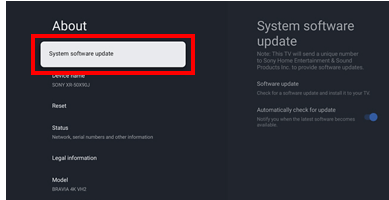
How to Update Your Sony Bravia TV
Updating your Sony Bravia TV is also a straightforward process. You can update your Sony Bravia TV using either of two methods:
Using Internet
To update your Sony Bravia TV using the internet, follow these steps:
- Connect Your TV to The Internet: Ensure that your TV is connected to the internet via Wi-Fi or Ethernet.
- Access The Settings Menu: Press the Settings button on your remote control and navigate to the “System” section.
- Select Update Software: Choose the “Update Software” option from the menu.
- Follow The Prompts: Follow the on-screen instructions to complete the update process.
Using Usb
To update your Sony Bravia TV using a USB drive, follow these steps:
- Download The Software: Download the software update file from the Sony website and save it to a USB drive.
- Insert The Usb Drive: Insert the USB drive into the appropriate port on your TV.
- Follow The Prompts: Follow the on-screen instructions to complete the update process.
How to Update Your Panasonic TV
Updating your Panasonic TV is also a straightforward process. You can update your Panasonic TV using either of two methods:
Using Internet
To update your Panasonic TV using the internet, follow these steps:
- Connect Your TV to The Internet: Ensure that your TV is connected to the internet via Wi-Fi or Ethernet.
- Access The Settings Menu: Press the Settings button on your remote control and navigate to the “Network” section.
- Select Update Software: Choose the “Update Software” option from the menu.
- Follow The Prompts: Follow the on-screen instructions to complete the update process.
Using Usb
To update your Panasonic TV using a USB drive, follow these steps:
- Download The Software: Download the software update file from the Panasonic website and save it to a USB drive.
- Insert The Usb Drive: Insert the USB drive into the appropriate port on your TV.
- Follow The Prompts: Follow the on-screen instructions to complete the update process.
How to Update Your Philips TV
Updating your Philips TV is also a straightforward process. You can update your Philips TV using either of two methods:
Using Internet
To update your Philips TV using the internet, follow these steps:
- Connect Your TV to The Internet: Ensure that your TV is connected to the internet via Wi-Fi or Ethernet.
- Access The Settings Menu: Press the Settings button on your remote control and navigate to the “System” section.
- Select Update Software: Choose the “Update Software” option from the menu.
- Follow The Prompts: Follow the on-screen instructions to complete the update process.
Using Usb
To update your Philips TV using a USB drive, follow these steps:
- Download The Software: Download the software update file from the Philips website and save it to a USB drive.
- Insert The Usb Drive: Insert the USB drive into the appropriate port on your TV.
- Follow The Prompts: Follow the on-screen instructions to complete the update process.
How to Update Your Hisense TV
Updating your Hisense TV is also a straightforward process. You can update your Hisense TV using either of two methods:
Using Internet
To update your Hisense TV using the internet, follow these steps:
- Connect Your TV to The Internet: Ensure that your TV is connected to the internet via Wi-Fi or Ethernet.
- Access The Settings Menu: Press the Settings button on your remote control and navigate to the “System” section.
- Select Update Software: Choose the “Update Software” option from the menu.
- Follow The Prompts: Follow the on-screen instructions to complete the update process.
Using Usb
To update your Hisense TV using a USB drive, follow these steps:
- Download The Software: Download the software update file from the Hisense website and save it to a USB drive.
- Insert The Usb Drive: Insert the USB drive into the appropriate port on your TV.
- Follow The Prompts: Follow the on-screen instructions to complete the update process.
How to Update Your Akai TV
Updating your Akai TV is also a straightforward process. You can update your Akai TV using either of two methods:
Using Internet
To update your Akai TV using the internet, follow these steps:
- Connect Your TV to The Internet: Ensure that your TV is connected to the internet via Wi-Fi or Ethernet.
- Access The Settings Menu: Press the Settings button on your remote control and navigate to the “System” section.
- Select Update Software: Choose the “Update Software” option from the menu.
- Follow The Prompts: Follow the on-screen instructions to complete the update process.
Using Usb
To update your Akai TV using a USB drive, follow these steps:
- Download The Software: Download the software update file from the Akai website and save it to a USB drive.
- Insert The Usb Drive: Insert the USB drive into the appropriate port on your TV.
- Follow The Prompts: Follow the on-screen instructions to complete the update process.
Update Your TV After October 20th: A Guide
As of October 20, 2021, some television channels have stopped broadcasting in standard definition. To continue watching these channels, you’ll need to update your TV. If your TV is not compatible with high-definition (HD) broadcasts, you may need to acquire a new TV or decoder.
Conclusion
Updating your TV ensures that you have the latest software and features, which can improve its performance and provide access to new content. By following these steps, you can easily update your LG, Samsung, Sony Bravia, Panasonic, Philips, Hisense, and Akai TVs using either internet or USB methods.
- Important: Always check the manufacturer’s instructions for specific update procedures.
- Security: Be aware that updating your TV may require a restart, which could affect any ongoing activities.
- Compatibility: Verify that your TV model is compatible with the update you’re attempting to install.


