
The Ultimate Guide to Using Lightroom: A Comprehensive Tutorial
Are you a photography enthusiast looking to take your skills to the next level? Do you want to learn how to edit and enhance your photos like a pro? Look no further than Adobe Lightroom, a powerful photo editing software that’s been praised by photographers of all levels. In this article, we’ll show you how to use Lightroom like a pro, covering everything from the basics to advanced techniques.
What is Lightroom?
Lightroom is a popular photo editing and management software developed by Adobe. It’s designed to help photographers import, organize, edit, and share their photos in a seamless and efficient way. With Lightroom, you can easily manage your entire photography workflow, from camera to print.
Getting Started With Lightroom
To get started with Lightroom, you’ll need to download the software from Adobe’s website. Once installed, launch the program and follow these steps:
- Import Your Photos: Click on the “Import” button and select the photos you want to edit.
- Organize Your Photos: Use the built-in organizer to categorize your photos by date, location, or other criteria.
- Edit Your Photos: Select a photo and click on the “Edit” button to open it in Lightroom’s editor.
The Lightroom Interface
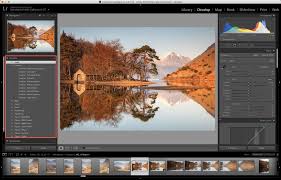
The Lightroom interface is intuitive and easy to navigate, even for beginners. Here are the key components:
- Toolbar: Located at the top of the screen, this toolbar provides access to various editing tools.
- Adjustment Sliders: These sliders allow you to adjust exposure, contrast, color balance, and other parameters.
- Filters: These pre-defined filters can be applied to your photos to enhance their appearance.
Editing Your Photos in Lightroom
Lightroom’s editor is where the magic happens. Here are some basic editing techniques:
- Exposure: Adjusting the exposure slider can help brighten or darken your image.
- Contrast: The contrast slider helps balance the brightness and darkness of your photo.
- Color Balance: Use the color balance sliders to adjust the hue and saturation of your image.
Using Presets in Lightroom
Presets are pre-defined editing settings that can be applied to your photos. Here’s how to use them:
- Importing Presets: Click on the “+” button next to the “Presets” tab to import new presets.
- Applying Presets: Select a preset and click on the “Apply” button to apply it to your photo.
Advanced Editing Techniques in Lightroom
Once you’re comfortable with the basics, it’s time to dive into advanced editing techniques:
- Masks: Use masks to isolate specific areas of your image and apply adjustments.
- Brush: The brush tool allows you to make local edits to your image.
- Gradient Filter: This filter helps create subtle transitions between different colors.
Using Lightroom on a Smartphone or Tablet
Lightroom is also available as an app for smartphones and tablets. Here’s how to use it:
- Download The App: Download the Adobe Lightroom app from the App Store (iOS) or Google Play Store (Android).
- Import Your Photos: Click on the “+” button to import your photos.
- Edit Your Photos: Select a photo and click on the “Edit” button to open it in Lightroom’s editor.
Conclusion
Lightroom is an incredibly powerful tool that can help you take your photography skills to new heights. With its intuitive interface, advanced editing features, and seamless workflow management, Lightroom is a must-have for any serious photographer. In this article, we’ve covered the basics of using Lightroom, from importing photos to advanced editing techniques.
Frequently Asked Questions
- What is The Difference Between Lightroom Classic And Lightroom?
Lightroom Classic is the desktop version of Lightroom, while Lightroom is the cloud-based version. - How do I Import Presets Into Lightroom?
Click on the “+” button next to the “Presets” tab to import new presets. - What is The Best Way to Organize my Photos in Lightroom?
Use the built-in organizer to categorize your photos by date, location, or other criteria. - How do I Export my Edited Photo From Lightroom?
Click on the “Export” button and select the desired settings.
Conclusion Faqs
- Is Lightroom Free?
Lightroom is not free, but you can try it for 7 days before subscribing to Adobe Creative Cloud. - Can I Use Lightroom on a Smartphone or Tablet?
Yes, Lightroom is available as an app for smartphones and tablets. - What Are The System Requirements For Running Lightroom?
Lightroom requires a computer with a minimum of 4GB RAM, Intel Core i5 processor, and macOS 10.13 (High Sierra) or later.
Conclusion
We hope this comprehensive guide to using Lightroom has been helpful in getting you started with this powerful photo editing software. Whether you’re a seasoned pro or just starting out, Lightroom is an essential tool for any serious photographer.


