
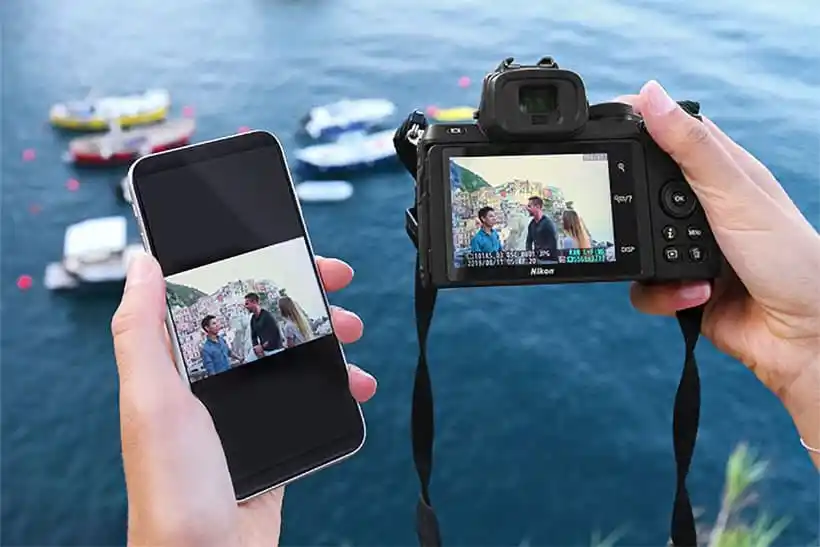
The Ultimate Guide to Connecting Your Wi-fi Camera to Your Smartphone
Are you tired of feeling like you’re stuck in the dark ages when it comes to home security? Do you want to be able to keep an eye on your apartment or house from anywhere in the world? Look no further! In this article, we’ll show you how to connect your Wi-Fi camera to your smartphone, making it easy to monitor your home and stay safe.
Why Connect Your Wi-fi Camera to Your Smartphone?
Connecting your Wi-Fi camera to your smartphone is a game-changer when it comes to home security. With the ability to view live footage from anywhere in the world, you’ll be able to keep an eye on your home 24/7, even if you’re not there. This means that you can:
- Keep an eye on your apartment or house while you’re away
- Monitor your children or pets when they’re at home alone
- Receive notifications of any suspicious activity
- Even view footage from other locations, such as a vacation home
How to Connect Your Wi-fi Camera to Your Smartphone
The process of connecting your Wi-Fi camera to your smartphone is relatively simple. Here’s what you need to do:
- Make Sure Both Devices Are Connected to The Same Wi-fi Network. This will ensure that there are no connectivity issues and that you can view live footage from anywhere in the world.
- Download The App For Your Wi-fi Camera. Most manufacturers have their own apps, which can be downloaded from the App Store or Google Play.
- Create an Account With The Manufacturer’s Service. This will give you access to features such as remote viewing and notifications.
- Follow The Instructions in The App to Connect Your Camera to Your Smartphone.
Connecting Your Wi-fi Camera to Your Smartphone: A Step-by-step Guide
Here are the specific steps for connecting your Wi-Fi camera to your smartphone, depending on the manufacturer:
Ezviz
If you have an Ezviz camera, follow these steps:
- Download And Install The Ezviz App from the App Store or Google Play.
- Create a New Account With Ezviz by following the prompts in the app.
- Follow The Instructions in The App to Connect Your Camera to Your Smartphone.
Wansview
If you have a Wansview camera, follow these steps:
- Download And Install The Wansview Cloud App from the App Store or Google Play.
- Create a New Account With Wansview Cloud by following the prompts in the app.
- Follow The Instructions in The App to Connect Your Camera to Your Smartphone.
D-link
If you have a D-Link camera, follow these steps:
- Download And Install The Mydlink App from the App Store or Google Play.
- Create a New Account With Mydlink by following the prompts in the app.
- Follow The Instructions in The App to Connect Your Camera to Your Smartphone.
Tips For Connecting Your Wi-fi Camera to Your Smartphone
Here are some tips to keep in mind when connecting your Wi-Fi camera to your smartphone:
- Make sure both devices are connected to the same Wi-Fi network
- Use a strong password to protect your account
- Follow the instructions in the app carefully to avoid any issues
- Keep an eye on your email notifications for any suspicious activity
Conclusion
Connecting your Wi-Fi camera to your smartphone is a simple and effective way to stay safe and keep an eye on your home. With the ability to view live footage from anywhere in the world, you’ll be able to:
- Keep an eye on your apartment or house while you’re away
- Monitor your children or pets when they’re at home alone
- Receive notifications of any suspicious activity
- Even view footage from other locations, such as a vacation home
We hope this guide has been helpful in getting you started with connecting your Wi-Fi camera to your smartphone.
Frequently Asked Questions
Q: How do I connect my Wi-Fi camera to my smartphone?
A: The process of connecting your Wi-Fi camera to your smartphone is relatively simple. Make sure both devices are connected to the same Wi-Fi network, download and install the app for your Wi-Fi camera, create an account with the manufacturer’s service, and follow the instructions in the app to connect your camera to your smartphone.
Q: What if I have trouble connecting my Wi-Fi camera to my smartphone?
A: If you’re having trouble connecting your Wi-Fi camera to your smartphone, try restarting both devices and following the steps again. If you still encounter issues, contact the manufacturer’s customer support for assistance.
Q: Can I view footage from multiple cameras at once?
A: Yes, many apps allow you to view footage from multiple cameras at once. Check with the manufacturer to see if this feature is available on their app.
Q: How do I receive notifications of suspicious activity?
A: You can set up notifications in the app for any suspicious activity detected by your Wi-Fi camera. This will alert you to potential security threats and allow you to take action quickly.
Q: Can I view footage from my Wi-Fi camera remotely?
A: Yes, many apps allow you to view footage from your Wi-Fi camera remotely, as long as both devices are connected to the same Wi-Fi network.
Q: How do I troubleshoot issues with my Wi-Fi camera’s connection to my smartphone?
A: If you’re experiencing issues with your Wi-Fi camera’s connection to your smartphone, try restarting both devices and following the steps again. If you still encounter issues, contact the manufacturer’s customer support for assistance.
Q: Can I connect multiple smartphones to my Wi-Fi camera?
A: Yes, many apps allow you to connect multiple smartphones to your Wi-Fi camera. Check with the manufacturer to see if this feature is available on their app.
Q: How do I protect my account from unauthorized access?
A: To protect your account from unauthorized access, use a strong password and make sure both devices are connected to the same Wi-Fi network.


