
How to Uninstall Android Apps: A Step-by-step Guide
Are you tired of cluttered phone storage and unnecessary apps? Look no further! In this article, we’ll guide you through the process of uninstalling Android apps on your smartphone.
The Need For a Clean Phone
When you’ve downloaded an app, it’s easy to let them accumulate on your device. But before long, your phone can become sluggish and storage space is taken up by apps you no longer use. It’s time to take control and remove the ones that don’t serve you anymore.
Understanding The Uninstall Process
Uninstalling an Android app is a straightforward process. You can either delete it directly from the app drawer or go through the Settings menu. Here’s how:
Method 1: Uninstall From The App Drawer
- Open your app drawer and find the icon of the app you want to uninstall.
- Long press on the icon and drag it to the “Uninstall” or “Delete” button at the top of the screen.
- Confirm that you want to delete the app by tapping “OK” or “Yes”.
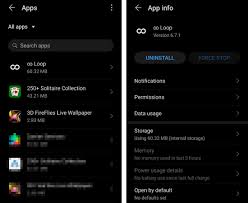
Method 2: Uninstall From Settings
- Go to your phone’s Settings menu.
- Scroll down and select “Apps & notifications.”
- Tap on “See all apps” to view a list of installed apps.
- Find the app you want to uninstall and tap on it.
- Select “Uninstall” or “Delete” from the menu options.
Tips For Uninstalling Pre-installed Apps
Some Android devices come with pre-installed apps that can’t be deleted directly. However, there are ways around this:
Using System App Remover
One popular solution is to use a system app remover like System App Remover. This tool allows you to delete pre-installed apps and other system-level apps.
- Download and install System App Remover from the Google Play Store.
- Open the app and grant it root access.
- Browse through the list of installed apps and select the ones you want to uninstall.
- Tap “Uninstall” to complete the process.
Troubleshooting: Deleting Updates
Sometimes, an update can cause an app to malfunction or become unstable. If this happens, you may need to delete the update and reinstall a clean version:
- Go to Settings > Apps & notifications > See all apps.
- Find the problematic app and tap on it.
- Select “Uninstall updates” instead of deleting the app itself.
Using Apowermanager
If your phone doesn’t allow you to uninstall pre-installed apps, you can use a third-party tool like ApowerManager:
- Download and install ApowerManager from their official website (for Windows or macOS).
- Connect your Android device to your computer using a USB cable.
- Open ApowerManager on your computer and select the app you want to uninstall.
Uninstalling Apps on Your Computer
If you need to uninstall an app directly on your phone, but can’t do so due to restrictions:
- Download and install ApowerManager (for Windows or macOS).
- Follow the instructions above to uninstall the app using ApowerManager.
Conclusion
Uninstalling Android apps is an essential step to maintaining your phone’s performance and security. By following these methods, you can say goodbye to unnecessary apps and hello to a clutter-free device.
Frequently Asked Questions (FAQs)
- Q: How do I uninstall pre-installed apps on my Android device?
A: You can use System App Remover or ApowerManager to delete pre-installed apps. - Q: What happens if I delete an app and then reinstall it later?
A: If you reinstall the same version of the app, any updates that were deleted will be reinstated automatically. - Q: Can I uninstall system-level apps?
A: Yes, but only using System App Remover or ApowerManager, as regular methods may not work for these types of apps. - Q: What’s the difference between deleting an update and uninstalling an app entirely?
A: Deleting an update removes any problematic changes made to the app, while uninstalling the app itself removes it entirely from your device. - Q: How do I prevent my phone from accumulating unnecessary apps in the future?
A: Regularly clean up your app drawer, delete unused apps, and be cautious when installing new ones. - Q: Can I use ApowerManager to manage other aspects of my Android device?
A: Yes, ApowerManager offers various tools for managing your device’s performance, security, and more.
By understanding these tips and best practices, you’ll become a pro at uninstalling Android apps in no time!


