
How to Change Your Google Profile Picture: A Step-by-step Guide
Are you tired of having a default profile picture on your Google account? Do you want to personalize your online presence with a unique image that reflects your personality or brand? Look no further! In this article, we’ll guide you through the simple process of changing your Google profile picture.
Why Change Your Profile Picture?
Before we dive into the step-by-step instructions, let’s quickly discuss why changing your profile picture is a good idea. A personalized profile picture can:
- Help you stand out online and make a great first impression
- Reflect your brand or personal style
- Make it easier for others to recognize you or remember your name
Step 1: Log In to Your Google Account
To change your profile picture, you need to log in to your Google account. If you’re not already signed in, follow these steps:
- Go to the Google website (www.Google.Com)
- Click on the “Sign in” button
- Enter your email address and password
- Click on the “Next” button
- Verify your account using a verification code or by signing in with a username and password
Step 2: Access Your Profile Settings
Once you’re logged in, follow these steps to access your profile settings:
- Click on the profile picture icon (looks like a small image) in the top right corner of the Google website
- A dropdown menu will appear; click on “My account”
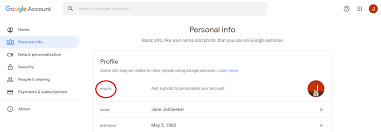
- On the next page, click on the “Personal info” tab
Step 3: Change Your Profile Picture
Now that you’re in your profile settings, follow these steps to change your profile picture:
- Click on the profile picture icon (it’s the one that looks like a small image)
- A new window will appear; click on the “Change” button
- You’ll see three options:
- Upload an image from your computer
- Choose an image from Google Photos
- Use a illustration from Google’s library of images
Step 4: Upload or Select Your Image
Follow these steps to upload or select your new profile picture:
- If you want to upload an image, click on the “Upload” button and choose an image from your computer
- If you want to choose an image from Google Photos, click on the “Google Photos” tab and select an image
- If you want to use a illustration from Google’s library of images, click on the “Illustrations” tab and browse through the available options
Step 5: Crop And Edit Your Image
Once you’ve uploaded or selected your image, follow these steps to crop and edit it:
- You’ll see a preview of your image; use the tools provided to crop and edit it
- Click on the “Save” button when you’re happy with the final result
Conclusion
Changing your Google profile picture is a simple process that can make a big difference in how others perceive you online. By following these steps, you can:
- Personalize your online presence with a unique image
- Reflect your brand or personal style
- Make it easier for others to recognize you or remember your name
Frequently Asked Questions
Here are some frequently asked questions that we’ve encountered while writing this article:
-
Why do I Need to Change my Profile Picture?
You don’t necessarily need to change your profile picture, but a personalized image can help you stand out online and make a great first impression. -
Can I Use Any Image For my Profile Picture?
No, Google has some requirements for profile pictures. They should be in JPEG or PNG format, have a maximum size of 5 MB, and have a minimum resolution of 250×250 pixels. -
How do I Change my Profile Picture on Mobile Devices?
To change your profile picture on mobile devices, follow the same steps as above, but use the Google app instead of the website. -
Can I Use an Image That’s Not Mine For my Profile Picture?
No, you should only use images that are yours or have been specifically licensed for use by others. -
How do I Reset my Profile Picture to The Default One?
To reset your profile picture to the default one, follow these steps: -
Log in to your Google account
- Go to your profile settings
- Click on the “Change” button next to your profile picture
-
Select the default image from the available options
-
Can I Change my Profile Picture Multiple Times?
Yes, you can change your profile picture as many times as you like. -
Will Changing my Profile Picture Affect my Google Account Settings?
No, changing your profile picture will not affect your Google account settings. It’s a cosmetic change only and won’t impact how your account works or any of its features. -
Can I Use an Image That Has Been Edited or Modified in Some Way For my Profile Picture?
Yes, you can use images that have been edited or modified in some way for your profile picture, but make sure to follow Google’s guidelines and ensure that the image is still recognizable and suitable for a profile picture.
We hope this article has helped you understand how to change your Google profile picture!


