
How to Set Custom Ringtone on Iphone: A Step-by-step Guide
Are you tired of using the same old ringtone on your iPhone? Do you want to personalize your phone’s sound with a unique and catchy tune? Look no further! In this article, we’ll guide you through the process of setting a custom ringtone on your iPhone.
Why Set Custom Ringtone on Iphone?
Before we dive into the steps, let’s explore why you might want to set a custom ringtone on your iPhone. Here are some compelling reasons:
- Personalization: A custom ringtone allows you to express your personality and style, making your phone stand out from the crowd.
- Convenience: With a custom ringtone, you can easily identify who’s calling or messaging you, even when the screen is locked.
- Creativity: You can choose a song that resonates with your interests, hobbies, or favorite artists.
Method 1: Using Garageband
One of the most popular methods for setting a custom ringtone on iPhone is using GarageBand. Here’s how:
- Launch Garageband: Tap the GarageBand icon to open the app.
- Create a New Project: Select “Music” and choose a tempo that suits your song choice.
- Select an Instrument: Choose an instrument, such as guitar or keyboard, to create your custom ringtone.
- Record Your Song: Start recording your song, and make sure it’s within the 40-second time limit.
- Export as Ringtone: Tap “Share” and select “Ringtone” to export your creation.
Method 2: Using Itunes
If you prefer using iTunes, follow these steps:
- Open Itunes: Launch iTunes on your computer or use the Music app on your Mac.
- Select a Song: Choose a song that’s available in your iTunes library or download one from the iTunes Store.
- Trim The Song: Trim the song to create a custom ringtone, ensuring it’s within the 40-second limit.
- Export as Ringtone: Right-click on the trimmed song and select “Create AAC Version” to export it as a ringtone.
Method 3: Using Itunes Store
You can also purchase a custom ringtone from the iTunes Store:
- Open Itunes Store: Launch the iTunes Store app on your iPhone or use the Music app on your Mac.
- Browse Ringtones: Browse through the available ringtones, and select one that suits your taste.
- Purchase The Ringtone: Tap “Buy” to purchase the ringtone, and it will be added to your iTunes library.
Setting Custom Ringtone on Iphone
Once you have created or purchased your custom ringtone, follow these steps to set it up on your iPhone:
- Open Settings: Launch the Settings app on your iPhone.
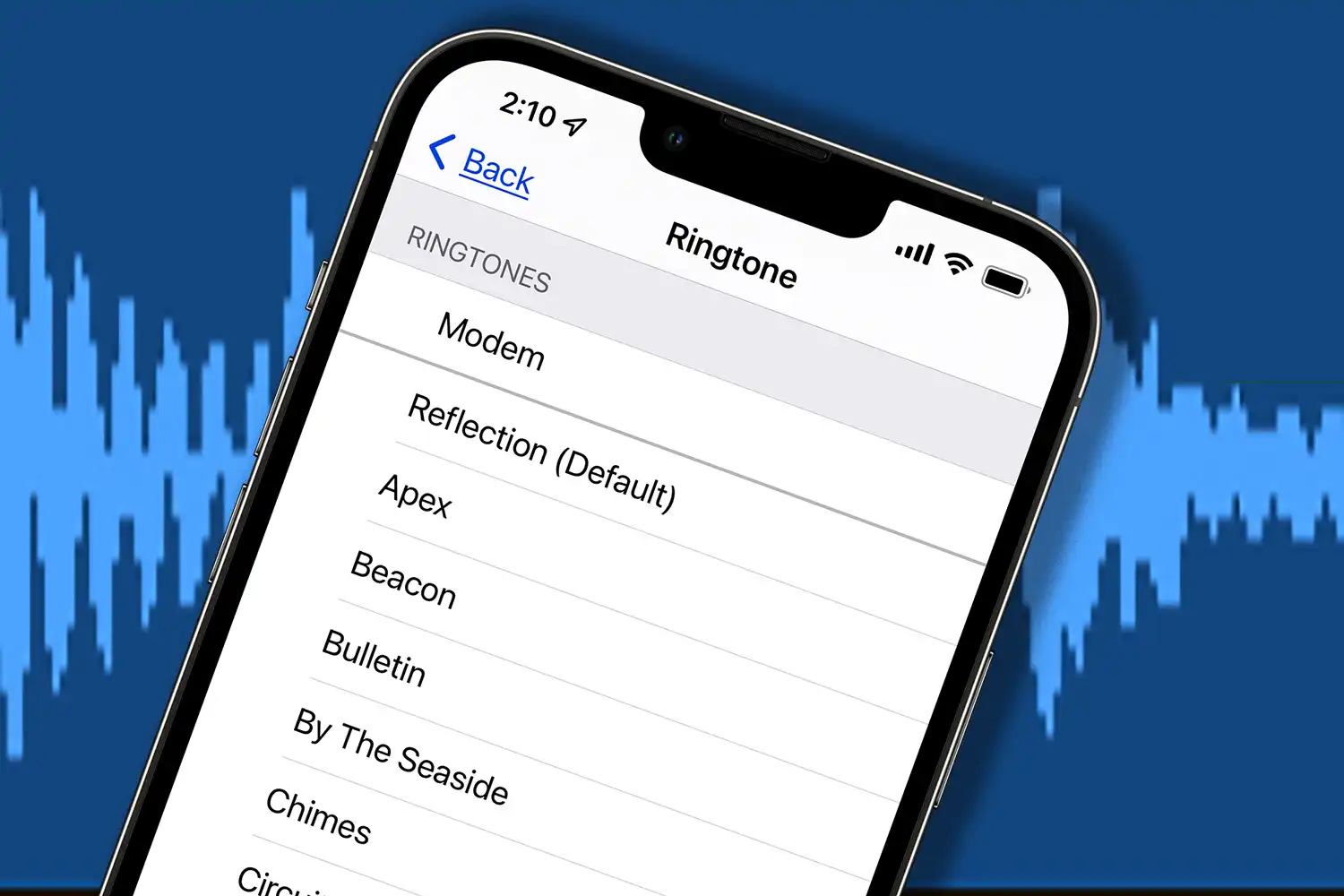
- Select Sounds & Haptics: Tap “Sounds & Haptics” and choose “Ringtone.”
- Choose Your Ringtone: Select your custom ringtone from the available options.
Tips And Variations
Here are some additional tips and variations to consider:
- Use a Song With a Catchy Melody: Choose a song with a catchy melody that will make you stand out.
- Experiment With Different Genres: Try experimenting with different genres, such as pop, rock, or electronic music.
- Create a Custom Ringtone For Each Contact: Set up a custom ringtone for each contact to easily identify who’s calling or messaging you.
Conclusion
Setting a custom ringtone on your iPhone is a simple and fun process. With these steps, you can create or purchase a unique ringtone that reflects your personality and style. Don’t be afraid to experiment with different methods and variations to find the perfect ringtone for you.
Frequently Asked Questions (FAQs)
Here are some frequently asked questions related to setting custom ringtones on iPhone:
- Q: Can I Set a Custom Ringtone For Each Contact?
A: Yes, you can set a custom ringtone for each contact by following the steps outlined above. - Q: How do I Export my Song as a Ringtone Using Garageband?
A: To export your song as a ringtone using GarageBand, tap “Share” and select “Ringtone.” - Q: Can I Use a Song From my Itunes Library as a Custom Ringtone?
A: Yes, you can use a song from your iTunes library as a custom ringtone by following the steps outlined above. - Q: How do I Purchase a Custom Ringtone From The Itunes Store?
A: To purchase a custom ringtone from the iTunes Store, launch the iTunes Store app on your iPhone or use the Music app on your Mac, and browse through the available ringtones. - Q: Can I Set a Custom Ringtone For Each Notification Type (e.G., Text Message, Phone Call)?
A: Yes, you can set a custom ringtone for each notification type by following the steps outlined above.


