
How to Install Windows From a Usb Drive: A Step-by-step Guide
Are you tired of using outdated software or dealing with slow performance? Installing the latest version of Windows from a USB drive can be a great solution. In this article, we will guide you through the process of installing Windows 11, Windows 10, Windows 8.1, And Windows 7 from a USB drive.
Why Install Windows From a Usb Drive?
Installing Windows from a USB drive offers several advantages:
- Convenience: A USB drive is portable and can be used to install Windows on any computer with a compatible BIOS.
- Efficiency: The installation process is faster and more efficient compared to using a CD or DVD.
- Versatility: You can create multiple USB drives with different versions of Windows, allowing you to switch between them easily.
Requirements
Before starting the installation process, ensure that:
- Your computer has a compatible BIOS (Basic Input/Output System) that supports booting from a USB drive.
- You have a USB drive with enough storage capacity (at least 8 GB for Windows 11 and 10, and at least 4 GB for Windows 8.1 And 7).
- The USB drive is empty or has no important data on it.
Step-by-step Guide: Installing Windows From a Usb Drive
Step 1: Download The Media Creation Tool
To create a bootable USB drive, you’ll need to download the Media Creation Tool from Microsoft’s official website. Follow these steps:
- Go to Microsoft’s official website and click on “Download Now” for Windows 11.
- Select the language and architecture (32-bit or 64-bit) you need, then click on “Next”.
- Choose whether you want to create a bootable USB drive or download an ISO file. For this guide, select “Create a bootable USB drive”.
Step 2: Create a Bootable Usb Drive
With the Media Creation Tool downloaded and launched:
- Insert your USB drive into the computer.
- Open the tool and follow the instructions to create a bootable USB drive.
Step 3: Install Windows From The Usb Drive
Once you have a bootable USB drive, insert it into the computer where you want to install Windows:
- Restart the computer and enter the BIOS settings (usually by pressing F2, F12, or Del).
- Set the USB drive as the first boot device.
- Save your changes and exit the BIOS settings.
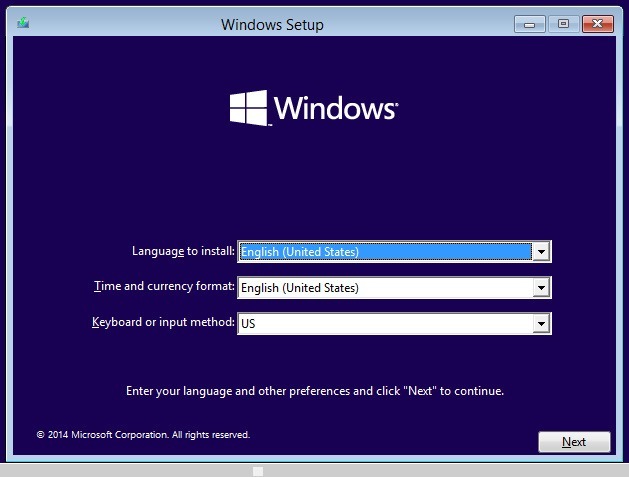
The computer will now boot from the USB drive. Follow the on-screen instructions to install Windows:
- Select your language and other preferences, then click on “Next”.
- Click on “Install Now” to begin the installation process.
- Wait for the installation to complete, then restart your computer.
Troubleshooting Tips
If you encounter any issues during the installation process:
- Ensure that your USB drive is properly inserted into the correct port.
- Verify that your BIOS settings are set correctly to boot from the USB drive.
- Check if there are any malware or viruses on your system that may be interfering with the installation.
Conclusion
Installing Windows from a USB drive can be a convenient and efficient way to upgrade your operating system. Follow these steps, and you’ll have a smooth experience installing Windows 11, Windows 10, Windows 8.1, And Windows 7.
Faqs
Here are some frequently asked questions:
Q: Do I Need a Specific Type of Usb Drive For This Process?
A: Yes, your USB drive must be at least 8 GB in size for Windows 11 and 10, and at least 4 GB for Windows 8.1 And 7.
Q: Can I Install Windows on Any Computer With a Usb Drive?
A: No, your computer’s BIOS must support booting from a USB drive. Additionally, ensure that the USB drive is properly inserted into the correct port.
Q: How Long Does it Take to Install Windows From a Usb Drive?
A: The installation time will vary depending on several factors such as your system configuration and internet connection speed. However, in general, it should take around 30 minutes to an hour for Windows 10 and 11, while Windows 8.1 And 7 might take a bit longer.
Q: Can I Use This Process With Older Versions of Windows?
A: While the steps may seem similar, you will need to adjust the Media Creation Tool according to your specific needs (the link provided in the article is for windows 11).


