
How to Uninstall Antivirus Software From Your PC
Are you tired of dealing with antivirus software that’s slow, heavy, or causing errors on your computer? Do you want to uninstall it but don’t know how? You’re not alone! In this article, we’ll guide you through the process of uninstalling antivirus software from your Windows or Mac computer.
Why Uninstall Antivirus Software?
Antivirus software is designed to protect your computer from malware and other online threats. However, sometimes these programs can become outdated, slow down your system, or even cause errors. If you’re experiencing any of these issues with your current antivirus software, it might be time to consider uninstalling it.
Uninstalling Antivirus Software on Windows
If you’re using a Windows computer, the process of uninstalling antivirus software is relatively straightforward. Here’s how:
Standard Procedure
- Click on the Start button and select “Control Panel”.
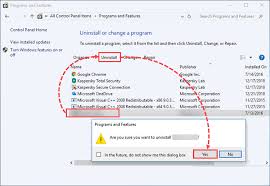
- Go to the “Programs and Features” section.
- Find the name of your antivirus software in the list of installed programs.
- Click on it and select “Uninstall”.
That’s it! The standard procedure should work for most antivirus software, including popular options like Avast, AVG, Bitdefender, McAfee, and Norton.
“Forced” Procedure
If you’re experiencing errors or issues with the standard procedure, you might need to use a “forced” removal tool. This is usually provided by the antivirus software manufacturer and can be downloaded from their official website. For example:
- Avast: Avast Removal Tool
- AVG: AVG Uninstaller
- Bitdefender: Bitdefender Removal Tool
How to Use The Removal Tool
- Download and install the removal tool.
- Run the tool in Safe Mode (this will help prevent any conflicts with other software).
- Follow the instructions on screen to complete the uninstallation process.
Uninstalling Antivirus Software on Mac
If you’re using a Mac, the process of uninstalling antivirus software is similar to that on Windows. Here’s how:
- Go to the Applications folder and find the icon for your antivirus software.
- Drag it to the Trash (or press Command+Shift+T).
- Empty the Trash.
Note: If you’re using a Mac, you can also uninstall antivirus software from the Activity Monitor or by using a dedicated removal tool provided by the manufacturer.
Uninstalling Antivirus Software on Smartphone And Tablet
If you’re using a smartphone or tablet, the process of uninstalling antivirus software is even simpler. Here’s how:
- Go to your device’s Home screen.
- Find the icon for your antivirus software.
- Press and hold it until a menu appears.
- Select “Uninstall” or “Delete”.
Common Issues And Troubleshooting
If you’re experiencing issues with uninstalling antivirus software, here are some common problems and their solutions:
- Error Messages: Try running the removal tool in Safe Mode to resolve any conflicts.
- Software Not Responding: Restart your computer or device and try again.
- Uninstallation Incomplete: Run the removal tool again to ensure a complete uninstallation.
Conclusion
Uninstalling antivirus software can be a straightforward process, but it’s essential to take necessary precautions to avoid any potential issues. By following these steps and using the correct tools, you should be able to successfully remove your antivirus software from your Windows or Mac computer.
Frequently Asked Questions
Q: Why do I need to uninstall my antivirus software?
A: If your antivirus software is slow, heavy, or causing errors on your system, it might be time to consider uninstalling it.
Q: How do I know if my antivirus software is outdated?
A: Check the manufacturer’s website for updates and reviews from other users.
Q: Can I use a third-party removal tool to uninstall my antivirus software?
A: It’s not recommended. Use the official removal tool provided by the manufacturer or follow our steps above.
Sources


