
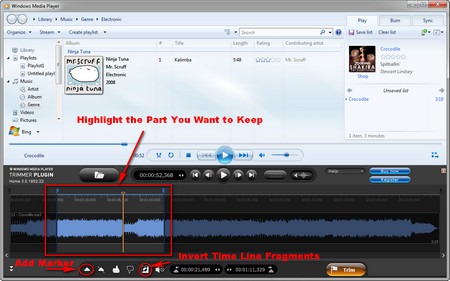
How to Divide a File Mp3 Into Parts
Are you looking for ways to divide a file MP3 into parts? Maybe you want to create a ringtone for your mobile or split a conference recording into smaller chunks. Whatever the reason, this guide will walk you through the process of dividing an MP3 file using various online and offline tools.
Why Divide an Mp3 File?
There are several reasons why you might need to divide an MP3 file. Here are a few:
- Create ringtones for your mobile phone
- Split conference recordings or podcast episodes into smaller parts
- Extract specific sections of an audio file for use in other projects
Offline Tools: Audacity And Vlc
Let’s start with two popular offline tools that can help you divide an MP3 file.
Audacity (Windows, Macos, Linux)
- Download Audacity from their official website.
- Install the software and follow the prompts to get started.
- Open Audacity and navigate to the “File” menu.
- Select “Open” and choose your MP3 file.
- Use the cursor tool to select the section of audio you want to cut.
- Go to the “Edit” menu and select “Copy.”
- Go back to the main window and press “Play” to hear the selected segment.
- Once you’re satisfied, go back to the “File” menu and select “Export Audio.”
- Choose your desired format (MP3, WAV, etc.) And save the file.
Vlc (Windows, Macos, Linux)
- Download VLC from their official website.
- Install the software and follow the prompts to get started.
- Open VLC and navigate to the “Media” menu.
- Select “Open File” and choose your MP3 file.
- Use the playhead tool to select the section of audio you want to cut.
- Go to the “Playback” menu and select “Record.”
- Choose a location to save the recorded segment.
- Name your new file and choose a format (MP3, WAV, etc.).
Online Tools: Cut Audio of 123Apps, Mp3cutter, And More
If you prefer online tools or don’t have access to offline software, there are plenty of web-based options available.
- Cut Audio of 123Apps: This tool allows you to cut audio files directly from the browser.
- Mp3cutter: A simple online tool for cutting MP3 files.
- Audiotrimmer: Another popular online tool for trimming and cutting audio files.
Mobile Apps: Mp3 Cutter (Android) And Garageband (iOS, Ipados)
If you’re on a mobile device, there are dedicated apps to help you divide an MP3 file.
- Mp3 Cutter (Android): A simple app for cutting MP3 files.
- Garageband (iOS, Ipados): A more advanced music editing app that can also be used to cut audio files.
Conclusion
Dividing an MP3 file is a straightforward process with the right tools. Whether you prefer offline software or online web-based options, there’s a solution for everyone. With these guides, you should now have the knowledge to easily split your MP3 files into smaller parts and use them as desired.
FAQs
Q: What Are The Best Tools For Dividing an Mp3 File?
A: There are several offline and online tools available that can help divide an MP3 file. Some popular options include Audacity, VLC, Cut Audio of 123Apps, MP3Cutter, AudioTrimmer, MP3 Cutter (Android), and GarageBand (iOS, iPadOS).
Q: Can I Use Mobile Apps to Divide an Mp3 File?
A: Yes, there are dedicated mobile apps that allow you to cut audio files. Some popular options include MP3 Cutter (Android) and GarageBand (iOS, iPadOS).
Q: How do I Choose The Right Tool For Dividing my Mp3 File?
A: Choose a tool based on your specific needs and preferences. If you’re comfortable with offline software, Audacity or VLC might be good choices. However, if you prefer online tools or mobile apps, options like Cut Audio of 123Apps, MP3Cutter, AudioTrimmer, MP3 Cutter (Android), or GarageBand (iOS, iPadOS) are available.
Q: Can I Divide an Mp3 File Into Smaller Parts Online?
A: Yes, there are several web-based tools that allow you to cut audio files directly from the browser. Some popular options include Cut Audio of 123Apps, MP3Cutter, and AudioTrimmer.
Q: How do I Save my Divided Mp3 File?
A: Once you’ve divided your MP3 file using any of the tools mentioned above, you can save it in various formats such as MP3, WAV, or others. Make sure to choose a location where you’d like to save the new file and name it accordingly.
Q: Are There Any Specific Features I Should Look For When Choosing an Mp3 Divider Tool?
A: When selecting an MP3 divider tool, consider features such as ease of use, compatibility with your device or operating system, and additional editing capabilities (if needed). Some tools may also offer advanced options like noise reduction or equalization.


