
Welcome to The World of Graphic Design: A Comprehensive Guide to Downloading And Installing Gimp
Are you tired of using expensive graphic design software like Adobe Photoshop? Look no further! In this article, we will guide you through the process of downloading and installing GIMP, a free and open-source alternative that is just as powerful.
What is Gimp?
GIMP stands for GNU Image Manipulation Program. It’s a free and open-source raster graphics editor that can be used for a wide range of graphic design tasks, from photo editing to logo creation. With its intuitive interface and robust feature set, GIMP has become a popular choice among graphic designers, photographers, and hobbyists alike.
System Requirements
Before we dive into the installation process, let’s take a look at the system requirements for running GIMP on your computer.
- Operating System: Windows 7 or later, macOS 10.12 Sierra or later, Linux
- Processor: 1 GHz or faster
- RAM: 512 MB or more
- Disk Space: 900 MB or more
Downloading Gimp
Now that we’ve covered the system requirements, let’s move on to the downloading process.
Downloading Gimp For Windows 10/11
If you’re using a Windows computer, follow these steps to download GIMP:
- Go to the Microsoft Store and search for “GIMP”.
- Click on the result that says “GIMP” and then click on the “Install” button.
- Wait for the installation process to complete.
Alternatively, you can download GIMP from the official website:
- Go to the GIMP website (www.Gimp.Org)).
- Click on the “Download” button in the top-right corner of the page.
- Select the version of GIMP that matches your operating system (Windows, macOS, or Linux).
- Choose a download location and click on the “Download” button.
Downloading Gimp For Mac
If you’re using a Mac computer, follow these steps to download GIMP:
- Go to the GIMP website (www.Gimp.Org)).
- Click on the “Download” button in the top-right corner of the page.
- Select the version of GIMP that matches your operating system (macOS).
- Choose a download location and click on the “Download” button.
Downloading Gimp For Linux
If you’re using a Linux computer, follow these steps to download GIMP:
- Go to the GIMP website (www.Gimp.Org)).
- Click on the “Download” button in the top-right corner of the page.
- Select the version of GIMP that matches your operating system (Linux).
- Choose a download location and click on the “Download” button.
Installing Gimp
Once you’ve downloaded GIMP, follow these steps to install it on your computer:
Installing Gimp on Windows 10/11
- Run the installation package that you downloaded from the Microsoft Store or the official GIMP website.
- Follow the prompts to complete the installation process.
Installing Gimp on Mac
- Run the installation package that you downloaded from the official GIMP website.
- Follow the prompts to complete the installation process.
Installing Gimp on Linux
- Open a terminal window and navigate to the directory where you downloaded the installation package.
- Run the installation command (e.G.,
Sudo apt-get install gimpfor Ubuntu-based systems).
Using Gimp
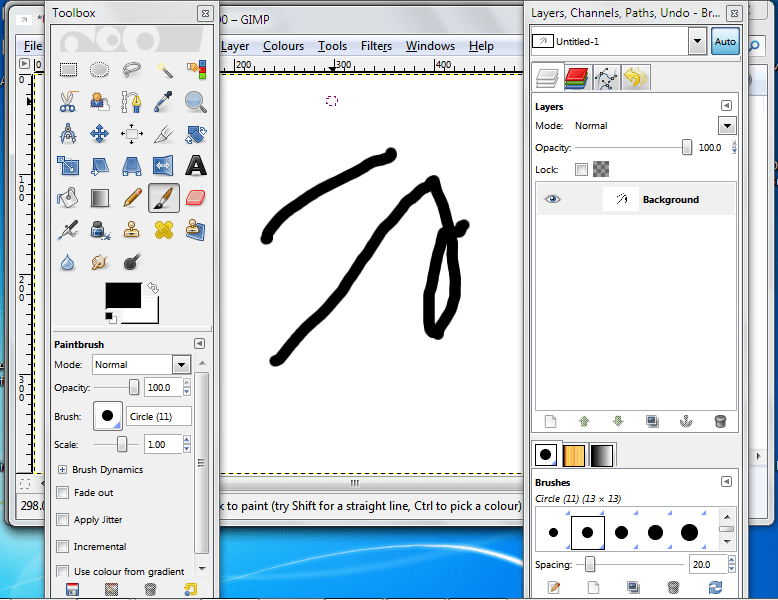
Now that you’ve installed GIMP, let’s take a look at some of its basic features.
- Image Editing: Use GIMP to edit images, apply filters, and adjust colors.
- Logo Creation: Create logos using GIMP’s vector tools and typography features.
- Photo Manipulation: Edit photos using GIMP’s powerful photo editing tools.
- Illustration: Create original artwork using GIMP’s illustration tools.
Conclusion
In conclusion, downloading and installing GIMP is a straightforward process that can be completed in just a few minutes. With its robust feature set and intuitive interface, GIMP is an excellent choice for graphic designers, photographers, and hobbyists alike. Whether you’re looking to edit images, create logos, or simply explore the world of graphic design, GIMP has got you covered.
Frequently Asked Questions
- What is The System Requirement For Running Gimp?
GIMP requires a Windows 7 or later operating system, a macOS 10.12 Sierra or later operating system, or a Linux operating system to run. - How do I Download Gimp?
You can download GIMP from the Microsoft Store (for Windows) or the official GIMP website (for Windows, Mac, and Linux). - What Are The Steps to Install Gimp on my Computer?
The installation process varies depending on your operating system. Please refer to the relevant section above for detailed instructions. - Can I Use Gimp For Free?
Yes, GIMP is a free and open-source software that can be used without any cost or subscription fees. - What Are Some of The Basic Features of Gimp?
Some of the basic features of GIMP include image editing, logo creation, photo manipulation, illustration, and typography tools.
Related Guides
- How to Use Gimp For Image Editing: A comprehensive guide to using GIMP for image editing tasks.
- Creating Logos With Gimp: A step-by-step guide to creating logos using GIMP’s vector tools and typography features.
- Photo Manipulation in Gimp: A guide to using GIMP’s powerful photo editing tools to manipulate images.


