
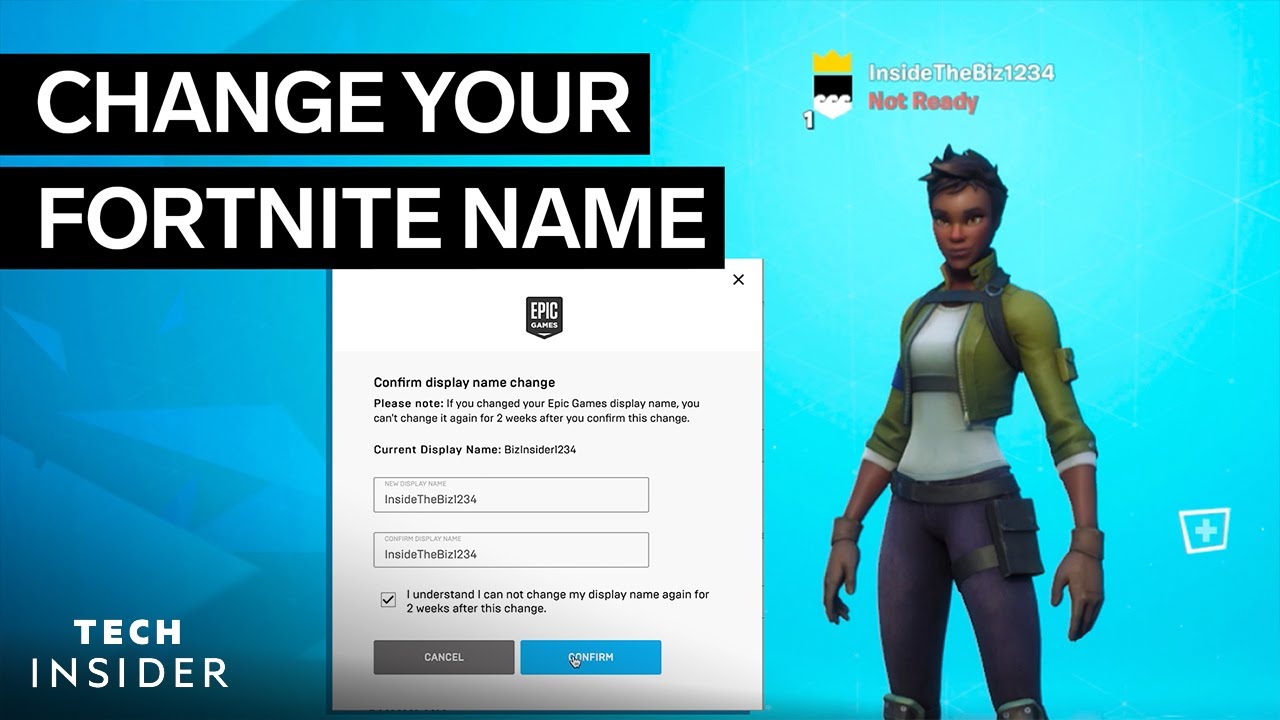
How to Change Your Name on Fortnite: A Step-by-step Guide
Are you tired of using your old name on Fortnite? Do you want to change it to something new and exciting? Look no further! In this article, we will guide you through the process of changing your name on Fortnite, whether you’re playing on PC, console, or mobile.
Can You Change Your Name on Fortnite?
Yes, you can definitely change your name on Fortnite. However, there are some limitations to consider. If you’re playing on PC, Xbox, or PlayStation 4/5, you can change your name freely every two weeks without any cost. On the other hand, if you’re playing on Nintendo Switch, you can also change your name freely without any cost.
Changing Your Name on Fortnite: PC Edition
If you’re playing on PC, changing your name is a straightforward process. Here’s how to do it:
- Open Epic Games Launcher: First, open the Epic Games Launcher on your PC.
- Login to Your Account: Login to your Epic Games account using your email and password.
- Access Settings: In the launcher, click on the icon of a man in the top-right corner, then select “Settings” from the dropdown menu.
- Modify Your Name: Click on the pencil icon next to “Name” and enter your new name.
- Confirm Changes: Make sure you understand that changing your name will prevent you from changing it again for two weeks.
Changing Your Name on Fortnite: Console Edition
If you’re playing on console (PlayStation 4/5, Xbox One, or Nintendo Switch), the process is slightly different:
Playstation 4/5
- Open Playstation Settings: Go to the PlayStation settings and select “Account” from the menu.
- Modify Your Online ID: Select “Users and Profile” and then click on the pencil icon next to your current online ID.
- Enter New Name: Enter your new name in the required field.
Xbox One
- Open Xbox Settings: Go to the Xbox settings and select “Account” from the menu.
- Modify Your Gamertag: Select “My Profile” and then click on the pencil icon next to your current gamertag.
- Enter New Name: Enter your new name in the required field.
Nintendo Switch
- Open Nintendo Switch Settings: Go to the Nintendo Switch settings and select “Account” from the menu.
- Modify Your User ID: Select “Users and Profiles” and then click on the pencil icon next to your current user ID.
- Enter New Name: Enter your new name in the required field.
Tips And Tricks
- Make sure you’re using a stable internet connection when changing your name to avoid any issues.
- If you’re playing on console, be aware that the first change is free, but subsequent changes will cost $9.99 Per change.
- On Nintendo Switch, you can change your name freely without any cost.
Conclusion
Changing your name on Fortnite is a simple process, and we hope this guide has helped you navigate it successfully. Whether you’re playing on PC or console, follow these steps to change your name and get ready to show off your new identity on the battlefield!
Frequently Asked Questions (FAQs)
-
Can I Change my Name on Fortnite For Free?
Yes, if you’re playing on PC or Nintendo Switch, you can change your name freely without any cost. -
How Often Can I Change my Name on Fortnite?
On PC, Xbox, and PlayStation 4/5, you can change your name every two weeks without any cost. -
What’s The Cost of Changing my Name on Console?
The first change is free, but subsequent changes will cost $9.99 Per change on console (PlayStation 4/5 and Xbox One). -
Can I Change my Gamertag on Fortnite?
Yes, if you’re playing on Xbox or PlayStation 4/5, you can modify your gamertag to a new name. -
How do I Access The Settings on Fortnite?
To access the settings on Fortnite, go to the respective platform’s settings menu (e.G., Epic Games Launcher for PC). -
Can I Change my User ID on Nintendo Switch?
Yes, you can modify your user ID on Nintendo Switch by following the steps outlined in this guide. -
What if I Encounter Issues While Changing my Name?
If you experience any problems or issues during the name-changing process, feel free to contact Epic Games support for assistance.


