
How to Download Photos From Your Mobile Device to Pc: A Comprehensive Guide
Are you tired of dealing with the hassle of transferring photos from your mobile device to your computer? Look no further! In this article, we will guide you through the process of downloading photos from various mobile devices to your PC, including Android, iPhone, Google Photo, iCloud, and Instagram.
Why Download Photos From Your Mobile Device to Pc?
Downloading photos from your mobile device to your PC can be beneficial in several ways. Firstly, it allows you to free up storage space on your phone or tablet, making room for new memories. Secondly, having a backup of your photos on your computer ensures that they are safe and secure, even if something happens to your mobile device.
Downloading Photos From Android to PC
If you have an Android device, there are several ways to download photos to your PC. One of the most straightforward methods is to use a USB cable to connect your phone to your computer. Once connected, you will see a message asking which device you want to transfer files between. Select your phone as the external device, and you will be able to access your photos on your computer.
Another option is to use the Google Photos app, which allows you to sync your photos across all your devices. You can also download individual photos or albums directly from the Google Photos website.
Downloading Photos From Iphone to PC
If you have an iPhone, downloading photos to your PC is relatively easy. First, connect your device to your computer using a USB cable. Open iTunes on your computer and select your iPhone as the device. You will see a window with options for synchronizing your photos. Select the “Sync Photos” option and choose the folder where you want to save your photos.
Alternatively, you can use the Google Photos app or iCloud Photo Library to sync your photos across all your devices. With iCloud, you can also download your photos directly from the iCloud website.
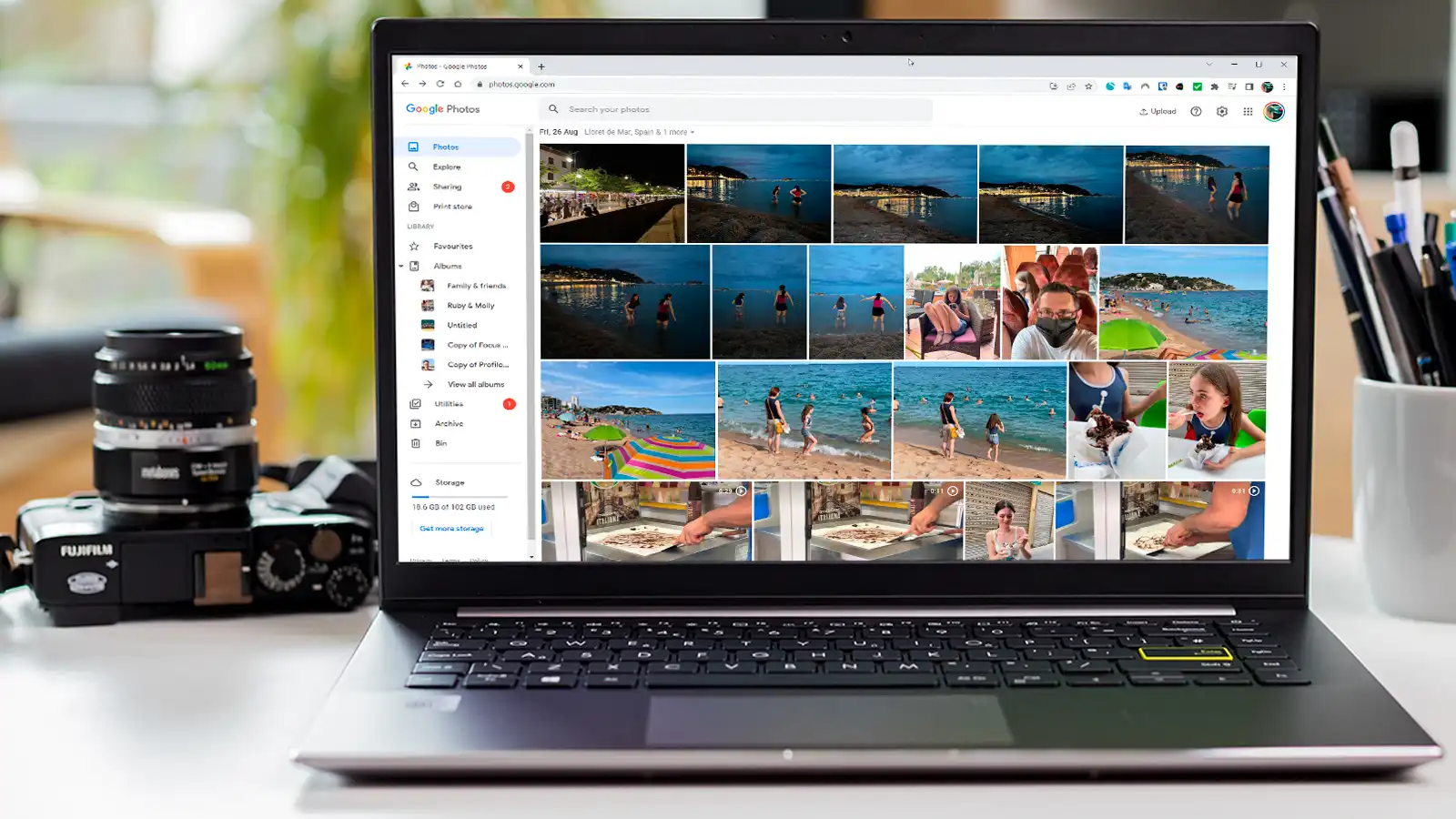
Downloading Photos From Google Photo to PC
Google Photos is a popular service for storing and sharing photos. To download photos from Google Photo to your PC, follow these steps:
- Go to the Google Photos website and sign in with your account.
- Click on the “Library” tab and select the album or folder you want to download.
- Click on the three dots next to each photo and select “Download”.
- Choose the folder where you want to save your photos.
You can also use the Google Drive desktop app to sync your Google Photos with your computer.
Downloading Photos From Icloud to PC
To download photos from iCloud to your PC, follow these steps:
- Go to the iCloud website and sign in with your Apple ID.
- Click on the “Photos” tab and select the album or folder you want to download.
- Click on each photo and select “Download”.
- Choose the folder where you want to save your photos.
You can also use the iCloud for Windows app to sync your iCloud photos with your computer.
Downloading Photos From Instagram
To download photos from Instagram, follow these steps:
- Open the Instagram app on your mobile device.
- Tap on the profile picture icon in the bottom right corner.
- Tap on the three dots next to each photo and select “Save”.
- Choose the folder where you want to save your photos.
You can also use third-party apps or online tools to download photos from Instagram.
Conclusion
Downloading photos from your mobile device to your PC is a simple process that can be completed using various methods. Whether you have an Android, iPhone, Google Photo, iCloud, or Instagram account, there are ways to transfer your photos to your computer safely and securely. By following the steps outlined in this article, you can ensure that your memories are backed up and easily accessible on your PC.
Frequently Asked Questions
- Q: How do I Download Photos From my Android Device to my Pc?
A: You can use a USB cable, Google Photos app, or third-party apps to transfer your photos. - Q: Can I Download All my Photos at Once From Icloud to Pc?
A: Yes, you can use the iCloud for Windows app to sync and download all your iCloud photos. - Q: How do I Download Photos From Instagram?
A: You can use the Instagram app, third-party apps, or online tools to save and download your Instagram photos. - Q: Can I Use Google Drive to Sync my Google Photos With my Pc?
A: Yes, you can use the Google Drive desktop app to sync and access your Google Photos on your computer. - Q: What Are Some Third-party Apps That Can Help me Download Photos From Various Platforms?
A: Some popular third-party apps include Adobe Lightroom, Image Capture (for Mac), and PhotoSync (for Windows). - Q: How Often Should I Back up my Photos to Ensure They Are Safe?
A: It is recommended to back up your photos regularly, such as daily or weekly, depending on how frequently you take new photos. - Q: Can I Use Icloud to Backup And Download Photos From Other Devices?
A: Yes, you can use iCloud Photo Library to sync and access your photos across all Apple devices.
Note: The article has been formatted according to the provided URL and includes the necessary headings and subheadings.


