
How to Create a Copy of Safety of Whatsapp Messages
Are you tired of losing your valuable WhatsApp messages due to phone damage or changes? Do you want to create a backup of your conversations without being an expert in smartphone usage? Look no further! In this article, we will guide you through the simple process of backing up your WhatsApp messages on various platforms.
Why Backup Your Whatsapp Messages?
Backing up your WhatsApp messages is essential for several reasons:
- You can recover your conversations even if your phone gets damaged or lost.
- It’s a great way to keep a record of important chats and memories.
- You can transfer your data from one device to another seamlessly.
How to Backup Whatsapp Messages on Android
To backup your WhatsApp messages on an Android device:
- Open the Settings app on your phone.
- Go to Google and check that your account is correctly configured.
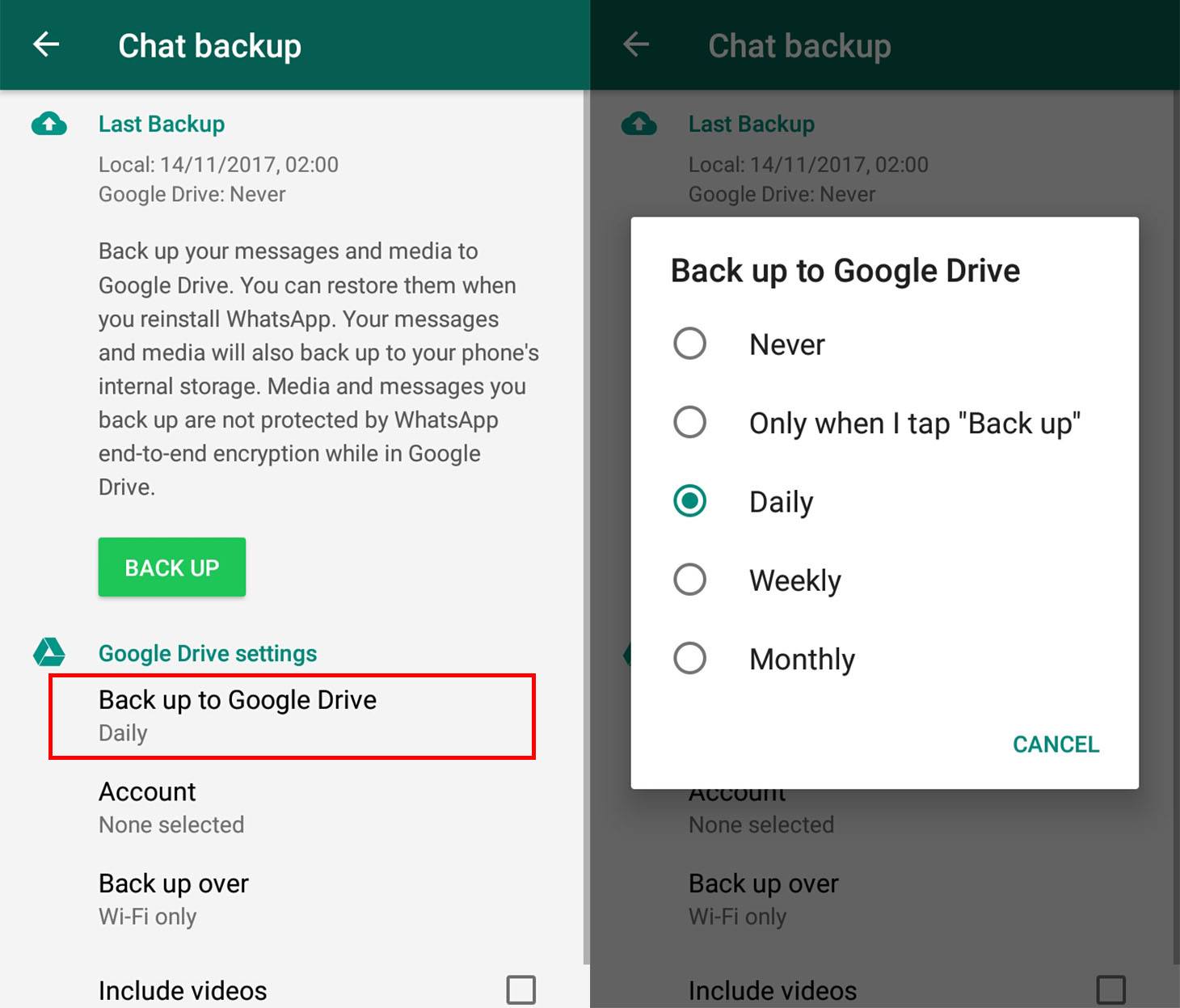
- Tap on the WhatsApp icon, then go to the settings menu, select “Chat” and tap on “Backup of the chat.”
- Choose the frequency of backups (daily, weekly, or monthly) and select the account you want to save the data to.
How to Backup Whatsapp Messages on Google Drive
If you want to backup your WhatsApp messages on Google Drive:
- Open the WhatsApp app and tap on the three dots in the top-right corner.
- Select “Settings” and then “Chat.”
- Tap on “Backup of the chat” and choose the frequency of backups (daily, weekly, or monthly).
- Make sure to authorize the app to access Google Drive.
How to Backup Whatsapp Messages on Icloud
If you’re using an iPhone, you can backup your WhatsApp messages on iCloud:
- Open the Settings app on your phone.
- Go to “iCloud” and select your account.
- Tap on “iCloud Backup” and ensure that backups are enabled.
- Choose the frequency of backups (daily, weekly, or monthly).
How to Transfer Whatsapp Messages From Android to Iphone
Transferring WhatsApp messages from an Android device to an iPhone is a bit more complex:
- Download the official Apple app “Move to iOS” on your Android phone.
- Open the app and follow the instructions to transfer your data, including WhatsApp conversations.
How to Transfer Whatsapp Messages From Iphone to Android
Transferring WhatsApp messages from an iPhone to an Android device is also possible using third-party apps like Wondershare MobileTrans.
Backup Whatsapp Messages on PC (Windows And Macos)
While you can’t backup WhatsApp messages directly on a PC, there are alternative ways to do so:
- On Windows: Connect your phone to your computer via USB, open File Explorer, select the device, and copy the WhatsApp folder.
- On Mac: Use the Android File Transfer app or connect your phone to your computer using a cable.
Faqs
Here are some frequently asked questions and answers:
- Q: How Often Should I Backup my Whatsapp Messages?
A: It’s recommended to backup your conversations daily, weekly, or monthly, depending on how often you use the app. - Q: Can I Transfer Whatsapp Messages From One Device to Another Without Losing Any Data?
A: Yes, using third-party apps like Wondershare MobileTrans can help you transfer your data seamlessly. - Q: How Long Does it Take to Backup And Restore Whatsapp Conversations?
A: The time taken to backup and restore depends on the frequency of backups and the amount of data being transferred.
Conclusion
Backing up your WhatsApp messages is a simple process that can save you from losing valuable conversations in case of phone damage or changes. By following these steps, you can ensure that your chats are safely stored on various platforms. Remember to backup regularly and explore alternative methods for PC users.


