
Customizing Lock Screens: A Guide to Enhancing Your Mobile Experience
In today’s digital age, having a personalized mobile experience is no longer a luxury but a necessity. One aspect of this personalization is customizing your lock screen with diverse backgrounds or images that change at regular intervals. This article will delve into the world of lock screen customization, exploring various options for Android, iPhone, Windows, and macOS devices.
Why Personalize Your Lock Screen?
The first question that comes to mind is: Why bother personalizing my lock screen? The answer lies in the desire for a unique mobile experience that reflects your personality or interests. A customized lock screen can be a great way to express yourself, especially if you’re someone who likes to change things up regularly.
Android Lock Screen Customization
For Android users, customizing the lock screen is relatively straightforward. There are two primary methods: Using built-in services and third-party apps.
Using Built-in Services
One of the simplest ways to customize your Android lock screen is by using a service integrated into the operating system. For example, on some editions of Android, you can set dynamic backgrounds that change at regular intervals. To access this feature, go to Settings > Home screen, and then tap on Wallpapers & styles.
Alternatively, you can opt for the built-in “Dynamic Wallpapers” service, which allows you to select from various categories or download images directly from the Internet. This way, your lock screen will display a new background every time you unlock your device.
Using Third-party Apps
If the built-in services don’t offer enough flexibility, there are numerous third-party apps available on the Play Store that can help you customize your lock screen. One popular option is My-Wallpaper Slideshow, which allows you to create a personalized slideshow using your own images or those downloaded from the Internet.
To use this app, create a folder containing the photos you want to display and add them to the app. Then, choose the transition effect and speed that suits your taste. Finally, enable the Double Tap to Change feature to switch between different slides by double-tapping on the lock screen.
Iphone Lock Screen Customization
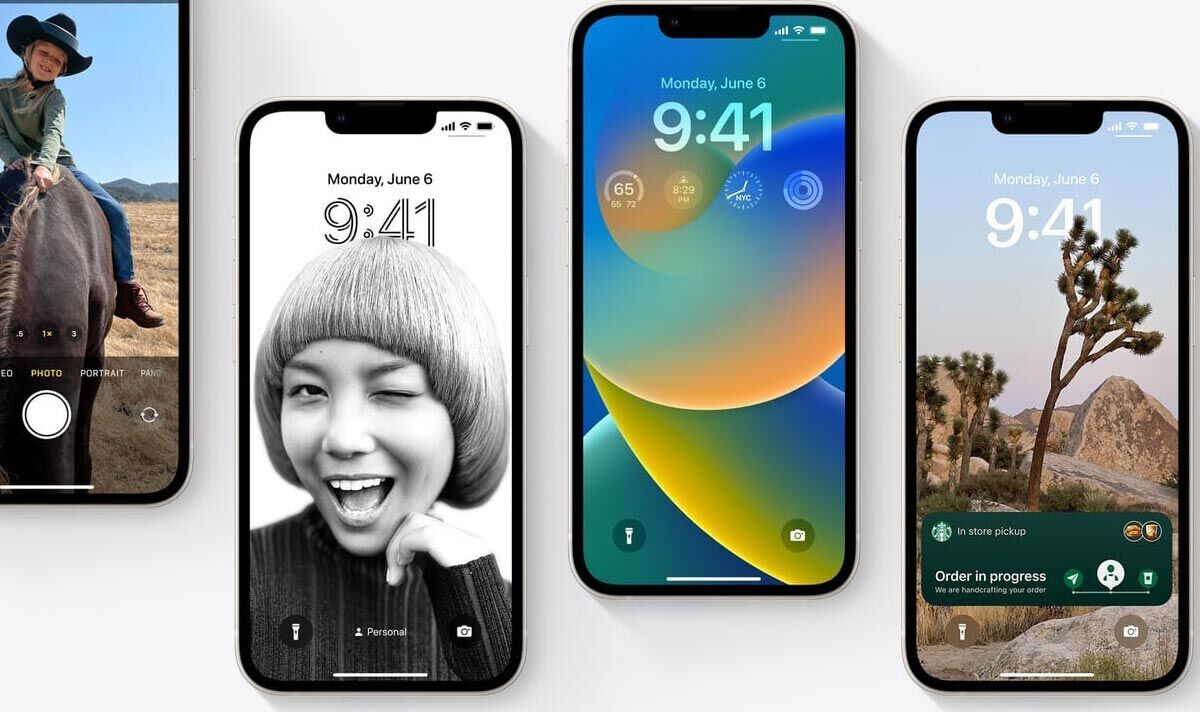
Customizing the iPhone lock screen is a relatively straightforward process, especially with iOS 16. You can now create personalizable lock screens, which can display multiple backgrounds that change at regular intervals.
To access this feature, unlock your device and tap the “+” icon in the top-right corner of the lock screen. Select “Personalize” and choose from various categories or add your own images to the slideshow. You can also set the frequency at which the background changes by tapping on the clock icon.
If you want to change the style of the lock screen, swipe right or left until you find the one that suits your taste. When you’re satisfied with your selection, tap “Add” to apply it to the lock screen.
Windows Lock Screen Customization
For Windows users, customizing the lock screen is a great way to personalize your device without requiring extensive technical knowledge. You can use built-in services or third-party apps to achieve this goal.
Using Built-in Services
To customize your Windows lock screen using built-in services, right-click on an empty area of the desktop and select “Personalize.” Then, tap on “Lock screen” and choose from various categories or add your own images to the slideshow. You can also set the frequency at which the background changes by tapping on the clock icon.
If you want to include suggestions from Windows in addition to your own images, affix the checkmark beside the “Show information, suggestions, and more on the lock screen” option.
Using Third-party Apps
If the built-in services don’t meet your expectations, there are numerous third-party apps available that can help you customize your Windows lock screen. One popular option is Lock Screen Pro, which allows you to create a personalized slideshow using your own images or those downloaded from the Internet.
To use this app, create a folder containing the photos you want to display and add them to the app. Then, choose the transition effect and speed that suits your taste. Finally, enable the Double Tap to Change feature to switch between different slides by double-tapping on the lock screen.
Macos Lock Screen Customization
Customizing the macOS lock screen is a straightforward process that can enhance your device’s appearance without requiring extensive technical knowledge. To access this feature, go to System Preferences > Wallpapers & Themes and select from various categories or add your own images to the slideshow.
If you want to change the style of the lock screen, tap on the “Wallpaper” tab and choose a new background that reflects your personality. You can also set the frequency at which the background changes by tapping on the clock icon.
Conclusion
Customizing your mobile device’s lock screen is an excellent way to personalize your experience without requiring extensive technical knowledge. Whether you’re using Android, iPhone, Windows, or macOS, there are numerous options available to suit your preferences. By choosing from built-in services or third-party apps, you can create a unique lock screen that reflects your personality and interests.
Frequently Asked Questions (FAQs)
- What is The Purpose of Customizing my Lock Screen?
Customizing your lock screen allows you to personalize your mobile experience by displaying backgrounds or images that reflect your personality or interests. - How Can I Customize my Android Lock Screen?
You can use built-in services like dynamic wallpapers or third-party apps like My-Wallpaper Slideshow to customize your Android lock screen. - Can I Change The Style of my Iphone’s Lock Screen?
Yes, you can now create personalizable lock screens with iOS 16, which allows you to display multiple backgrounds that change at regular intervals. - How do I Customize my Windows Lock Screen?
You can use built-in services like Lock Screen or third-party apps like Lock Screen Pro to customize your Windows lock screen. - Can I Customize my Macos Lock Screen?
Yes, you can customize your macOS lock screen by going to System Preferences > Wallpapers & Themes and selecting from various categories or adding your own images to the slideshow.
References
- A guide on how to customize Android lock screens
- An article on iOS 16’s personalizable lock screens
- A tutorial on Windows lock screen customization
- A blog post on macOS lock screen customization


