
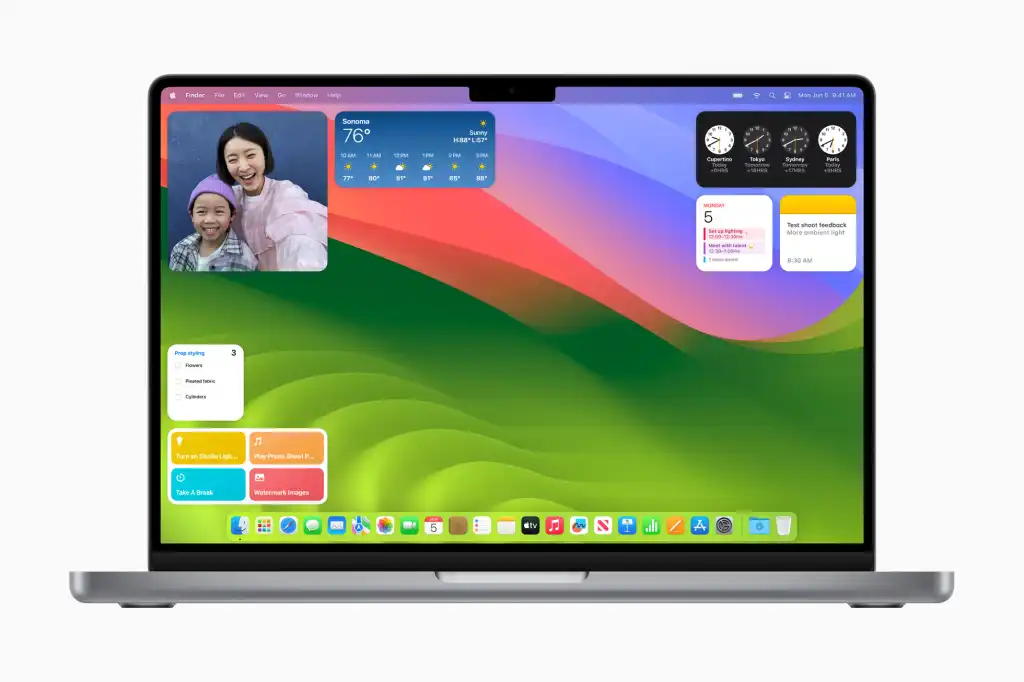
How to Update Your Mac: A Step-by-step Guide
Are you a Mac user wondering how to update your operating system? Look no further! In this article, we’ll walk you through the process of updating your Mac to the latest version of macOS.
Why Update Your Mac?
Updating your Mac is essential to ensure that you have the most recent security patches and features. It’s like keeping your car up-to-date with the latest safety recalls – you want to be protected from potential vulnerabilities!
Before You Begin
Before we dive into the process, it’s crucial to back up your data. Yes, you read that right! Backing up your important files is always a good idea, especially when updating your operating system.
You can use Time Machine, which comes pre-installed on Macs, or third-party backup software to create a copy of your data. This way, even if something goes wrong during the update process, you’ll have a safety net to fall back on.
Updating Your Mac Using The App Store
The easiest way to update your Mac is through the App Store. Here’s how:
- Open The App Store: Click on the App Store icon in the Dock or go to Applications > App Store.
- Click on Updates: In the top menu, click on “Updates” and then select the version you want to update to.
- Click Update: If an update is available, click on “Update” to download and install it.
Reinstalling Macos
If you’re experiencing issues with your Mac or if you want to start fresh, you can reinstall macOS using the built-in utility called Recovery Mode.
- Restart Your Mac: Shut down your Mac and then press the Power button to turn it back on.
- Immediately Hold Down Command (⌘) + R: This will take you to Recovery Mode.
- Select Reinstall Macos: From the Utilities window, select “Reinstall macOS” and follow the prompts.
Combo Updates
If you’re running an older version of macOS, you might be able to update directly to a newer version using Combo updates. These are packages that contain all the necessary files for updating your operating system.
- Visit Apple’s Website: Go to Apple’s website and search for the latest Combo update.
- Download The Update: Click on the download link and save the file to your desktop or downloads folder.
- Install The Update: Open the downloaded package, double-click it, and follow the prompts.
Updating Applications
In addition to updating your operating system, it’s essential to keep your applications up-to-date as well. Here’s how:
- Open The App Store: Click on the App Store icon in the Dock or go to Applications > App Store.
- Click on Updates: In the top menu, click on “Updates” and then select the application you want to update.
Troubleshooting
If you encounter any issues during the update process, don’t worry! Here are some troubleshooting tips:
- Try clearing the cache by deleting the files in the
/tmp/com.Apple.Appstore/folder. - Restart your Mac and try updating again.
- If all else fails, consider reinstalling macOS using Recovery Mode.
Conclusion
Updating your Mac is a relatively straightforward process that can help ensure you have the latest security patches and features. Remember to back up your data before starting the update process, and don’t hesitate to seek help if you encounter any issues.
Faqs
- How Often Should I Update my Mac?
- It’s recommended to check for updates every 1-2 weeks.
- Will Updating my Mac Delete my Files?
- No, updating your Mac will not delete your files or data.
- Can I Update my Mac Remotely?
- Yes, you can use Apple’s Remote Desktop feature to update your Mac from another device.
- What if I Encounter Issues During The Update Process?
- Don’t worry! You can try troubleshooting by clearing the cache, restarting your Mac, or reinstalling macOS using Recovery Mode.
- How do I Back up my Data Before Updating my Mac?
- You can use Time Machine or third-party backup software to create a copy of your important files.
- Can I Update my Mac if It’s Running an Older Version of Macos?
- Yes, you might be able to update directly to the latest version using Combo updates.
- How do I Know What Version of Macos I’m Running?
- You can check by clicking on Apple > About This Mac.
- What if I Don’t Want to Update my Mac Immediately?
- You can delay updating your Mac by selecting “Remind me later” in the App Store updates window.
Hope this helps, folks!


