
Disabling a Vpn: A Step-by-step Guide
Are you wondering how to disable your VPN (Virtual Private Network) on various devices? Look no further! In this article, we’ll guide you through the process of disabling a VPN on PC, Mac, Android, and iPhone.
Why Disable a Vpn?
Before we dive into the steps, let’s quickly discuss why you might want to disable a VPN. While VPNs are great for protecting your online identity and accessing geo-restricted content, there may be times when you no longer need them. Perhaps you’re working on a project that requires a stable internet connection, or you simply want to switch back to your regular internet provider.
Disabling a Vpn on PC
If you’ve configured a VPN manually on your Windows PC, disabling it is relatively straightforward. Here’s how:
- Search For “VPN” in Start: Press the Windows key + S to open the search bar. Type “VPN” and select “Settings > VPN” from the results.
- Select The Vpn Profile: In the VPN settings page, you’ll see a list of configured profiles. Select the one you want to disable.
- Click on The Disconnect Button: Next to the selected profile, click on the “Disconnect” button.
If you’re using a VPN client or app from an external service (e.G., TunnelBear), disabling it is also straightforward:
- Open The Vpn Client/app: Launch the VPN client or app that you’ve installed.
- Click on The Disconnect/off Button: In the client or app, look for a button labeled “Disconnect,” “Off,” or similar. Click on this to disable the VPN.
Disabling a Vpn on Mac
Disabling a VPN on your Mac is also relatively easy:
- Open System Preferences: Click on the Apple logo in the top left corner and select “System Preferences.”
- Select Network: In the System Preferences window, click on “Network” from the list of options.
- Select The Vpn Profile: In the network settings page, you’ll see a list of configured profiles. Select the one you want to disable.
- Click on The Disconnect Button: Next to the selected profile, click on the “Disconnect” button.
If you’re using a VPN client or app from an external service (e.G., TunnelBear), disabling it is also straightforward:
- Open The Vpn Client/app: Launch the VPN client or app that you’ve installed.
- Click on The Disconnect/off Button: In the client or app, look for a button labeled “Disconnect,” “Off,” or similar. Click on this to disable the VPN.
Disabling a Vpn on Android
Disabling a VPN on your Android device is also easy:
- Open Settings: Tap on the gear icon (Settings) from the home screen.
- Select Connections: In the settings menu, select “Connections.”
- Tap on Vpn: In the connections menu, tap on “VPN.”
- Tap on The Disconnect Button: Next to the selected profile, tap on the “Disconnect” button.
If you’re using a VPN client or app from an external service (e.G., TunnelBear), disabling it is also straightforward:
- Open The Vpn Client/app: Launch the VPN client or app that you’ve installed.
- Tap on The Disconnect/off Button: In the client or app, look for a button labeled “Disconnect,” “Off,” or similar. Tap on this to disable the VPN.
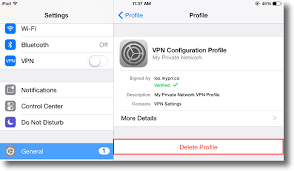
Disabling a Vpn on Iphone/ipad
Disabling a VPN on your iPhone or iPad is also easy:
- Open Settings: Tap on the gear icon (Settings) from the home screen.
- Select General: In the settings menu, select “General.”
- Tap on Vpn & Network: In the general settings menu, tap on “VPN & Network.”
- Select The Vpn Profile: In the network settings page, you’ll see a list of configured profiles. Select the one you want to disable.
- Tap on The Disconnect Button: Next to the selected profile, tap on the “Disconnect” button.
If you’re using a VPN client or app from an external service (e.G., TunnelBear), disabling it is also straightforward:
- Open The Vpn Client/app: Launch the VPN client or app that you’ve installed.
- Tap on The Disconnect/off Button: In the client or app, look for a button labeled “Disconnect,” “Off,” or similar. Tap on this to disable the VPN.
Conclusion
Disabling a VPN is a relatively straightforward process, whether you’re using a Windows PC, Mac, Android device, or iPhone/iPad. Remember to follow these steps and enjoy your internet connection without the need for a VPN!
Frequently Asked Questions (FAQs)
- Q: Why Would I Want to Disable my Vpn?
A: You might want to disable your VPN if you’re working on a project that requires a stable internet connection, or simply because you no longer need it. - Q: How do I Know if I’m Using a Vpn Client or App From an External Service?
A: Check the settings menu or the app itself for any clues. If it’s not part of your device’s built-in settings, it might be an external service. - Q: Will Disabling my Vpn Affect Other Apps That Use Vpn Connections?
A: No, disabling your VPN will only affect the specific profile you’re trying to disable. - Q: Can I Still Access Geo-restricted Content Without a Vpn?
A: Yes, some websites and services might be accessible even without a VPN. However, using a VPN is still recommended for added security and online protection.
Disabling a Vpn on Other Devices
While we’ve covered the most common devices (PC, Mac, Android, iPhone/iPad), if you’re using other devices (e.G., Linux, Chrome OS), please consult their respective documentation or manufacturer support websites for specific instructions.


