
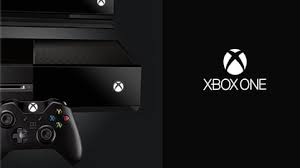
Connecting Your Xbox to The Internet: A Step-by-step Guide
Are you excited to play your favorite games online, but not sure how to connect your Xbox to the internet? Look no further! This article will guide you through the process of connecting your Xbox to the internet, whether it’s a Series X/S or One.
Understanding Your Xbox Connection Options
Before we dive into the steps, let’s understand your connection options. You can connect your Xbox to the internet using either Wi-Fi (wireless) or Ethernet (physical cable). The procedure may vary depending on your Xbox model and your chosen connection method.
Connecting Your Xbox Series X/s to The Internet
If you have an Xbox Series X/S, follow these steps:
- Access The Settings Menu: Press the “Home” button on your controller to open the main menu. Navigate to the “Settings” icon.
- Select Network Settings: In the settings menu, select “Network.”
- Choose Wi-fi or Ethernet: Select either “Wi-Fi” or “Ethernet” as your connection method.
- Configure Your Network: If you choose Wi-Fi, select the network name (SSID) and enter the password. If you choose Ethernet, insert the cable into the correct port on your Xbox.
- Test Your Connection: Follow the prompts to test your internet connection.
Connecting Your Xbox One to The Internet
If you have an Xbox One, follow these steps:
- Access The Settings Menu: Press the “Home” button on your controller to open the main menu. Navigate to the “Settings” icon.
- Select Network Settings: In the settings menu, select “Network.”
- Choose Wi-fi or Ethernet: Select either “Wi-Fi” or “Ethernet” as your connection method.
- Configure Your Network: If you choose Wi-Fi, select the network name (SSID) and enter the password. If you choose Ethernet, insert the cable into the correct port on your Xbox.
- Test Your Connection: Follow the prompts to test your internet connection.
Understanding Xbox Live
Now that you’ve connected your Xbox to the internet, it’s time to understand Xbox Live. Xbox Live is a service that allows you to play games online with other players around the world. To access Xbox Live, you’ll need a Microsoft account.
Creating a Microsoft Account
If you don’t have a Microsoft account, follow these steps:
- Access The Settings Menu: Press the “Home” button on your controller to open the main menu. Navigate to the “Settings” icon.
- Select Account: In the settings menu, select “Account.”
- Create a New Account: Follow the prompts to create a new Microsoft account.
Understanding Xbox Game Pass
Xbox Game Pass is a subscription service that offers access to a vast library of games for a flat monthly fee. With Xbox Game Pass Ultimate, you’ll get access to online multiplayer features and exclusive benefits.
Benefits of Xbox Game Pass Ultimate
Some benefits of Xbox Game Pass Ultimate include:
- Access to a vast library of games
- Online multiplayer features
- Exclusive benefits like cloud gaming and discounts on game purchases
Frequently Asked Questions (FAQs)
Here are some frequently asked questions about connecting your Xbox to the internet:
- Q: How do I Connect my Xbox to The Internet?
A: Connect your Xbox to the internet using either Wi-Fi or Ethernet. - Q: What is Xbox Live, And How Does it Work?
A: Xbox Live is a service that allows you to play games online with other players around the world. - Q: How do I Create a Microsoft Account?
A: Create a new Microsoft account by accessing the settings menu on your Xbox and following the prompts. - Q: What Are The Benefits of Xbox Game Pass Ultimate?
A: Benefits include access to a vast library of games, online multiplayer features, cloud gaming, and exclusive discounts.
Conclusion
Connecting your Xbox to the internet is a straightforward process that requires some basic setup. By understanding your connection options, creating a Microsoft account, and accessing Xbox Live, you’ll be able to enjoy online gaming with friends and family around the world. With Xbox Game Pass Ultimate, you’ll get access to exclusive benefits like cloud gaming and discounts on game purchases.
Final Tips
Here are some final tips for connecting your Xbox to the internet:
- Use a Stable Internet Connection: Ensure that your internet connection is stable and fast enough to support online gaming.
- Configure Your Network Settings Correctly: Follow the prompts to configure your network settings correctly, whether you choose Wi-Fi or Ethernet.
- Test Your Connection Regularly: Regularly test your internet connection to ensure it’s working correctly.
By following these steps and tips, you’ll be able to connect your Xbox to the internet and enjoy online gaming with friends and family around the world!


