
How to Turn Off Windows 11: A Comprehensive Guide
Are you wondering how to turn off your Windows 11 computer? Look no further! In this article, we will guide you through the process of turning off your PC using various methods, including shutting down all the way, suspending, and forcing shutdown. We’ll also cover some additional tips on how to program the shutdown, turn off the monitor, and use shortcuts.
Why Turn Off Windows 11?
Before we dive into the nitty-gritty, let’s quickly discuss why you might want to turn off your Windows 11 computer. Perhaps you’re tired of waiting for programs to load or want to conserve energy. Whatever your reason, turning off your PC is an essential skill that can help improve your computing experience.
Method 1: Shutting Down All The Way
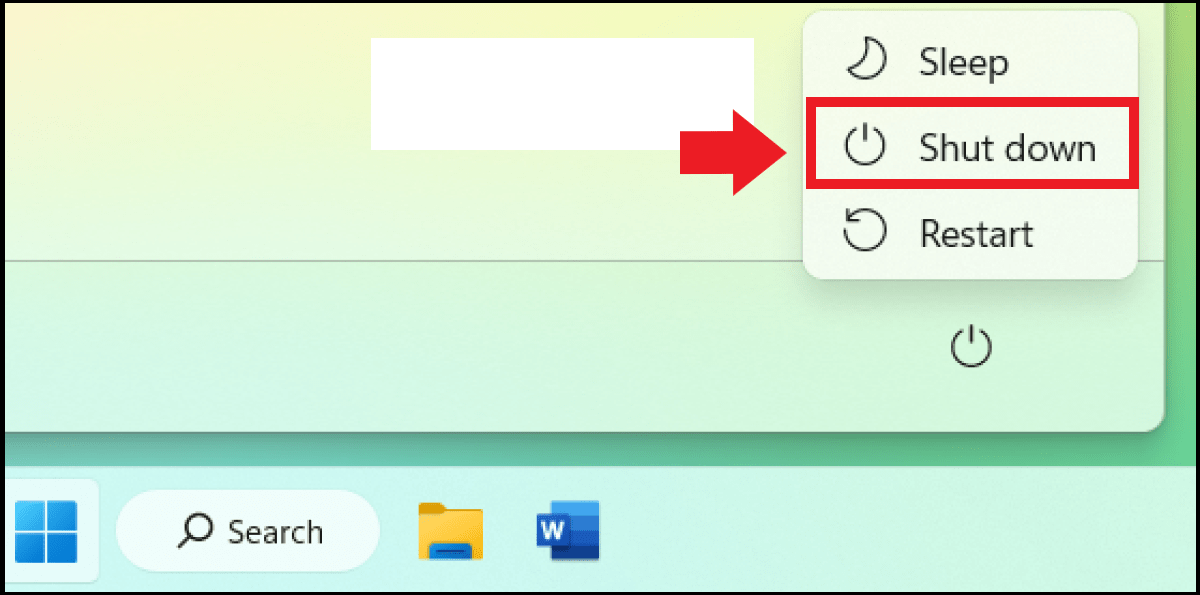
The most straightforward way to turn off Windows 11 is by using the shutdown option. Here’s how:
- Click on the Start menu and select the Power button.
- Choose “Shut down” from the drop-down menu.
- Wait for your PC to shut down completely.
Method 2: Suspending
If you want to suspend your PC without shutting it down all the way, follow these steps:
- Click on the Start menu and select the Power button.
- Choose “Suspend” from the drop-down menu.
- Your PC will go into a suspended state, and you can resume work later.
Method 3: Forcing Shutdown
In some cases, your PC might become unresponsive or stuck in an infinite loop. If this happens, you’ll need to force shut down your Windows 11 computer:
- Press the physical power button on your PC for about 5 seconds.
- Your PC will forcibly shut down.
Alternatively, you can access the Shutdown menu by pressing Ctrl+Alt+Canc and selecting “Shut down” from the menu.
Method 4: Programming The Shutdown
Want to schedule a shutdown in advance? You can do that too!
- Press Win+R to open the Run dialog box.
- Type
shutdown -s -f -t [time](e.G.,Shutdown -s -f -t 3600) and press Enter. - Your PC will shut down automatically after the specified time.
Method 5: Turning Off Monitor
If you want to conserve energy, but still keep your computer running in the background, follow these steps:
- Press Win+I to open the Settings app.
- Select System from the left menu and click on Power & sleep.
- Under Screen, select “Turn off” or set an interval for when the screen will turn off.
Method 6: Using Shortcuts
If you want a quicker way to shut down your PC without using the Start menu:
- Press Alt+F4 to open the Shut Down dialog box.
- Select “Shut down” and click OK.
Or, use the shortcut shutdown -t [time] (e.G., Shutdown -t 3600) in the Run dialog box to schedule a shutdown.
Tips And Tricks
- Before attempting to force shut down your PC, try pressing the physical power button for about 5 seconds.
- To resume work after suspending, simply press the Power button again.
- When programming the shutdown, be mindful of the time interval you set. If you schedule a shutdown during peak usage hours, it may affect your productivity.
Conclusion
Turning off Windows 11 is a straightforward process that can be achieved using various methods. Whether you want to shut down all the way, suspend, or force shut down, we’ve got you covered. Remember to always be mindful of your PC’s energy consumption and schedule shutdowns in advance when necessary.


