
How to Use Your PC as a Hotspot: A Step-by-step Guide
Are you tired of finding reliable Wi-Fi connections in offices or hotels? Do you need to share your internet connection with other devices? You can easily transform your laptop into a hotspot using its Ethernet port or USB adapter. This article will guide you through the process of setting up your PC as a hotspot, covering Windows 11, Windows 10, Windows 8.X, and Windows 7, as well as macOS.
Why Use Your PC as a Hotspot?
Using your PC as a hotspot is an excellent solution when you need to share your internet connection with other devices. It’s perfect for:
- Sharing the internet with family members or colleagues
- Providing a reliable Wi-Fi connection in areas where it’s difficult to find one
- Extending the range of an existing Wi-Fi network
How to Use Your PC as a Hotspot on Windows 11
On Windows 11, Microsoft has made the process extremely simple and automatic. To start, click on the Start button (the Windows logo) located in the bottom left corner of your screen.
- Click on Settings
- In the Settings window, select “Network & Internet”
- Choose “Mobile hotspot” from the list on the left side of the window
- Toggle the switch to enable mobile hotspot
The next window will allow you to configure your hotspot in detail. You can choose how to share the connection (Wi-Fi or Bluetooth) and set a name and password for the network.
How to Use Your PC as a Hotspot on Windows 10
On Windows 10, the process is similar to Windows 11. To start:
- Click on the Start button
- Select Settings
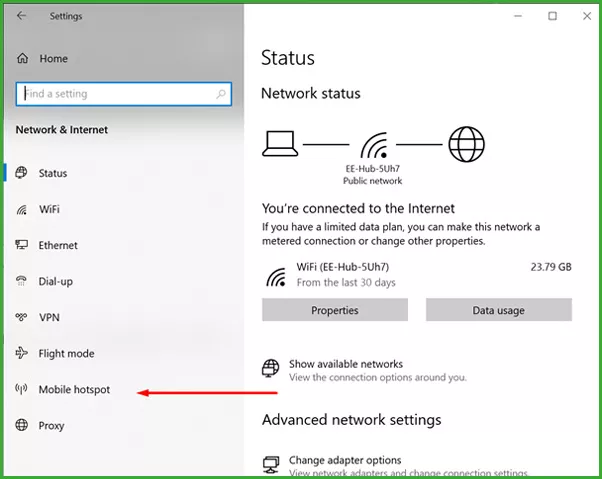
- In the Settings window, select “Network & Internet”
- Choose “Mobile hotspot” from the list on the left side of the window
- Toggle the switch to enable mobile hotspot
How to Use Your PC as a Hotspot on Windows 8.X And Windows 7
If you’re using an older version of Windows, don’t worry! You can still use your PC as a hotspot. One option is to use Virtual Router, a free and open-source program that transforms your laptop into a Wi-Fi hotspot.
To download and install Virtual Router:
- Visit the Virtual Router website
- Click on the download link
- Open the installation package (VirtualRouterInstaller.Msi) and follow the instructions
Once installed, launch Virtual Router and create your wireless network. You can set a name and password for the network.
How to Use Your Mac as a Hotspot
If you have a Mac, you’re in luck! macOS has a built-in feature that allows you to share your Ethernet connection wirelessly or transform a wireless connection into an Ethernet one. To activate this feature:
- Go to System Preferences
- Click on Sharing
- Select “Internet sharing” from the list on the left side of the window
- Choose how you want to share your internet connection (Wi-Fi or Ethernet)
- Set up your hotspot by selecting the type of technology and password
Troubleshooting Tips
If you encounter any issues while setting up your PC as a hotspot, here are some troubleshooting tips:
- Make sure your laptop’s Ethernet port is functioning correctly.
- Ensure that you’re using the correct adapter (Ethernet or USB) for your device.
- If you’re experiencing connectivity issues, try restarting your laptop and reconnecting to the hotspot.
Conclusion
Using your PC as a hotspot is an easy and convenient way to share your internet connection with other devices. Whether you’re using Windows 11, Windows 10, Windows 8.X, Windows 7, or macOS, this article has provided step-by-step guides on how to set up your laptop as a hotspot.
Frequently Asked Questions
- Q: Can I Use my PC as a Hotspot Without Installing Any Software?
A: Yes, you can use your Mac as a hotspot without installing any software using the built-in feature in macOS. - Q: What is The Difference Between Wi-fi And Bluetooth Hotspots?
A: Wi-Fi hotspots allow devices to connect wirelessly, while Bluetooth hotspots require physical proximity between devices. - Q: Can I Share my Internet Connection With Multiple Devices?
A: Yes, you can share your internet connection with multiple devices using a hotspot. - Q: How do I Secure my Hotspot With a Password?
A: To secure your hotspot, set up a password and ensure that only authorized devices can connect to it. - Q: Can I Use my PC as a Hotspot if I Don’t Have an Ethernet Port?
A: Yes, you can use Virtual Router or other software solutions to create a Wi-Fi hotspot without an Ethernet port. - Q: What Are The System Requirements For Using my PC as a Hotspot?
A: The system requirements vary depending on your device and operating system. Ensure that your laptop meets the minimum requirements for your chosen solution. - Q: Can I Use my PC as a Hotspot in Areas With Poor Internet Connectivity?
A: Yes, you can use your PC as a hotspot to extend the range of an existing Wi-Fi network or provide reliable internet access in areas with poor connectivity. - Q: How do I Turn Off my Hotspot When I’m Finished Using It?
A: To turn off your hotspot, simply disable the feature on your laptop or device.


