
How to Uninstall Norton: A Step-by-step Guide
Are you tired of using Norton antivirus software on your computer? Do you want to uninstall it but don’t know how? Look no further! This article will guide you through the process of uninstalling Norton from your Windows, Mac, Android, and iOS/iPadOS devices.
Why Uninstall Norton?
Before we dive into the step-by-step guide, let’s talk about why you might want to uninstall Norton. Maybe you’ve decided to switch to a different antivirus software, or perhaps you’re experiencing issues with Norton that can’t be resolved. Whatever your reason, uninstalling Norton is a relatively straightforward process.
Uninstalling Norton on Windows
To uninstall Norton from your Windows computer, follow these steps:
- Open The Control Panel: Click on the Start button and select “Control Panel” from the menu.
- Click on Programs And Features: In the Control Panel window, click on “Programs and Features.”
- Find And Select Norton: Look for the Norton antivirus software in the list of installed programs and select it.
- Click Uninstall: Click the “Uninstall” button next to Norton to initiate the uninstallation process.
- Follow The On-screen Instructions: Follow the on-screen instructions to complete the uninstallation process.
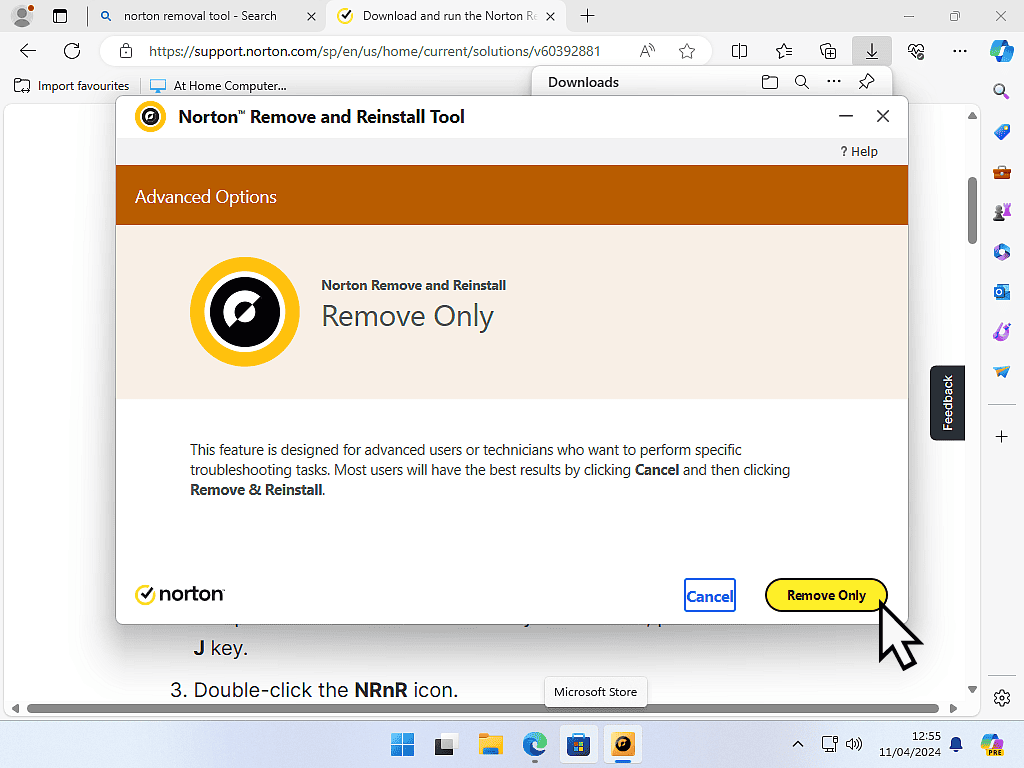
Alternative Method: Using Norton Remove And Reinstall
If you’re experiencing issues with the standard uninstallation process, you can try using the Norton Remove and Reinstall tool. Here’s how:
- Download The Tool: Download the Norton Remove and Reinstall tool from the Symantec website.
- Run The Tool: Run the tool and follow the on-screen instructions to complete the uninstallation process.
Uninstalling Norton on Mac
To uninstall Norton from your Mac, follow these steps:
- Search For Norton: Use Spotlight or the Finder search bar to find the Norton antivirus software.
- Drag The Icon to The Trash: Drag the Norton icon to the trash and right-click (or control-click) on it.
- Empty The Trash: Empty the trash to complete the uninstallation process.
Uninstalling Norton on Android
To uninstall Norton from your Android device, follow these steps:
- Open The Settings App: Open the settings app on your device.
- Select Applications: Select “Applications” or “Apps” from the menu.
- Find And Uninstall Norton: Look for the Norton antivirus software in the list of installed apps and select it to uninstall.
- Confirm The Uninstallation: Confirm that you want to uninstall Norton.
Uninstalling Norton on Ios/ipados
To uninstall Norton from your iOS or iPadOS device, follow these steps:
- Open The Settings App: Open the settings app on your device.
- Select General: Select “General” from the menu.
- Tap on Iphone Storage: Tap on “iPhone Storage.”
- Look For Norton: Look for the Norton antivirus software in the list of installed apps and tap on it to uninstall.
Uninstalling Norton Safe Search
To uninstall Norton Safe Search from your browser, follow these steps:
- Open Your Browser: Open your web browser (e.G., Chrome, Firefox).
- Click on The Three Dots Menu: Click on the three dots menu in the top right corner of the browser.
- Select Extensions: Select “Extensions” from the menu.
- Find And Uninstall Norton Safe Search: Look for the Norton Safe Search extension in the list of installed extensions and click on it to uninstall.
Uninstalling Norton Family
To uninstall Norton Family, follow the same steps as uninstalling Norton antivirus software on your device.
Conclusion
Uninstalling Norton is a relatively straightforward process that can be completed using the steps outlined above. Whether you’re switching to a different antivirus software or experiencing issues with Norton, this guide has provided you with the necessary information to complete the uninstallation process.


