
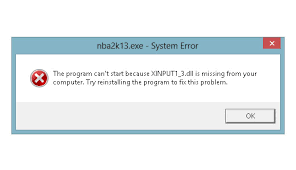
How to Fix The Xinput1_3.Dll Missing Error
Are you experiencing the frustrating XINPUT1_3.Dll missing error when trying to run an old PC game? Don’t worry, this article will guide you through the steps to resolve this issue and get back to enjoying your favorite childhood games.
Causes of The Xinput1_3.Dll Missing Error
The majority of older PC games require the presence of DirectX libraries on Windows. If you’re running a recent version of Windows, it’s possible that these libraries are not installed by default, leading to the XINPUT1_3.Dll missing error. Fortunately, Microsoft provides a package called DirectX End-User Runtime, which can be used to install the necessary libraries.
How to Fix The Xinput1_3.Dll Missing Error: Official Procedure
To fix the XINPUT1_3.Dll missing error, follow these steps:
Online Installer
If your computer is connected to the internet, follow these instructions:
- Open a web browser and go to Microsoft’s website.
- Select the language of your operating system from the dropdown menu.
- Click on the “Download” button.
- Once downloaded, run the file (e.G., Dxwebsetup.Exe).
- Accept the contract by checking the box next to “I accept the terms of this agreement.”
- Click on the “Next” button.
- Remove the checkmark from the “Install Bing Toolbar” option to avoid installing it.
- Click on the “Next” button again.
- Wait for the installer to calculate the size of the files to be downloaded.
- Once done, click on the “Next” button again.
- Wait for the download process to complete.
- Click on the “Finish” button.
Offline Installer
If your computer is not connected to the internet, follow these steps:
- Use another computer with an internet connection to download the DirectX End-User Runtime installer (directx_XXX_redist.Exe).
- Transfer the downloaded file to a USB drive or burn it onto a CD.
- Insert the USB drive or CD into the computer experiencing the XINPUT1_3.Dll missing error.
- Copy the downloaded file (dxwebsetup.Exe) from the USB drive or CD to a convenient location, such as the desktop.
- Create a new folder on the desktop (e.G., DX).
- Run the dxwebsetup.Exe file and follow the prompts to install the DirectX libraries.
- Once completed, click on the “Finish” button.
Additional Solutions For Xinput1_3.Dll Not Found
If you’ve followed the above steps but still encounter the XINPUT1_3.Dll missing error, try:
Rebooting Your Computer
Sometimes, a simple reboot can resolve the issue.
Running a System File Checker (SFC)
Use the Command Prompt or PowerShell with administrator privileges to run the SFC command. This will scan and repair any corrupted system files, including those required by DirectX.
Checking The Game’s Files
Look for a folder or disk containing the game executable. Sometimes, developers include the necessary DirectX libraries within the game package. Check if this is the case, and try installing them manually.
Conclusion
The XINPUT1_3.Dll missing error can be frustrating, but it’s a relatively simple issue to resolve. By following these steps, you should be able to get back to enjoying your favorite PC games without any further issues.
Frequently Asked Questions (FAQs)
- Q: What is the DirectX End-User Runtime?
A: The DirectX End-User Runtime is a package provided by Microsoft that contains the necessary libraries for running older PC games. - Q: Why do I need to install the DirectX End-User Runtime?
A: Older PC games require the presence of DirectX libraries on Windows, which may not be installed by default in recent versions of Windows. - Q: Can I install the DirectX End-User Runtime offline?
A: Yes, you can download and install the DirectX End-User Runtime offline using a USB drive or CD. - Q: What if I’m still experiencing issues after following these steps?
A: Try rebooting your computer or running a System File Checker (SFC) to scan and repair corrupted system files.
Important Notes
- Always download software from trusted sources, such as Microsoft’s official website.
- Be cautious when installing software, especially if it’s not from a reputable source.
- Make sure to follow the instructions carefully to avoid any potential issues.


