
How to Forward Big Files Via Email: A Comprehensive Guide
Are you tired of struggling to share large files with your friends, family, or colleagues? Do you find yourself searching for solutions online, only to be met with complex instructions and technical jargon? Look no further! In this article, we’ll show you how to forward big files via email using various services, including Gmail, Outlook.Com, Apple Mail, and more.
Why Can’t I Forward Big Files Via Email?
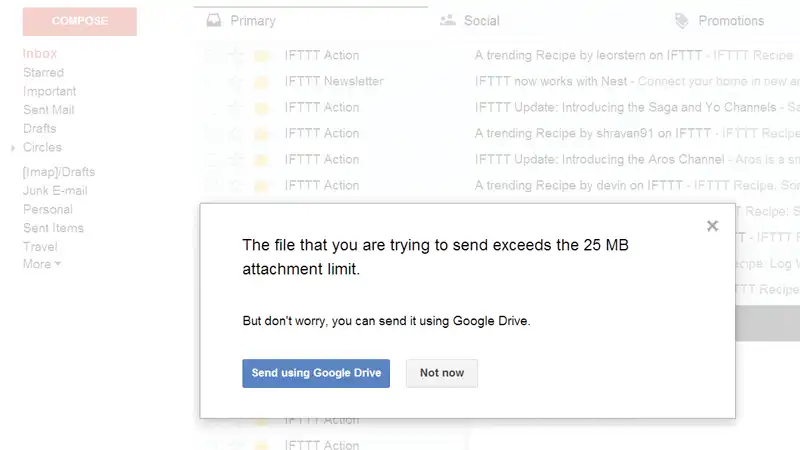
If you’re wondering why you can’t forward large files via email, it’s because most email providers have a size limit on attachments. This is done to prevent overwhelming the server with too much data and causing issues for other users. The typical limit is around 25 MB (megabytes), but some services offer larger storage sizes or alternative methods to share big files.
Gmail: Forwarding Big Files Via Email
If you use Gmail, you’re in luck! Google’s email service allows you to forward files up to 25 MB in size. If your file exceeds this limit, you can use the built-in functionality to upload it to Google Drive and share a link instead. Here’s how:
- Open your Gmail account via browser.
- Click on the “+” button at the top right corner to compose a new email.
- Select the file you want to attach from your computer.
- If the file is too large, click on the “Insert” button with the Google Drive icon.
- Choose the file from your Google Drive account or upload it directly from your computer.
- Share the link with the recipient.
Outlook.Com: Forwarding Big Files Via Email
If you’re an Outlook.Com user, you can forward big files using Microsoft’s OneDrive service. Here’s how:
- Log in to your Outlook.Com account via browser.
- Click on the “New” button at the top left corner to compose a new email.
- Click on the paperclip icon to attach a file.
- Select the file from your computer or upload it directly from OneDrive.
- Choose the file and click on the “Share” button.
- Enter the recipient’s email address and add any additional information you like.
Apple Mail: Forwarding Big Files Via Email
If you use Apple Mail, you can forward big files using iCloud Drive. Here’s how:
- Open your Apple Mail account via browser or app.
- Click on the “Compose” button to start a new email.
- Select the file from your computer or choose one from iCloud Drive.
- If the file is too large, click on the “Mail Drop” icon.
- Choose the file and select the recipient’s email address.
Other Services For Sharing Big Files
If you’re looking for alternative services to forward big files via email, consider these options:
- Wetransfer: A service that allows you to share files up to 2 GB in size without a subscription fee. The link expires after 7 days.
- Swisstransfer: A platform that offers secure and ad-free file sharing with features like password protection and expiration dates.
- Dropbox: A cloud storage service that allows you to share files via email or a shared link.
Conclusion
Forwarding big files via email doesn’t have to be a hassle. With these services, you can easily share large files without worrying about size limits. Whether you use Gmail, Outlook.Com, Apple Mail, or other platforms, we’ve got you covered!


