
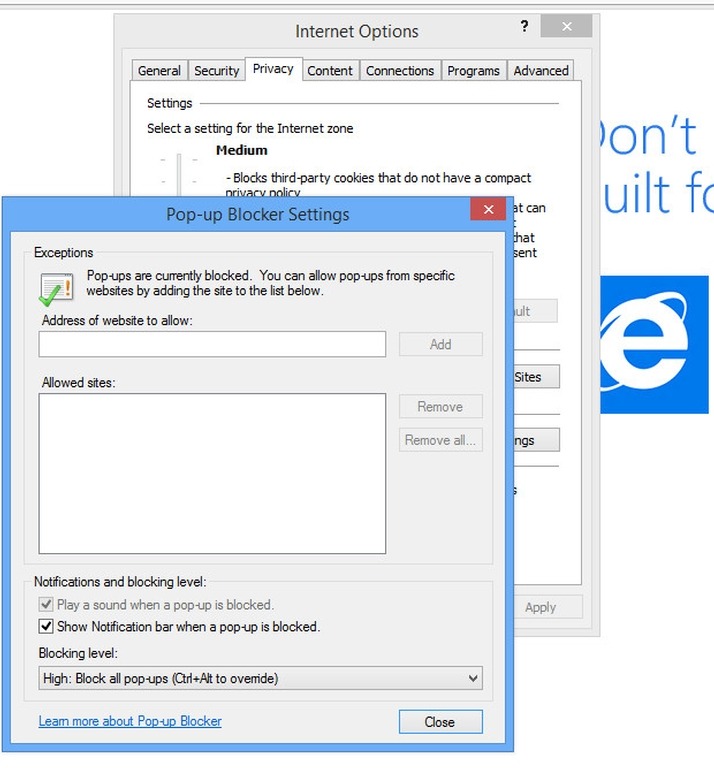
Unblocking Popups: A Step-by-step Guide
Are you tired of dealing with annoying pop-ups while browsing the internet? Do you want to know how to unblock them on your PC, Mac, Android, or iOS device? Look no further! In this article, we’ll show you how to block or unblock pop-ups on various browsers and devices.
What Are Pop-ups?
Pop-ups are small windows that appear suddenly while browsing the internet. They can be annoying and distracting, but they also serve a purpose. Some websites use pop-ups for advertising, while others may ask for your permission to open certain files or forms.
Why Unblock Pop-ups?
Unblocking pop-ups on some websites can be helpful if you want to access specific content that requires your consent to open. However, unblocking them indiscriminately can expose you to malware and other online threats.
Blocking Pop-ups: A General Guide
Before we dive into the specifics of blocking or unblocking pop-ups on different browsers and devices, here are some general tips:
- Always block pop-ups from suspicious websites.
- Be cautious when unblocking pop-ups on specific websites, as this can increase your risk of exposure to malware and other online threats.
- Regularly update your browser and operating system to ensure you have the latest security patches.
Blocking Pop-ups on Google Chrome
To block pop-ups on Google Chrome:
- Click on the three dots in the top right corner of the browser window.
- Select “Settings” from the dropdown menu.
- Scroll down to the “Privacy and security” section.
- Toggle off the switch next to “Block sites from running pop-ups.”
Blocking Pop-ups on Mozilla Firefox
To block pop-ups on Mozilla Firefox:
- Click on the three horizontal lines in the top right corner of the browser window.
- Select “Options” from the dropdown menu.
- Scroll down to the “Privacy & Security” section.
- Toggle off the switch next to “Block pop-up windows.”
Blocking Pop-ups on Microsoft Edge
To block pop-ups on Microsoft Edge:
- Click on the three dots in the top right corner of the browser window.
- Select “Settings” from the dropdown menu.
- Scroll down to the “Cookies and site permissions” section.
- Toggle off the switch next to “Block pop-up windows.”
Blocking Pop-ups on Safari (Mac)
To block pop-ups on Safari:
- Click on the Safari icon in the top left corner of your Mac’s screen.
- Select “Safari” from the dropdown menu.
- Scroll down to the “Websites” section.
- Toggle off the switch next to “Block pop-up windows.”
Blocking Pop-ups on Android Devices
To block pop-ups on Android devices:
- Open your device’s Settings app.
- Scroll down to the “Advanced” section.
- Select “Site settings.”
- Toggle off the switch next to “Block pop-up windows.”
Blocking Pop-ups on Ios Devices (iPhone, Ipad)
To block pop-ups on iOS devices:
- Open your device’s Settings app.
- Scroll down to the “Safari” section.
- Toggle off the switch next to “Block pop-ups.”
Unblocking Pop-ups: A Step-by-step Guide
If you want to unblock pop-ups on specific websites, here are the steps:
- Block all pop-ups by following the general guide above.
- Add a website to the list of exceptions by going to the Settings section and selecting “Manage site settings.”
- Type in the URL of the website you want to allow pop-ups from.
Conclusion
Blocking or unblocking pop-ups is an essential part of online security. By following these steps, you can protect yourself from annoying pop-ups and potential malware threats. Remember to always block pop-ups from suspicious websites and be cautious when unblocking them on specific websites.
Frequently Asked Questions (FAQs)
Here are some frequently asked questions about blocking or unblocking pop-ups:
- Q: Why do I Need to Block Pop-ups?
A: Pop-ups can contain malware or phishing scams that can harm your device and steal your personal information. - Q: Can I Block Pop-ups on Specific Websites?
A: Yes, you can add websites to the list of exceptions in your browser’s settings. - Q: Will Blocking Pop-ups Affect my Online Experience?
A: Blocking pop-ups will prevent annoying and distracting windows from appearing while browsing the internet. - Q: Can I Unblock Pop-ups on Specific Websites?
A: Yes, you can add websites to the list of exceptions in your browser’s settings and allow them to display pop-ups.
Sources


