
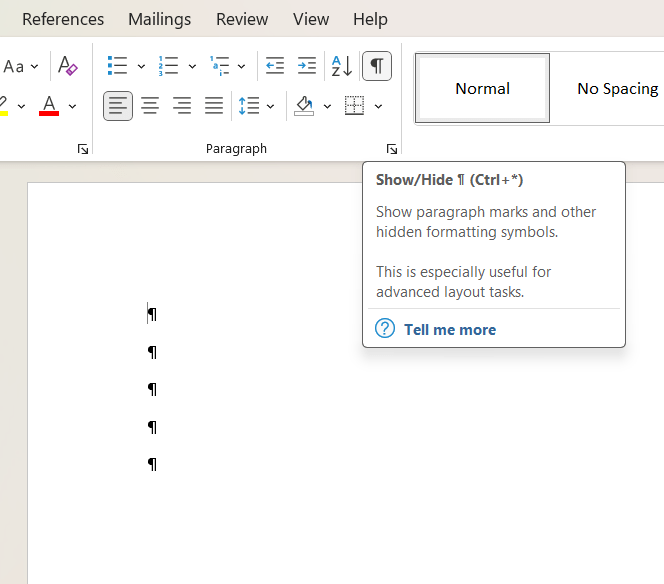
How to Remove Symbol ¶ From Outlook: A Step-by-step Guide
Are you tired of seeing a sea of symbols¶ in your Outlook interface? These signs can be helpful for some, but they can also cause eye strain and disturb the reading experience. Don’t worry; we’ve got you covered! In this article, we’ll show you how to remove symbol ¶ from Outlook, whether you’re using the desktop application or the mobile app.
What is Symbol¶?
Symbol¶, also known as paragraph symbols, are used in email clients like Outlook to indicate a new line of text. While they may be helpful for some users, they can be distracting and annoying for others.
Why Remove Symbol¶ From Outlook?
Removing symbol ¶ from your Outlook interface can make it easier to read emails, especially if you have a lot of messages with multiple paragraphs. It’s also a good idea to remove these symbols if you’re using a screen reader or other accessibility feature.
How to Remove Symbol¶ From Outlook 365
If you’re using Outlook 365 on Windows or macOS, follow these steps:
- Open Outlook and click on the “New message” button.
- In the body of the email, press Ctrl+shift+8 (Windows) or Cmd+8 (macOS).
- The paragraph symbols should disappear from your email.
Alternative Method For Removing Symbol
If you’re using Outlook 365 on Windows, you can also try this alternative method:
- Select the body of the email.
- Click on the “Format text” button in the toolbar.
- Select “Paragraph” from the menu.
- Choose “Display everything” in the sub-menu.
How to Remove Symbol¶ From Outlook Free For Windows
If you’re using the free version of Outlook for Windows, follow these steps:
- Open Outlook and click on the “New message” button.
- In the body of the email, press Ctrl+shift+8 (Windows).
- The paragraph symbols should disappear from your email.
How to Remove Symbol¶ From Outlook Free For Mac
If you’re using the free version of Outlook for Mac, follow these steps:
- Open Outlook and click on the “New message” button.
- In the body of the email, press Cmd+8 (macOS).
- The paragraph symbols should disappear from your email.
How to Remove Symbol¶ From Outlook.Com
If you’re using Outlook.Com, follow these steps:
- Open Outlook.Com and click on the “New message” button.
- In the body of the email, press Ctrl+shift+8 (Windows) or Cmd+8 (macOS).
- The paragraph symbols should disappear from your email.
How to Remove Symbol¶ From Mobile App
If you’re using the mobile app version of Outlook on Android or iOS/iPadOS, follow these steps:
- Open the app and click on the “Compose” button.
- In the body of the email, press Ctrl+shift+8 (Android) or Cmd+8 (iOS/iPadOS).
- The paragraph symbols should disappear from your email.
Conclusion
Removing symbol ¶ from Outlook is a simple process that can make it easier to read emails and improve your overall user experience. Whether you’re using the desktop application or the mobile app, follow these steps to get rid of those distracting symbols for good!


