
How to Use Google Classroom: A Step-by-step Guide
Google Classroom is a free online platform developed by Google that allows teachers and students to share digital learning materials, communicate with each other, and track student progress. In this article, we will provide a step-by-step guide on how to use Google Classroom as both a teacher and a student.
What is Google Classroom?
Google Classroom is a web-based service that enables teachers to create online classes, assign tasks, and monitor student progress. It integrates with other Google services such as Google Drive, Google Calendar, and Gmail. Teachers can share digital materials, create assignments, and track student work, while students can access course materials, submit assignments, and communicate with their teacher.
Using Google Classroom as a Student
If you are a student, here’s how to use Google Classroom:
- Accessing Google Classroom: To access Google Classroom, log in to your school account or create an account using Gmail.
- Joining a Class: If invited by your teacher, click on the “Join” button and enter the class code provided by your teacher. Alternatively, you can search for classes offered by your school.
- Navigating The Dashboard: The dashboard displays all available courses, assignments, and announcements from your teachers.
As a Student
- Viewing Course Materials: Click on the course name to view materials shared by your teacher.
- Submitting Assignments: Complete assignments using Google Docs or other Google tools, then submit them for review.
- Communicating With Teachers: Use messaging features to ask questions or clarify doubts.
Using Google Classroom as a Teacher
If you are a teacher, here’s how to use Google Classroom:
- Accessing Google Classroom: Log in to your school account using Gmail, or create an account if not already set up.
- Creating a Class: Click on the “+” button to create a new class and add students to it.
- Sharing Materials: Share digital materials with students by uploading files or creating links.
As a Teacher
- Issuing Assignments: Create assignments for students, specifying deadlines and requirements.
- Monitoring Student Progress: Track student work through the “Works” section.
- Communicating With Students: Use messaging features to provide feedback or guidance.
Setting Up Google Classroom on Pc, Smartphone, And Tablet
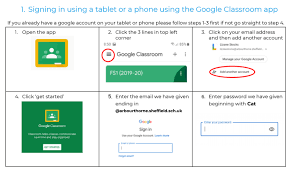
Google Classroom can be accessed from any device with a web browser. To set up Google Classroom on your device:
- Visit The Website: Go to classroom.Google.Com.
- Sign In: Log in using your school account or Gmail credentials.
- Accessing Google Classroom: Once logged in, you will be taken directly to your dashboard.
Tips For Teachers
- Streamline Communication: Use messaging features to stay connected with students and reduce email clutter.
- Organize Assignments: Utilize the “Works” section to track student assignments and progress.
- Monitor Student Progress: Regularly check the “Votes” section to monitor student performance.
Tips For Students
- Stay Organized: Use folders and labels to keep track of course materials and assignments.
- Submit Assignments on Time: Set reminders or schedule deadlines to meet assignment requirements.
- Seek Help When Needed: Don’t hesitate to ask questions or clarify doubts with your teacher.
Conclusion
Google Classroom provides a comprehensive platform for teachers and students to collaborate, share resources, and monitor progress. By following these steps, you can effectively utilize Google Classroom as both a student and a teacher, maximizing the benefits of digital learning.


