
Creating a New Apple Account: A Step-by-step Guide
Are you looking to create a new Apple account? Perhaps you’re upgrading to a new iPhone or iPad, or maybe you want to access exclusive features on your existing device. Whatever the reason, creating an Apple account is a straightforward process that we’ll guide you through in this article.
Why Create an Apple Account?
Before we dive into the steps, let’s briefly discuss why creating an Apple account is essential. With an Apple account, you can:
- Access exclusive features on your device, such as iCloud and iMessage
- Download apps from the App Store and access them across all your devices
- Share content with family members using Family Sharing
- Enjoy perks like Apple Music and Apple TV+
How to Create a New Apple Account
To create a new Apple account, follow these steps:
Step 1: Access The Settings on Your Device
On your iPhone or iPad, tap on the “Settings” icon (a gear-shaped logo). On a Mac, click on the Apple logo in the top-left corner and select “System Preferences.”
Why is This Important?
Accessing the settings ensures you can navigate to the correct menu to create an Apple account.
Step 2: Select “Create Apple Id”
In the Settings app, tap on “Sign In at the top of the screen. Tap “Don’t Have an Apple ID or Forgot It?”
Why is This Important?
Choosing “Create Apple ID” allows you to start the process of creating a new account.
Step 3: Enter Your Personal Information
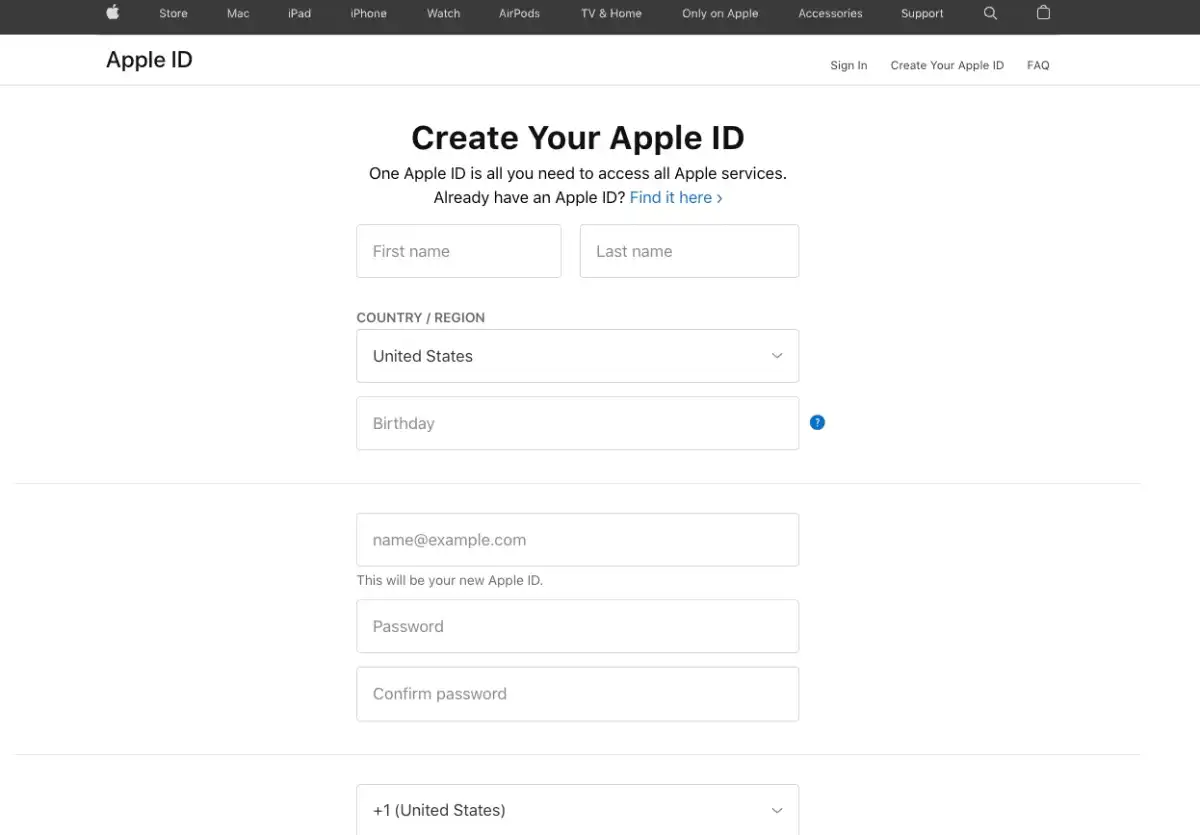
Enter your first and last name, date of birth, and email address. You can create a new email address using iCloud if you don’t have one already.
Why is This Important?
Providing accurate personal information helps verify your identity and ensures secure access to your account.
Step 4: Choose Your Password
Create a strong password for your Apple ID. Make sure it meets the security requirements by being at least 8 characters long, containing uppercase and lowercase letters, numbers, and special characters.
Why is This Important?
A secure password protects your account from unauthorized access.
Step 5: Add a Recovery Phone Number
Add a recovery phone number to receive verification codes in case you forget your Apple ID or password.
Why is This Important?
Having a recovery phone number ensures you can regain access to your account if needed.
Step 6: Review And Agree to The Terms
Review the terms of service and conditions, then tap “Agree” to complete the process.
Why is This Important?
Understanding the terms of service helps you stay informed about Apple’s policies and updates.
How to Create an Apple Account on a PC
To create an Apple account on a PC, follow these steps:
- Open Safari or another web browser.
- Go to appleid.Apple.Com.
- Click “Create Your Apple ID” at the top-right corner of the page.
- Enter your personal information and choose a strong password.
- Follow the instructions to complete the process.
How to Create an Apple Account on a Mac
To create an Apple account on a Mac, follow these steps:
- Open System Preferences from the Apple menu.
- Click “Apple ID” at the top-right corner of the window.
- Click “Create Apple ID.”
- Enter your personal information and choose a strong password.
- Follow the instructions to complete the process.
Tips For Creating an Apple Account
- Use a valid email address that you can access easily.
- Create a strong, unique password that meets security requirements.
- Add a recovery phone number to receive verification codes if needed.
- Review and agree to the terms of service carefully.
Creating an Apple Store Account
To create an Apple Store account, follow these steps:
- Access the App Store on your device.
- Tap “Sign In” at the top-right corner of the screen.
- Select “Don’t Have an Apple ID or Forgot It?”
- Follow the instructions to create a new Apple account.
Creating an Apple Music Account
To create an Apple Music account, follow these steps:
- Access the Music app on your device.
- Tap “Discover” at the bottom of the screen.
- Select “Unsubscribe free 1 month” and follow the instructions to complete the process.
How to Join The Apple Developer Program
To join the Apple Developer program, follow these steps:
- Go to developer.Apple.Com.
- Click “Account” at the top-right corner of the page.
- Sign in with your Apple ID and password.
- Select “Join the Apple Developer Program.”
- Follow the instructions to complete the process.
Frequently Asked Questions (FAQs)
Q: What is an Apple account?
A: An Apple account is a unique identity that allows you to access exclusive features on your device, download apps from the App Store, and share content with family members using Family Sharing.
Q: Why do I need an Apple account?
A: You need an Apple account to access various features and services offered by Apple, including iCloud, iMessage, FaceTime, and more.
Q: Can I create multiple Apple accounts?
A: Yes, you can create multiple Apple accounts for different purposes or family members.
Q: How do I reset my Apple ID password?
A: To reset your Apple ID password, go to appleid.Apple.Com and select “Forgot Password.” Follow the instructions to complete the process.
Q: Can I use an existing email address as my Apple ID?
A: Yes, you can use an existing email address as your Apple ID. However, make sure it’s not already associated with another Apple account.
Q: How do I access exclusive features on my device using Family Sharing?
A: To access exclusive features on your device using Family Sharing, tap “Settings” and select “Family Sharing.” Follow the instructions to complete the process.
Conclusion
Creating a new Apple account is a straightforward process that allows you to access various features and services offered by Apple. By following these steps, you can set up an Apple account on your device, PC, or Mac, and enjoy exclusive benefits like iCloud, iMessage, FaceTime, and more.
Additional Resources
For more information about creating an Apple account, accessing exclusive features, and using Family Sharing, visit:
- Appleid.Apple.Com
- Developer.Apple.Com
Remember to always follow the instructions carefully and choose strong passwords to ensure secure access to your account.


