
How to Connect Your PC to TV Using Bluetooth
Are you tired of cluttered cables behind your TV? Do you want to enjoy your favorite music or videos on a larger screen without the hassle of multiple connections? Look no further! In this article, we’ll guide you through the process of connecting your PC to your TV using Bluetooth.
Prerequisites
Before we dive into the steps, make sure you have the following:
- Bluetooth Connectivity on Both Devices: Ensure that your PC and TV have Bluetooth capabilities. Most modern PCs come with built-in Bluetooth adapters.
- Bluetooth Adapter on PC (if Necessary): If your PC doesn’t have a built-in Bluetooth adapter, you’ll need to purchase one. This is usually a simple USB device.
- TV With Bluetooth Capabilities: Not all TVs have Bluetooth connectivity. Check if your TV model supports Bluetooth.
Step 1: Enable Bluetooth on Your TV
To connect your PC to your TV using Bluetooth, first ensure that the TV’s Bluetooth feature is enabled:
- Turn on your TV and go to Settings.
- Look for the Bluetooth option and select it.
- Follow the prompts to enable Bluetooth.
Step 2: Connect Your PC to Your TV Via Bluetooth
Now, let’s connect your PC to your TV using Bluetooth:
- Go to Windows Settings: On your PC, click on the Start button (Windows logo) and go to Settings.
- Access Devices Section: In the Settings window, select the “Devices” option.
- Add a Device: Click on the “+” icon next to “Add a device.” This will scan for available devices.
- Select Bluetooth: Choose Bluetooth as the type of device you want to add.
- Select Your TV: From the list of available devices, select your TV’s name.
Step 3: Confirm Connection
After selecting your TV, a window will pop up asking you to confirm the connection:
- Check if the PIN code on your TV matches the one displayed on your PC. If it does, click “Connect.”
- If not, cancel and try again later.
Step 4: Verify TV Connectivity
To ensure that your TV is connected correctly, follow these steps:
- Check Audio Settings: On your PC, go to Sound Settings (usually found in the Control Panel).
- Verify TV as Playback Device: Ensure that your TV is listed as a playback device under “Output.”
- Test Audio Output: Play some music on your PC and check if it’s playing through your TV’s speakers.
Alternative Solutions
If any of these steps don’t work for you, or if your TV doesn’t have Bluetooth capabilities, there are alternative solutions:
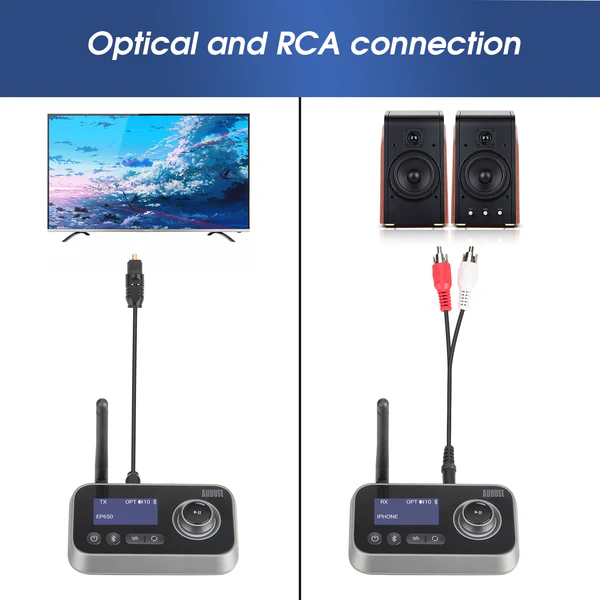
- Use an external Bluetooth adapter to connect your PC to a speaker system.
- Consider using Wi-Fi Direct or the simple network Wi-Fi to connect your smartphone or tablet to your TV.
Reproducing Music From PC to Samsung TV Via Bluetooth
If you’re using a Samsung TV, follow these steps:
- Go to Settings: On your Samsung TV, go to Settings and select Audio.
- Select Sound Mirroring: Choose “Sound Mirroring” and set it to ON.
- Connect PC to TV: Connect your PC to the TV via Bluetooth using the steps outlined earlier.
Reproducing Music From PC to LG TV Via Bluetooth
If you’re using an LG TV with WebOS (2018 or later), follow these steps:
- Go to Home Menu: On your LG TV, go to the Home menu.
- Select Procreation Audio: Choose “Procreation Audio” under the Mobile column.
Conclusion
Connecting your PC to your TV using Bluetooth is a straightforward process that requires basic understanding of both devices’ settings. Make sure you have the necessary prerequisites and follow the steps outlined in this article for successful connection.


