
How to Use Time Machine: The Complete Guide
Introduction
If you are a new Mac user, you may have heard of Time Machine as an important application for your data security. But what exactly is time machine and how does it work? in this article, I will guide you step by step through everything you need to know to use time machine to its fullest.
How Time Machine Works
Time machine is an automatic backup application developed by apple. Its main function is to create a backup of the data on your Mac, including applications and settings, on an external hard drive. Backups can be used to recover accidentally deleted data, old versions of modified files and folders, or even to restore the entire system to a previous state.
Preliminary Operations
Before starting to use time machine, you need to carry out some preliminary operations:
-
Connect your Mac to external hard drive via cable.
-
If the hard disk is not already formatted with the mac os extended journaled file system, launch the disk utility application and select the external disk to format it.
How to Use Time Machine With External Hard Disk
Once you connect the external hard drive to your mac, you will be followed by a window asking if you want to use the disk for time machine backups. If yes, click on the use as backup disk button.
How to Use Time Machine After Formatting
If you have formatted your external hard drive, you can still use Time Machine to restore the operating system in its entirety and return your Mac to a previous state. To do this:
-
Boot your mac into recovery mode.
-
Connect the hard disk with the Time Machine backup to the Mac.
-
Choose the restore from time machine backup option and select the backup destination disk.
How Time Machine Works
Time machine backups are performed in two different modes:
-
The first time data on your computer is saved, a complete backup of the entire system is made.
-
Subsequently, backups become incremental, so they are faster and only save new files and/or update files that have undergone changes.
How to Use Time Machine
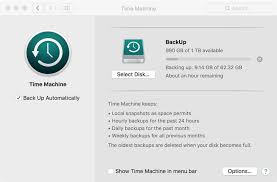
To use time machine:
-
Open the time machine icon at the top right of the screen.
-
Select the item open time machine preferences.
-
Choose the external disk to use for the backup and confirm your choice.
How to Restore Files From an Existing Backup
To restore files from an existing backup:
-
Click on the time machine icon at the top right of the screen.
-
Select the enter time machine item from the menu that opens.
-
Choose the desired backup date and select the file or folder to restore.
Conclusion
Time machine is an important application for the security of your data and your machine. By following these simple instructions, you will be able to use time machine to create automatic backups of your files and recover lost data.
Faqs
- What is The Cost of Time Machine?
Time machine is a free application developed by apple.
- What is The Maximum Capacity of The External Disk That I Can Use With Time Machine?
The maximum capacity of the external disk depends on the amount of files on your Mac and the space available on the disk.
- Can I Exclude Certain Drives And/or Specific Files And Folders From The Backup?
Yes, you can exclude certain drives and/or specific files and folders from backup using time machine preferences.
- How Can I Restore The Operating System in Its Entirety And Return my Mac to a Previous State?
To do this, start your mac in recovery mode, connect the hard disk with the time machine backup to your mac and select the restore from time machine backup option.
- Can I Use Time Machine For Data on an Internal Hard Disk?
No, time machine is designed for data on an external hard drive.
- How do I Delete The Oldest Backup When I Run Out of Disk Space?
Time machine will automatically delete the oldest backup when the disk space runs out.
- Can I Use Time Machine on a Mac With an Ssd Hard Disk?
Yes, you can use time machine on a mac with an ssd hard drive.
- How do I Know if my Mac is Configured to Use Time Machine?
To do this, open the time machine icon at the top right of the screen and select the open time machine preferences item. If you see an external disk listed among those available, your Mac is configured to use Time Machine.


