
How to Format a Hard Disk: A Step-by-step Guide
Are you experiencing problems with your hard disk? Do you want to format it, but don’t know where to start? Look no further! In this article, we’ll guide you through the process of formatting a hard disk, covering various operating systems and scenarios.
Before You Begin
Before we dive into the instructions, there are a few things you should know:
- Formatting a hard disk will erase all data on it. Make sure to back up any important files before proceeding.
- The steps below may vary depending on your operating system and hardware configuration.
- If you’re unsure about any part of the process, consider seeking professional help.
Formatting a Hard Disk: A General Overview
There are two main ways to format a hard disk:
- Quick Format: This method deletes only the directory entries and does not overwrite the data on the disk. It’s faster but less secure.
- Full Format: This method completely erases all data on the disk, including any existing files.
Formatting a Hard Disk: Windows
If you’re using Windows, follow these steps:
- Open File Explorer (usually accessible by pressing the Windows key + E).
- Click on “This PC” or “Computer” in the left sidebar.
- Right-click on the hard disk you want to format and select “Format.”
- Choose a file system (e.G., NTFS, FAT32) and assign a drive letter.
- Select “Quick Format” for a faster process, but be aware that it’s less secure.
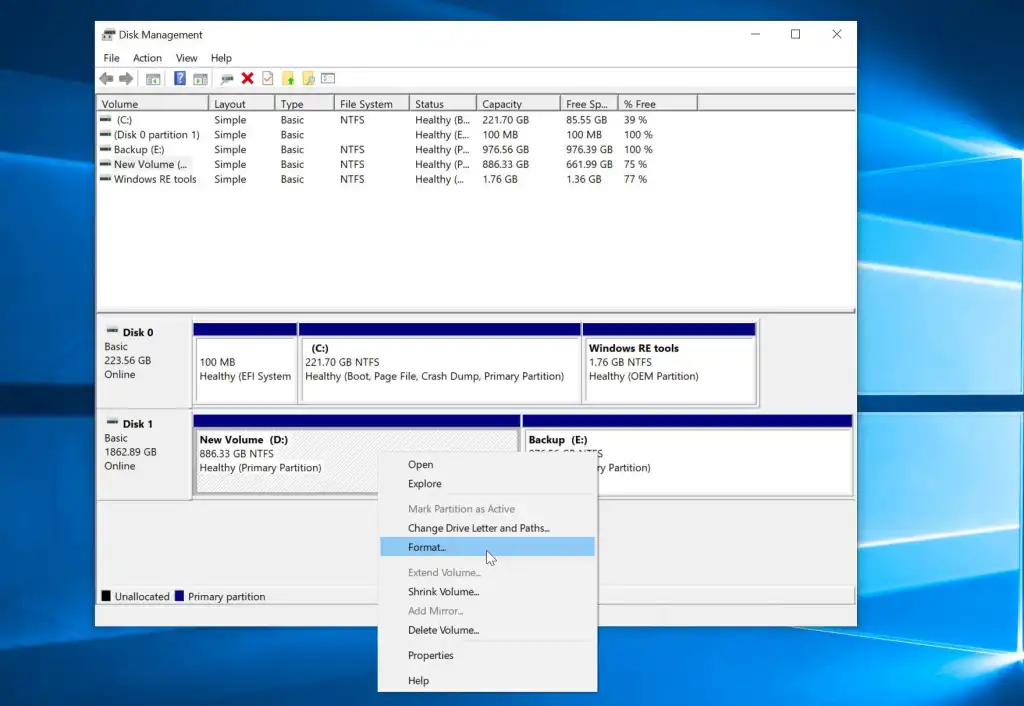
Alternatively, you can use the built-in Disk Management utility:
- Press the Windows key + R to open the Run dialog box.
- Type “diskmgmt.Msc” and press Enter.
- Right-click on the hard disk and select “Format.”
- Follow the prompts to complete the formatting process.
Formatting a Hard Disk: Macos
If you’re using a Mac, follow these steps:
- Open the Disk Utility app (usually found in Applications > Utilities).
- Select the hard disk from the list on the left.
- Click on the “Erase” tab.
- Choose a file system (e.G., APFS, HFS+) and assign a drive name.
- Select “Quick Erase” for a faster process.
Formatting an External Hard Disk
If you’re trying to format an external hard disk that’s not recognized by your operating system:
- Try using the built-in Disk Management utility (as described above).
- If that doesn’t work, try using a third-party tool like EaseUS Partition Manager.
- As a last resort, consider seeking professional help.
Formatting a Hard Disk With an Operating System
If you’re looking to format a hard disk while keeping the operating system intact:
- Follow the instructions for your specific operating system (e.G., Windows 10, macOS).
- Make sure to back up any important files before proceeding.
- Consider using a third-party tool like EaseUS Partition Manager.
Formatting a Hard Disk of The Bios
If you’re trying to format a hard disk from within the BIOS settings:
- Restart your computer and enter the BIOS settings (usually by pressing F2, F12, or Del).
- Look for an option to format the hard disk.
- Follow the prompts to complete the formatting process.
Formatting a Hard Disk For Ps4
If you’re trying to format a hard disk for use with a PlayStation 4:
- Go to Settings > System Software Update on your PS4 console.
- Select “Format External HDD” and follow the prompts.
Conclusion
Formatting a hard disk can be a complex process, but by following these step-by-step guides, you should be able to successfully format your hard disk, regardless of the operating system or scenario. Remember to always back up important files before proceeding, and consider seeking professional help if you’re unsure about any part of the process.
Frequently Asked Questions (FAQs)
- Q: What Happens When I Format a Hard Disk?
A: Formatting a hard disk will erase all data on it. - Q: Can I Recover Files After Formatting a Hard Disk?
A: It’s possible to recover some files using specialized software, but the chances are low. - Q: How Long Does Formatting a Hard Disk Take?
A: The time required depends on the size of the hard disk and the chosen file system. - Q: Can I Format an External Hard Disk?
A: Yes, you can format an external hard disk using the steps above. - Q: What if my Operating System Doesn’t Recognize The Hard Disk?
A: Try using a third-party tool or seeking professional help.
I hope this article has helped you understand how to format a hard disk in various scenarios. If you have any further questions, please don’t hesitate to ask!


