
How to Delete Duplicates in Excel: A Step-by-step Guide
Are you tired of dealing with duplicate data in your Excel spreadsheets? Look no further! In this article, we’ll show you how to delete duplicates in Excel using various methods, including the built-in “Remove Duplicates” feature and online services like Microsoft 365 and Google Sheets.
Why Delete Duplicates in Excel?
Before we dive into the steps, let’s quickly discuss why deleting duplicates is important. Duplicate data can lead to errors, inconsistencies, and wasted time spent on unnecessary calculations. By removing duplicates, you can:
- Reduce errors caused by identical data points
- Improve the accuracy of your analysis and reports
- Save time by avoiding redundant calculations
Method 1: Using The Built-in “Remove Duplicates” Feature in Excel
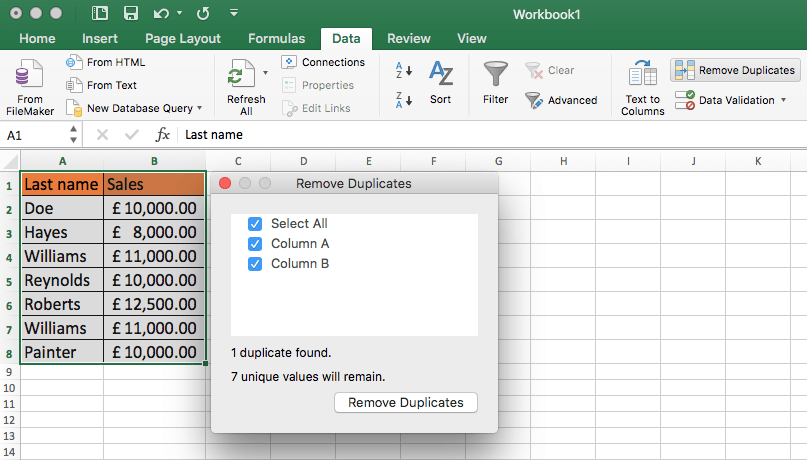
The easiest way to delete duplicates in Excel is by using the built-in “Remove Duplicates” feature. Here’s how:
Step-by-step Guide: Remove Duplicates in Excel
- Open your Excel spreadsheet and select the data range that contains the duplicates.
- Go to the “Data” tab in the top menu bar.
- Click on “Remove Duplicates.”
- Select the columns you want to check for duplicates.
- Check the box next to “Mark duplicate cells as errors” if you want to highlight the duplicate cells instead of deleting them.
Method 2: Using Microsoft 365 Online
If you have a Microsoft 365 account, you can use their online service to delete duplicates in Excel. Here’s how:
- Log in to your Microsoft 365 account.
- Click on the “Excel” icon.
- Select the file that contains the duplicate data.
- Follow steps 3-5 from Method 1.
Note: Make Sure You Have a Microsoft 365 Subscription And Are Logged Into Your Account to Access This Feature.
Method 3: Using Google Sheets
If you prefer using Google Sheets, here’s how to delete duplicates:
- Open your Google Sheet.
- Select the data range that contains the duplicates.
- Click on “Tools” in the top menu bar.
- Select “Clean up duplicates.”
- Check the box next to “Delete duplicate rows.”
Method 4: Using Smartphones And Tablets
Unfortunately, deleting duplicates on smartphones and tablets is not currently possible using the official Excel app. However, you can try accessing your file through a web browser and following steps from Method 2 or 3.
Conclusion
Deleting duplicates in Excel is a straightforward process that can save you time and reduce errors caused by duplicate data points. Whether you’re using the built-in “Remove Duplicates” feature, Microsoft 365 online service, or Google Sheets, we’ve got you covered with step-by-step guides to ensure you get rid of those pesky duplicates in no time!
Frequently Asked Questions (FAQs)
Q: Why delete duplicates in Excel?
A: Deleting duplicates helps reduce errors, improves accuracy, and saves time by avoiding redundant calculations.
Q: How do I delete duplicates using the built-in “Remove Duplicates” feature in Excel?
A: Follow steps 1-5 from Method 1 in this article.
Q: Can I use Microsoft 365 online to delete duplicates in Excel?
A: Yes! Log into your Microsoft 365 account, select the file with duplicate data, and follow steps 3-5 from Method 2.
Q: Is it possible to delete duplicates on smartphones and tablets using the official Excel app?
A: Unfortunately not currently. However, try accessing your file through a web browser and following steps from Method 2 or 3.
Q: How do I highlight duplicate cells instead of deleting them in Excel?
A: In the “Remove Duplicates” feature, check the box next to “Mark duplicate cells as errors.”


