
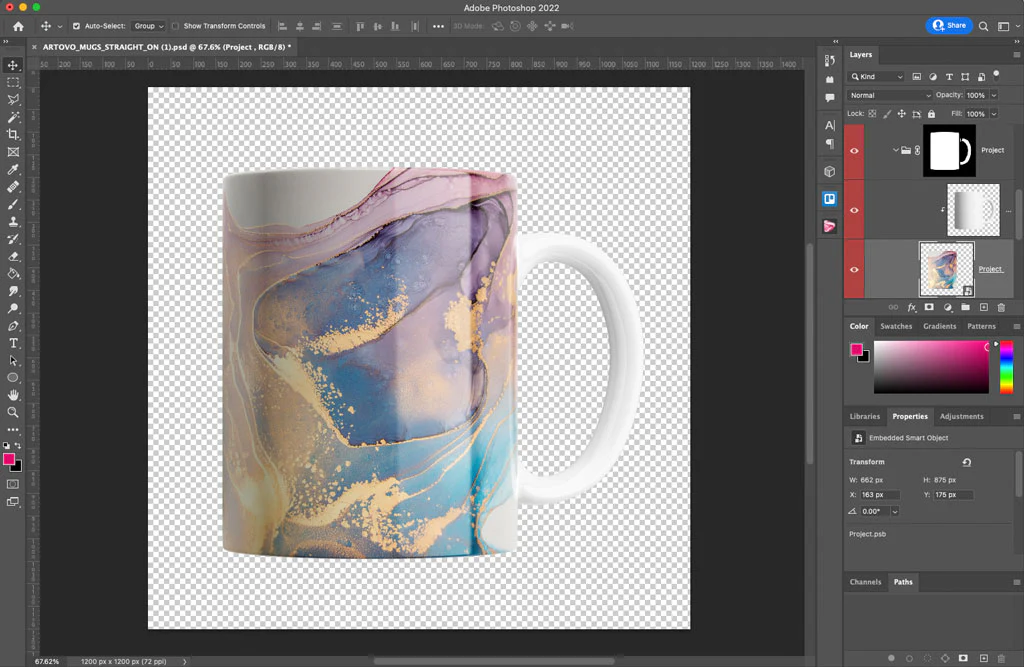
How to Create a Mockup on Photoshop: A Step-by-step Guide
Are you looking to create a professional-looking mockup on Adobe Photoshop? Look no further! In this article, we will guide you through the step-by-step process of creating a mockup on Photoshop, from preparing the blank work to applying the graphic and modifying the perspective.
What is a Mockup?
A mockup is a digital representation of an object or design that is used for presentation purposes. It can be a 2D or 3D image that showcases the design in a realistic way. Mockups are commonly used by designers, artists, and businesses to showcase their products, logos, and designs.
Preparing The Blank Work
To create a mockup on Photoshop, you need to prepare the blank work first. This involves creating a new document with a suitable size and resolution for your design.
- Open Adobe Photoshop and select “File” > “New” to create a new document.
- Choose a suitable size and resolution for your design, taking into account the intended use of the mockup (e.G., Print or web).
- Save the file as a PSD or PSB format.
Applying The Graphic
Once you have prepared the blank work, it’s time to apply the graphic. This involves adding an image or design element to your mockup.
- Open the Layers panel and click on the “New Layer” button.
- Select the image or design element that you want to use for your mockup.
- Drag and drop the image onto the new layer in the Layers panel.
- Resize and position the image as needed using the Transform tool.
Modifying a Mockup on Photoshop
If you need to modify a mockup on Photoshop, follow these steps:
- Open the original mockup file in Adobe Photoshop.
- Select the “Edit” menu and choose “Copy” (or use the keyboard shortcut Ctrl+C or Cmd+C).
- Create a new document with the same dimensions as the original mockup.
- Paste the copied image into the new document.
Creating a Mockup on Adobe Photoshop Online
If you want to create a mockup on Adobe Photoshop online, follow these steps:
- Go to the Adobe website and log in to your account.
- Click on the “Photoshop” tab and select “Online”.
- Choose the template or design element that you want to use for your mockup.
- Follow the prompts to upload your image and create the mockup.
Creating a Mockup on Adobe Photoshop Mobile App
If you want to create a mockup on Adobe Photoshop using the mobile app, follow these steps:
- Download and install the Adobe Photoshop Express app from the App Store or Google Play Store.
- Open the app and select “Combine Photo” from the main menu.
- Choose the image that you want to use for your mockup.
- Follow the prompts to resize and position the image.
Tips And Tricks
Here are some additional tips and tricks for creating a mockup on Photoshop:
- Use the Levels tool to adjust the brightness and contrast of your image.
- Apply a layer mask to hide or reveal specific parts of your image.
- Use the Clone Stamp tool to remove imperfections from your image.
- Experiment with different brushes and effects to add texture and interest to your design.
Conclusion
Creating a mockup on Adobe Photoshop is a straightforward process that requires some basic knowledge of the software. By following these steps, you can create a professional-looking mockup in no time. Remember to experiment with different tools and techniques to achieve the desired effect.
Frequently Asked Questions (FAQs)
Q: What is a mockup?
A: A mockup is a digital representation of an object or design that is used for presentation purposes.
Q: How do I prepare the blank work for creating a mockup on Photoshop?
A: To create a mockup on Photoshop, you need to prepare the blank work first. This involves creating a new document with a suitable size and resolution for your design.
Q: How do I apply the graphic to my mockup on Photoshop?
A: Once you have prepared the blank work, it’s time to apply the graphic. This involves adding an image or design element to your mockup.
Q: Can I modify a mockup on Photoshop online?
A: Yes, you can modify a mockup on Adobe Photoshop online using the Adobe website.
Q: How do I create a mockup on app Photoshop?
A: To create a mockup on Adobe Photoshop using the mobile app, follow these steps:
- Download and install the Adobe Photoshop Express app from the App Store or Google Play Store.
- Open the app and select “Combine Photo” from the main menu.
- Choose the image that you want to use for your mockup.
- Follow the prompts to resize and position the image.
Q: What are some tips for creating a mockup on Photoshop?
A: Some additional tips for creating a mockup on Photoshop include:
- Use the Levels tool to adjust the brightness and contrast of your image.
- Apply a layer mask to hide or reveal specific parts of your image.
- Use the Clone Stamp tool to remove imperfections from your image.
- Experiment with different brushes and effects to add texture and interest to your design.


