
How to Find Your Wifi Password: A Step-by-step Guide
Are you tired of looking for your WiFi password, only to find it nowhere? Do you want to connect your new device to the wireless network, but can’t remember the key? You’re not alone! Finding your WiFi password can be a frustrating experience, but don’t worry, I’m here to help. In this article, we’ll guide you through the process of finding your WiFi password on various devices, including Windows 10, Mac, Android, and iPhone.
Why is it Important to Know Your Wifi Password?
Knowing your WiFi password is essential for several reasons:
- It allows you to connect multiple devices to the same network, making it easier to manage and secure.
- It helps prevent unauthorized access to your network and sensitive data.
- It ensures that you have control over who can access your internet connection.
Let’s Start With Windows 10
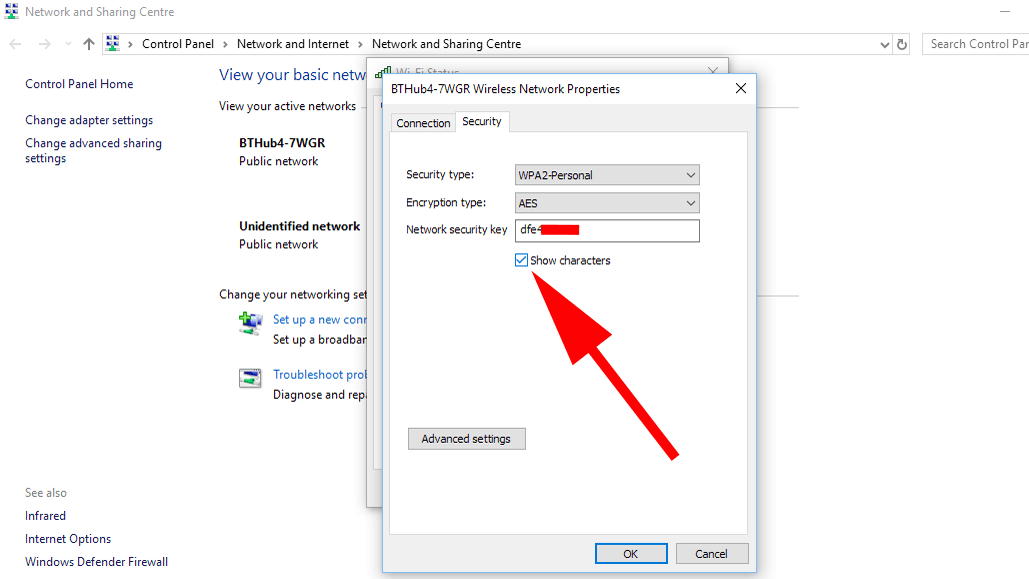
To find your WiFi password on a Windows 10 device:
- Go to the “Settings” app, then click on “Network & Internet.”
- Select “Wi-Fi” from the left menu.
- Click on the “Network & sharing center” icon.
- In the new window that opens, click on the “Manage network connections” button.
- Look for your WiFi network in the list of connections and double-click on it.
Mac Users: Access Port
If you’re using a Mac, you can find your WiFi password by accessing the “Keychain Access” application:
- Click on the “Finder” icon on your dock.
- Open the “Applications” folder.
- Look for the “Utilities” folder and open it.
- Double-click on the “Keychain Access” application.
- In the new window that opens, select “iCloud” from the top menu bar.
- Click on the “Password” tab.
- Select your WiFi network from the list of saved passwords.
Android Users: Wi-fi Password App
If you’re using an Android device:
- Download and install the “Wi-Fi Password” app from the Google Play Store.
- Launch the app and select your WiFi network from the list of available networks.
- Tap on the “Password” tab to view your WiFi password.
Iphone Users: Access Port
If you’re using an iPhone or iPad:
- Go to the “Settings” app, then click on “iCloud.”
- Select “Keychain” from the menu.
- Look for your WiFi network in the list of saved passwords.
- Tap on the “Password” tab to view your WiFi password.
Router Access
If you’re unable to find your WiFi password on your device, try accessing it directly from your router:
- Connect your computer to the router using an Ethernet cable.
- Open a web browser and type in the IP address of your router (usually 192.168.0.1 Or 192.168.1.1).
- Log in with your username and password (usually “admin” and “password”).
- Look for the WiFi settings section and select your network from the list.
- Click on the “Password” tab to view your WiFi password.
Conclusion
Finding your WiFi password can be a hassle, but it’s essential for managing your network and keeping your data secure. Whether you’re using Windows 10, Mac, Android, or iPhone, we’ve provided step-by-step guides to help you access your WiFi password. Remember to always keep your password safe and secure to prevent unauthorized access.
Frequently Asked Questions
- Q: How do I Change my Wifi Password?
A: You can change your WiFi password by accessing the router settings and selecting your network from the list. Follow the instructions provided in this article for more information. - Q: Can I Share my Wifi Password With Others?
A: Yes, you can share your WiFi password with others, but make sure to keep it secure and confidential to prevent unauthorized access. - Q: How Often Should I Change my Wifi Password?
A: It’s recommended to change your WiFi password every 30-60 days to ensure maximum security and protection against unauthorized access.


