
Installing Minecraft: Education Edition – A Comprehensive Guide
Are you interested in installing Minecraft: Education Edition on your computer or tablet? Look no further! This article will guide you through the process of downloading and installing this educational platform, which is designed to promote learning and creativity among students.
What is Minecraft: Education Edition?
Minecraft: Education Edition is a version of the popular video game Minecraft that is specifically designed for educational purposes. It allows teachers and students to create virtual environments that can be used to teach a wide range of subjects, from math and science to language arts and social studies.
System Requirements
Before you start downloading and installing Minecraft: Education Edition, make sure your computer or tablet meets the minimum system requirements:
- Windows: Intel i3-3210 3.2 GHz, 2 GB RAM, Intel HD Graphics 4000 or AMD Radeon R5
- Macos: 2 GB RAM, around 9 GB of free space on disc
- Ipad: IOS 8 or later
Downloading And Installing Minecraft: Education Edition
Once you have verified that your computer or tablet meets the minimum system requirements, follow these steps to download and install Minecraft: Education Edition:
For Windows Users
- Go to the official website of Minecraft: Education Edition and click on the “Get Minecraft: Education Edition” button.
- Click on the “Desktop version for Windows” button.
- Click on the “Download” button and save the installation package to your computer.
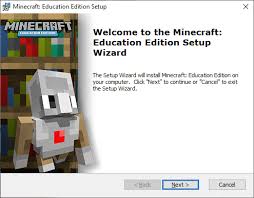
- Run the installation program and follow the prompts to install the software.
For Macos Users
- Go to the official website of Minecraft: Education Edition and click on the “Get Minecraft: Education Edition” button.
- Click on the “Mac version” button.
- Download the installation package and save it to your computer.
- Run the installation program and follow the prompts to install the software.
For Ipad Users
- Open the App Store app on your iPad.
- Search for Minecraft: Education Edition using the search bar.
- Click on the “Get” button next to the Minecraft: Education Edition app icon.
- Sign in with your Apple ID and password to complete the installation process.
Using Minecraft: Education Edition
Once you have installed Minecraft: Education Edition, you can start creating virtual environments for teaching and learning. You will need to create a Microsoft 365 Education account and associate it with your school’s profile to access all features of the platform.
Step-by-step Guide to Using Minecraft: Education Edition
- Create a new lesson by clicking on the “Create Lesson” button.
- Choose from a variety of pre-made lessons or create your own custom lesson.
- Invite students to join your lesson and collaborate on projects.
- Use the built-in tools to track student progress and engagement.
Troubleshooting Common Issues
If you encounter any issues while installing or using Minecraft: Education Edition, refer to the troubleshooting guide below:
- Error Messages: Check the official website for known error messages and solutions.
- Installation Issues: Try reinstalling the software and ensure that your computer meets the minimum system requirements.
Conclusion
Installing Minecraft: Education Edition is a straightforward process that requires minimal technical expertise. By following this guide, you can get started with using this educational platform to promote learning and creativity among students. Remember to troubleshoot any common issues that may arise during installation or usage.
Additional Resources
- Official website of Minecraft: Education Edition
- Microsoft 365 Education account creation process
- Troubleshooting guide for common issues
I hope this comprehensive guide has helped you install Minecraft: Education Edition on your computer or tablet. If you have any further questions or need additional assistance, don’t hesitate to ask!


