
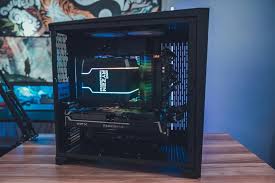
Optimizing Your Pc: A Guide to Enhancing Performance
Are you tired of a slow and unresponsive computer? Do you want to improve your gaming experience or simply enjoy faster performance while browsing the web? Look no further! In this comprehensive guide, we’ll show you how to optimize your PC for better results.
Understanding The Importance of Maintenance
Before we dive into the nitty-gritty details, let’s talk about why maintenance is crucial. Just like a car, your computer needs regular tune-ups to keep it running smoothly. Neglecting maintenance can lead to decreased performance, errors, and even system crashes.
Disabling Unnecessary Startup Programs
One of the simplest ways to boost performance is by disabling unnecessary startup programs. These programs consume system resources, causing your PC to slow down. To disable them:
- Press the Windows key + R to open the Run dialog box.
- Type “msconfig” and press Enter.
- In the System Configuration window, navigate to the Startup tab.
- Look for any unnecessary programs and uncheck the boxes next to them.
Disabling Animations And Effects
Animations and effects can also consume system resources, making your PC slower. To disable them:
- Press the Windows key + I to open the Settings app.
- Click on “Personalization.”
- Select “Colors” from the menu.
- Toggle off the switch next to “Effects of transparency.”
Performing a Virus Scan
Malware and viruses can significantly slow down your PC. Performing a virus scan regularly will help detect and remove any threats:
- Open the Windows Defender app (or download a third-party antivirus software).
- Run a full system scan.
- Remove any detected malware or viruses.
Updating Operating System And Programs
Keeping your operating system and programs up-to-date is essential for optimal performance:
- Check for updates in Settings > Update & Security.
- Install any available updates.
Reinstalling The System
If none of the above steps improve your PC’s performance, it may be time to consider reinstalling the system. This will reset your computer to its factory settings, removing any unnecessary programs and files:
- Open the Settings app.
- Click on “Update & Security.”
- Select “Recovery” from the menu.
- Follow the prompts to initiate the system reset.
Optimizing Your Mac
If you’re using a Mac, follow these steps to optimize your computer:
- Disable unnecessary startup programs:
- Go to System Preferences > Users & Groups.
- Select your user account and click on “Login Items.”
- Remove any unnecessary applications from the list.
- Disable animations and effects:
- Open the Activity Monitor app.
- Click on “System” in the top menu bar.
- Select “Force Quit Application.”
- Perform a virus scan:
- Download and install CleanMyMac X.
- Run a full system scan.
Optimizing Your PC For Gaming
If you’re a gamer, follow these steps to optimize your PC:
- Update GPU drivers:
- Open the NVIDIA GeForce Experience app (if you have an NVIDIA graphics card).
- Follow the prompts to update your drivers.
- Update games:
- Check for updates in your game launcher (e.G., Steam).
Conclusion
Optimizing your PC is a straightforward process that can significantly improve performance. By following these steps, you’ll be able to:
- Disable unnecessary startup programs
- Disable animations and effects
- Perform a virus scan
- Update operating system and programs
- Reinstall the system (if necessary)
- Optimize your Mac (if using)
Frequently Asked Questions
- Q: Why is my PC Slow?
A: Your PC might be slow due to outdated software, malware, or unnecessary startup programs. - Q: How Often Should I Perform a Virus Scan?
A: Perform a virus scan regularly, ideally once a month. - Q: Can I Disable Animations And Effects on Mac?
A: Yes, you can disable animations and effects on Mac by following the steps outlined above. - Q: What’s The Best Antivirus Software For Windows?
A: The best antivirus software for Windows is subjective, but popular options include Norton Antivirus and Kaspersky Anti-Virus. - Q: How do I Update my Gpu Drivers?
A: To update your GPU drivers, follow the steps outlined above for NVIDIA GeForce Experience or AMD Radeon Settings. - Q: Can I Uninstall Unnecessary Programs on Windows?
A: Yes, you can uninstall unnecessary programs on Windows by going to Control Panel > Programs and Features. - Q: How do I Reset my System on Mac?
A: To reset your system on Mac, follow the steps outlined above in the “Reinstalling the System” section.
By following these steps and answering these FAQs, you’ll be well on your way to optimizing your PC for better performance!


