
How to Save a Document in Word: A Comprehensive Guide
Are you tired of losing your work due to accidental file deletion or modification? Do you want to share your documents with others while ensuring that they cannot make any changes? Look no further! In this article, we will guide you through the process of saving a document in Microsoft Word, including tips on how to protect your files and prevent unwanted modifications.
Why Save Your Document?
Before we dive into the nitty-gritty details, let’s quickly discuss why saving your document is essential. Saving your work regularly helps you:
- Recover from accidental file deletion or modification
- Share your documents with others while controlling who can make changes
- Work on multiple projects simultaneously without worrying about data loss
- Collaborate with colleagues or friends while ensuring that everyone has access to the latest version
Saving a Document in Word
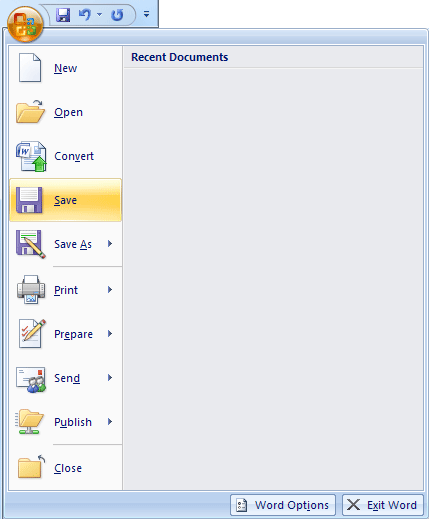
To save a document in Microsoft Word, follow these simple steps:
- Open your document in Word.
- Click on the “File” menu and select “Save As.”
- Choose the location where you want to save your file (e.G., Desktop, Documents, or Cloud storage).
- Enter a name for your file and select the desired format (e.G., .Docx, .Pdf, or .Txt).
- Click on “Save” to complete the process.
Tips And Tricks
Here are some additional tips and tricks to help you save your document effectively:
- Automatic Save: Word automatically saves your work every 10 minutes. You can adjust this setting by going to File > Options > Save.
- Password Protection: To prevent others from making changes to your file, you can password-protect it. Go to Review > Protect Document and follow the prompts.
- Revision History: If you want to track changes made to your document, enable revision history by going to Review > Track Changes.
Saving a Document With Keyboard Shortcuts
If you’re a keyboard enthusiast, you’ll love using shortcuts to save your document quickly. Here are some popular shortcuts:
- Windows: Ctrl+S or F12
- MacOS: Command+S or Shift+F12
Saving a Document Without Revisions
Sometimes, you might want to save a document without any revisions or comments. To do this:
- Open your document in Word.
- Go to Review > Track Changes and disable the feature.
- Save your file as usual.
Saving a Document Without Comments
If you only want to save a document without comments, follow these steps:
- Open your document in Word.
- Go to Review > Comments and delete any existing comments.
- Save your file as usual.
Saving a Document in Pdf Format
To save a document in PDF format:
- Open your document in Word.
- Go to File > Export and select “Create a copy of the file in another position on OneDrive or Download on PC a copy of the document in .Docx, .Pdf or .Odt.”
- Choose the desired location and format for your file.
Saving a Document in Pdf/to Format
If you need to save a document in PDF/To format (a variant of the standard PDF format), follow these steps:
- Open your document in Word.
- Go to File > Export and select “Create document in .Pdf / XPS”
- Choose the desired location and file name for your file.
Saving a Document Like an Image
Unfortunately, you cannot directly save a document as an image in Word. However, you can create a PDF version of your document and then convert it to an image using online tools or software.
Saving a Document on Google Drive
To save a document on Google Drive:
- Open your document in Word.
- Go to File > Save As and select “Cloud storage.”
- Choose Google Drive as the location for your file.
- Enter a name for your file and click on “Save.”
Conclusion:
Saving a document in Microsoft Word is an essential skill that can help you work more efficiently and collaborate with others effectively. By following these simple steps and tips, you’ll be able to protect your files, prevent unwanted modifications, and share your documents with confidence.
Frequently Asked Questions (FAQs)
- Q: How do I Save a Document in Word Without Revisions?
A: To save a document without revisions, disable the revision history feature by going to Review > Track Changes. - Q: Can I Save a Document Without Comments?
A: Yes, you can delete any existing comments by going to Review > Comments and then saving your file as usual. - Q: How do I Save a Document in Pdf Format?
A: To save a document in PDF format, go to File > Export and select “Create a copy of the file in another position on OneDrive or Download on PC a copy of the document in .Docx, .Pdf or .Odt.” - Q: Can I Password-protect my Document?
A: Yes, you can password-protect your document by going to Review > Protect Document and following the prompts. - Q: How do I Save a Document on Google Drive?
A: To save a document on Google Drive, go to File > Save As and select “Cloud storage” followed by choosing Google Drive as the location for your file. - Q: Can I Save a Document in Pdf/to Format?
A: Yes, you can save a document in PDF/To format by going to File > Export and selecting “Create document in .Pdf / XPS.” - Q: How do I Save a Document Like an Image?
A: Unfortunately, you cannot directly save a document as an image in Word. However, you can create a PDF version of your document and then convert it to an image using online tools or software. - Q: Can I Use Keyboard Shortcuts to Save my Document Quickly?
A: Yes, you can use keyboard shortcuts such as Ctrl+S or F12 (Windows) or Command+S or Shift+F12 (macOS) to save your document quickly.


