
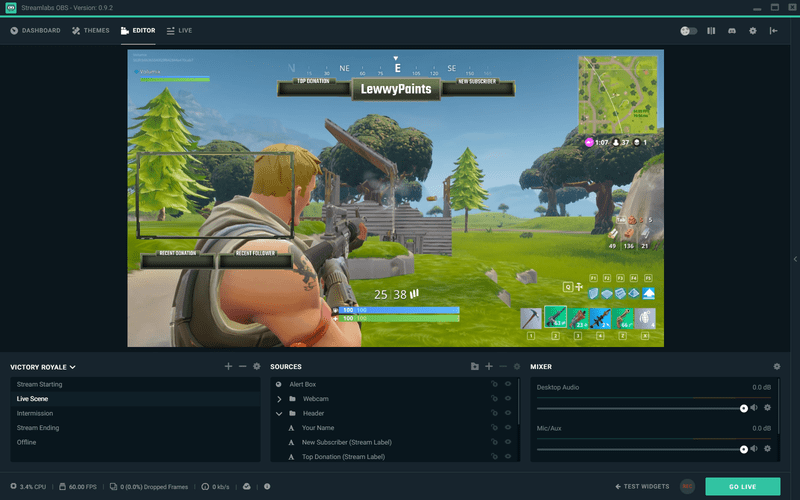
Setting Up Streamlabs: A Comprehensive Guide
Are you ready to take your live streaming game to the next level? Look no further than Streamlabs, a powerful software that allows you to manage your live streams with ease. In this article, we will guide you through the process of setting up Streamlabs on your PC, smartphone, or tablet.
Understanding Streamlabs
Before we dive into the setup process, it’s essential to understand what Streamlabs is and what it can do for you. Streamlabs is a software that allows you to manage your live streams across multiple platforms, including Twitch, YouTube, Facebook, Dlive, and NimoTV. It provides a range of features, from customizable layouts to advanced settings for optimal performance.
Setting Up Streamlabs on PC
To set up Streamlabs on your PC, follow these steps:
- Download And Install: Download the latest version of Streamlabs from their official website. Once downloaded, run the installer and follow the prompts to install the software.
- Launch Streamlabs: Launch Streamlabs by double-clicking on the icon or searching for it in your start menu.
- Choose Your Platform: Select the platform you want to stream on (e.G., Twitch, YouTube, Facebook). Enter your credentials to authenticate with the chosen platform.
- Configure Obs Settings: Choose whether to import settings from an existing OBS Studio configuration or set up a new one. If importing, select the OBS Studio file you want to use.
Customizing Your Streamlabs Setup
Once you have set up your Streamlabs installation, it’s time to customize your setup. This includes:
- Creating a Scene: Create a new scene by clicking on the “+” button in the top-right corner of the window. Assign a name to the scene and add elements such as videos, images, and text overlays.
- Adding Sources: Add sources to your scene, including webcam feeds, audio inputs, and other multimedia content.
- Customizing Your Layout: Use the layout editor to customize the appearance of your Streamlabs interface.
Streamlabs Features
Streamlabs offers a range of features that can enhance your live streaming experience. Some of these include:
- Stream Management: Easily manage your streams across multiple platforms from within Streamlabs.
- Chat Integration: Integrate chat functionality into your stream, allowing viewers to interact with each other and with you.
- Donation System: Set up a donation system that allows viewers to support their favorite creators.
Setting Up Streamlabs on Smartphone or Tablet
To set up Streamlabs on your smartphone or tablet, follow these steps:
- Download The App: Download the Streamlabs app from the App Store (for iOS devices) or Google Play Store (for Android devices).
- Launch The App: Launch the app and select the platform you want to stream on.
- Configure Your Settings: Configure your settings, including camera and microphone input, chat integration, and donation system.
Streamlabs Advanced Features
Streamlabs offers a range of advanced features that can take your live streaming experience to the next level. Some of these include:
- Customizable Layouts: Customize the appearance of your Streamlabs interface to suit your brand and style.
- Advanced Settings: Access advanced settings for optimal performance, including video encoding and audio quality.
- Hotkeys: Set up hotkeys for easy access to common functions.
Streamlabs Prime
Streamlabs Prime is a subscription-based service that offers additional features and benefits, including:
- Multi-platform Streaming: Stream on multiple platforms simultaneously.
- Access to Exclusive Features: Access exclusive features, such as virtual webcam functionality.
- Priority Support: Receive priority support from the Streamlabs team.
Conclusion
Streamlabs is a powerful software that can enhance your live streaming experience. By following the steps outlined in this guide, you can set up and customize Streamlabs on your PC, smartphone, or tablet. Whether you’re a seasoned streamer or just starting out, Streamlabs has something to offer.


