
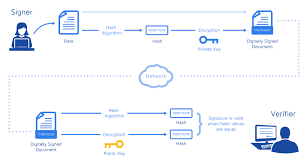
Digital Signatures: A Guide to Signing Documents With Cades
In today’s digital age, signing documents digitally has become an essential part of various industries and businesses. With the increasing need for secure and efficient communication, digital signatures have emerged as a reliable solution. In this article, we will delve into the world of digital signatures, focusing on the CAdES (CMS Advanced Electronic Signatures) format.
What is Cades?
CAdES stands for CMS Advanced Electronic Signatures, a type of digital signature that ensures the authenticity and integrity of electronic documents. It uses advanced encryption techniques to protect the document and its contents from unauthorized access or tampering.
Differences Between Cades And Other Formats
Before we dive into how to sign documents with CAdES, it’s essential to understand the differences between this format and others like PAdES (PDF Advanced Electronic Signatures), XAdES (XML Advanced Electronic Signatures), and ASiC-And (Associated Signature Containers).
- Pades: This format is specifically designed for PDF files and allows for graphic or invisible signatures.
- Xades: This format can be used to sign XML documents, ensuring the authenticity and integrity of the file’s contents.
- Asic-and: This format creates a container that includes multiple digital signatures and temporal marks in ZIP format.
Signing Documents With Cades
To sign a document using the CAdES format, you’ll need to follow these steps:
- Obtain a Digital Signature: If you haven’t already, obtain a digital signature from an accredited certification authority (CA).
- Choose The Correct Software: Select the appropriate software for your CA and the type of document you want to sign (e.G., Adobe Sign or FirmaOK!).
- Access The Software With Your Credentials: Log in to the software using your digital signature credentials.
- Select The Document to Sign: Choose the document you want to sign from the available options.
- Choose The Cades Format: Select the CAdES format as the signing option.
- Enter Additional Information (optional): If required, enter any necessary information, such as your name and contact details.
- Sign The Document: Click “Continue” to complete the signing process.
Signing Documents on Mobile Devices
You can also sign documents using mobile devices like smartphones and tablets. For example, with Aruba’s app for Android and iOS, you can:
- Open the app and select the document you want to sign.
- Choose the CAdES format as the signing option.
- Enter any additional information required.
- Sign the document using your digital signature.
Conclusion
Signing documents with CAdES provides a secure and efficient way to ensure the authenticity and integrity of electronic documents. By understanding the differences between this format and others, you can make informed decisions about which one suits your needs best. Remember to follow the correct procedure for signing documents using the CAdES format, and don’t hesitate to reach out if you have any questions or need further guidance.
Frequently Asked Questions (FAQs)
-
What is Cades?
CAdES stands for CMS Advanced Electronic Signatures, a type of digital signature that ensures the authenticity and integrity of electronic documents.
-
How Does Cades Differ From Other Formats Like Pades, Xades, And Asic-and?
Each format has its unique features:
* PAdES is specifically designed for PDF files.
* XAdES can be used to sign XML documents.
* ASiC-And creates a container that includes multiple digital signatures and temporal marks in ZIP format. -
How do I Obtain a Digital Signature?
You’ll need to get a digital signature from an accredited certification authority (CA).
-
What Software Can I Use to Sign Documents With Cades?
Select the appropriate software for your CA and the type of document you want to sign.
-
Can I Sign Documents on Mobile Devices?
Yes, with Aruba’s app for Android and iOS, you can sign documents using your digital signature.
-
What Are The Benefits of Signing Documents With Cades?
The main advantages include:
* Enhanced security through encryption
* Efficient communication through secure signatures
* Convenience in accessing signed documents


